> For the complete documentation index, see [llms.txt](https://academy.pentaho.com/llms.txt). Markdown versions of documentation pages are available by appending `.md` to page URLs; this page is available as [Markdown](https://academy.pentaho.com/pentaho-data-integration/data-integration/data-sources/databases/cruid/insert-update-db.md).
# Insert / Update DB
Insert new employees and update existing employees using the Insert/Update step.
{% hint style="warning" %}
#### Workshop - Insert / Update DB
Synchronize a file feed to the `EMPLOYEES` table.\
Some rows already exist. Others are new.
This pattern is called **upsert**: update if found, insert if not.
**What you’ll do**
* Read a mixed employee feed with **Text file input**
* Upsert into `EMPLOYEES` with **Insert/Update**
* Validate inserted and updated rows with SQL
**Prerequisites**
* A working database connection. See [Database Connections](/pentaho-data-integration/data-integration/data-sources/databases/cruid/database-connections.md).
* Basic primary key concepts (`EMPLOYEENUMBER`)
**Estimated time:** 20 minutes
{% endhint %}
***
{% hint style="info" %}
**Workshop files**
Create a file named `employees_insert_update.txt`.\
Save it in the same folder as your transformation.
This workshop assumes a comma-delimited file with **no header row**:
```
1188,Firrelli,Julianne,x2174,jfirrelli@classicmodelcars.com,2,1143,Sales Manager
1619,King,Tom,x6324,tking@classicmodelcars.com,6,1088,Sales Rep
1810,Lundberg,Anna,x910,alundberg@classicmodelcars.com,2,1143,Sales Rep
1811,Schulz,Chris,x951,cschulz@classicmodelcars.com,2,1143,Sales Rep
```
{% endhint %}
***
Insert / Update
{% hint style="info" %}
**Create a new transformation**
Use any of these options to open a new transformation tab:
* Select **File** > **New** > **Transformation**
* Use `Ctrl+N` (Windows/Linux) or `Cmd+N` (macOS)
{% endhint %}
***
{% tabs %}
{% tab title="1. Text file input" %}
{% hint style="info" %}
#### Text file input
Read the incoming mixed feed from `employees_insert_update.txt`.
{% endhint %}
1. Start Spoon.
{% hint style="info" %}
{% tabs %}
{% tab title="Windows (PowerShell)" %}
```powershell
Set-Location C:\Pentaho\design-tools\data-integration
.\spoon.bat
```
{% endtab %}
{% tab title="macOS / Linux" %}
```bash
cd ~/Pentaho/design-tools/data-integration
./spoon.sh
```
{% endtab %}
{% endtabs %}
{% endhint %}
2. Drag **Text file input** onto the canvas.
3. Open the step properties.
4. Configure the file path:
* **File:** `${Internal.Transformation.Filename.Directory}/employees_insert_update.txt`
Text File input - File
{% hint style="info" %}
If `${Internal.Transformation.Filename.Directory}` is empty, save the transformation first.
{% endhint %}
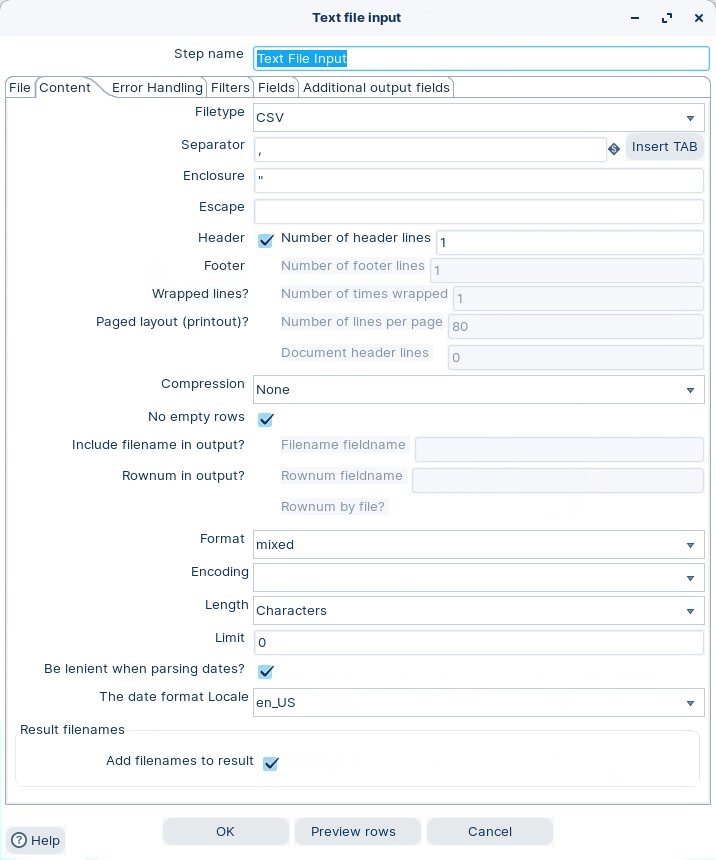
5. Select **Content**. Use the same delimiter settings as the screenshot.
Text file input - Content
6. Select **Get Fields**.
7. On **Fields**, confirm you have these stream fields:
* `EMPLOYEE_NUMBER`
* `LASTNAME`
* `FIRSTNAME`
* `EXTENSION`
* `EMAIL`
* `OFFICECODE`
* `REPORTSTO`
* `JOBTITLE`
Text File input - Fields
8. Optional: select **Preview**. Confirm you get 4 rows.
9. Select **OK**.
{% hint style="success" %}
Checkpoint: Preview shows 4 employee rows.
{% endhint %}
{% endtab %}
{% tab title="2. Insert / Update" %}
{% hint style="info" %}
#### Insert / Update
Upsert into the `EMPLOYEES` table.
{% endhint %}
1. Drag **Insert / Update** onto the canvas.
2. Create a hop from **Text file input** to **Insert / Update**.
3. Open the step properties.
4. Select your database **Connection**.
5. Set **Target table** to `EMPLOYEES`.
Insert / update options
{% hint style="info" %}
**Key lookup**
Map the table key `EMPLOYEENUMBER` to the stream field `EMPLOYEE_NUMBER`.
**Update fields**
Select **Get update fields**. Then confirm mappings are correct.
Do not add `EMPLOYEENUMBER` as an update field.
{% endhint %}
{% hint style="warning" %}
Do not enable **Update the keys**.
{% endhint %}
6. Select **OK**.
{% endtab %}
{% tab title="3. Run and validate" %}
{% hint style="info" %}
#### Run and validate
Run the transformation. Then validate the results in the database.
{% endhint %}
1. Select **Run** in the canvas toolbar.
2. In **Execution Results**, open **Step Metrics**.
Step metrics
{% hint style="info" %}
Expect a mix of inserts and updates, depending on your starting data.\
You should see activity in the Insert/Update step metrics.
{% endhint %}
3. Verify the four employees exist:
```sql
select * from EMPLOYEES
where EMPLOYEENUMBER in ('1188','1619','1810','1811');
```
Insert / Update Employees
{% hint style="success" %}
Checkpoint: All four `EMPLOYEENUMBER` values exist in `EMPLOYEES`.
{% endhint %}
{% endtab %}
{% endtabs %}
Troubleshooting
**All rows updated (no inserts)**\
Those employee numbers already exist in `EMPLOYEES`.
**All rows inserted (no updates)**\
Your `EMPLOYEENUMBER` values were not found, or key mapping is wrong.
**Duplicate key errors**\
You likely used **Table Output** instead of **Insert/Update**, or you mapped keys incorrectly.
**Updates affect too many rows**\
Ensure `EMPLOYEENUMBER` is unique in your table. Fix duplicates before you upsert.
---
# Agent Instructions
This documentation is published with GitBook. GitBook is the documentation platform designed so that both humans and AI agents can read, navigate, and reason over technical content effectively. Learn more at gitbook.com.
## Querying This Documentation
If you need additional information that is not directly available in this page, you can query the documentation by asking a question.
Perform an HTTP GET request on the following URL with the `ask` and `goal` query parameters:
```
GET https://academy.pentaho.com/pentaho-data-integration/data-integration/data-sources/databases/cruid/insert-update-db.md?ask=&goal=
```
`ask` is the immediate question: it should be specific, self-contained, and written in natural language.
`goal` is what the user is ultimately trying to achieve, the reason they need the answer. Sharing it helps GitBook give you a better, more relevant answer. A goal is most helpful when it describes the outcome the user wants rather than restating the question. For example, with `ask=how do I create an API token`, a goal like `automate deployments from our CI pipeline` lets GitBook tailor the answer to that use case.
The response will contain a direct answer to the question and relevant excerpts and sources from the documentation.
Use this mechanism when the answer is not explicitly present in the current page, you need clarification or additional context, or you want to retrieve related documentation sections.

.png?alt=media)