> For the complete documentation index, see [llms.txt](https://academy.pentaho.com/llms.txt). Markdown versions of documentation pages are available by appending `.md` to page URLs; this page is available as [Markdown](https://academy.pentaho.com/pentaho-data-integration/data-integration/enrich-data/joins/database-join.md).
# Database Join
A self join or recursive join .. or is it ?
{% hint style="warning" %}
**Workshop - Database Join**
Searching for information in databases, text files, web services, and so on, is a very common task. In this workshop we're going to query the Products table for products are listed below a set buy price.
The database join isn't actually a join, but a series of queries against the table based on set conditions. Be aware this results in a performance hit.
{% endhint %}
Database Join
***
{% tabs %}
{% tab title="English" %}
{% endtab %}
{% tab title="Second Tab" %}
{% endtab %}
{% endtabs %}
{% hint style="info" %}
**Create a new Transformation**
Any one of these actions opens a new Transformation tab for you to begin designing your transformation.
* By clicking File > New > Transformation
* By using the CTRL-N hot key
{% endhint %}
{% tabs %}
{% tab title="1. Data Grid" %}
{% hint style="info" %}
**Data grid**
The Data grid step allows you to enter a static list of rows in a grid. This is usually done for testing, reference or demo purposes.
{% endhint %}
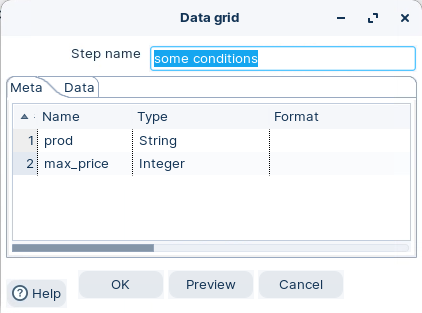
1. Drag the Data grid step onto the canvas.
2. Open the Data grid properties dialog box.
3. Ensure the following details are configured, as outlined below:
Data grid - Meta
Data grid - Data
{% endtab %}
{% tab title="2. Database Join" %}
{% hint style="info" %}
**Database Join**
The Database Join step allows you to run a query against a database using data obtained from previous steps. The parameters for this query are specified as follows:
* The data grid in the step properties dialog. This allows you to select the data coming in from the source hop.
* As question marks (?) in the SQL query. When the step runs, these will be replaced with data coming in from the fields defined from the data grid. The question marks will be replaced in the same order as defined in the data grid.
{% endhint %}
1. Drag the Database Join step onto the canvas.
2. Open the Database Join properties dialog box.
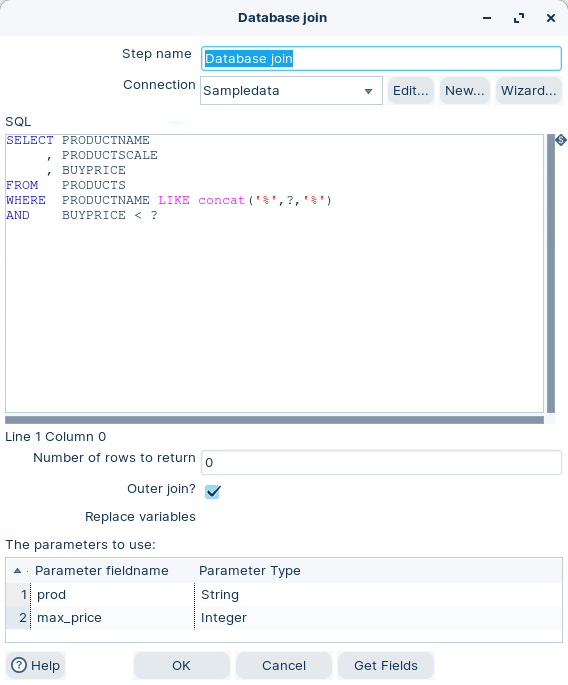
3. Ensure the following details are configured, as outlined below:
Database join
{% hint style="info" %}
The ‘Parameter fieldname’ is where you specify the parameters, therefore the values, for the conditions. Each row in the grid represents a comparison between a column in the table, and a field in your stream, by using one of the provided comparators.
**LIKE** matches values. You can't alias a column in the select clause and then use it in the where clause
The question marks you type in the SQL statement represent parameters. The purpose of these parameters is to be replaced with the fields you provide in ‘Parameter fieldname’. For each row in the stream, the Database join step replaces the parameters in the same order as they are in the grid, and executes the SQL statement.
So, let’s look at the WHERE conditions entered:
PRODUCTNAME LIKE like\_statement and BUYPRICE < max\_price
For the first record this translates as:
WHERE PRODUCTNAME LIKE concat ('%','Aston Martin','%') AND BUYPRICE < 90
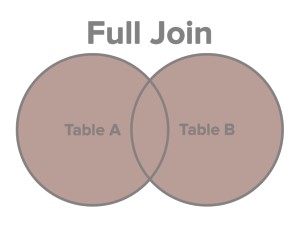
As the Outer Join option is checked The FULL OUTER JOIN keyword returns all rows from the left table and from the right table. The FULL OUTER JOIN keyword combines the result of both LEFT and RIGHT joins.
The table dataset A is then compared with the stream dataset B. If there’s a match, then values for PRODUCTNAME and PRODUCTSCALE are returned.
*This is not a database join. Instead of joining tables in a database, you are joining the result of a database query with a dataset.*
For the second record:
WHERE PRODUCTNAME LIKE concat ('%','Ford Falcon','%') AND BUYPRICE < 70
As there is no record, NULL values are returned for:
PRODUCTNAME and PRODUCTSCALE.
So far, the results could be achieved using a Database Lookup step. However, there is a significant difference, as illustrated with the third row. For Corvette, the Database join found two matching rows in the database, and retrieved them both. Not possible with a Database lookup step.
{% endhint %}
{% endtab %}
{% tab title="3. RUN" %}
{% hint style="info" %}
**RUN**
A Database Join involves running a bunch of queries with condition against a table. Useful when you're expecting to return a few records.
{% endhint %}
1. Click the Run button in the Canvas Toolbar.
2. Click on the Preview tab:
Results
{% hint style="info" %}
Note that there is more than one Corvette product. The database join is querying the table to return all the values, even NULL.
{% endhint %}
{% endtab %}
{% endtabs %}
---
# Agent Instructions
This documentation is published with GitBook. GitBook is the documentation platform designed so that both humans and AI agents can read, navigate, and reason over technical content effectively. Learn more at gitbook.com.
## Querying This Documentation
If you need additional information that is not directly available in this page, you can query the documentation by asking a question.
Perform an HTTP GET request on the following URL with the `ask` and `goal` query parameters:
```
GET https://academy.pentaho.com/pentaho-data-integration/data-integration/enrich-data/joins/database-join.md?ask=&goal=
```
`ask` is the immediate question: it should be specific, self-contained, and written in natural language.
`goal` is what the user is ultimately trying to achieve, the reason they need the answer. Sharing it helps GitBook give you a better, more relevant answer. A goal is most helpful when it describes the outcome the user wants rather than restating the question. For example, with `ask=how do I create an API token`, a goal like `automate deployments from our CI pipeline` lets GitBook tailor the answer to that use case.
The response will contain a direct answer to the question and relevant excerpts and sources from the documentation.
Use this mechanism when the answer is not explicitly present in the current page, you need clarification or additional context, or you want to retrieve related documentation sections.



 The table dataset A is then compared with the stream dataset B. If there’s a match, then values for PRODUCTNAME and PRODUCTSCALE are returned.
*This is not a database join. Instead of joining tables in a database, you are joining the result of a database query with a dataset.*
For the second record:
WHERE PRODUCTNAME LIKE concat ('%','Ford Falcon','%') AND BUYPRICE < 70
As there is no record, NULL values are returned for:
PRODUCTNAME and PRODUCTSCALE.
So far, the results could be achieved using a Database Lookup step. However, there is a significant difference, as illustrated with the third row. For Corvette, the Database join found two matching rows in the database, and retrieved them both. Not possible with a Database lookup step.
{% endhint %}
{% endtab %}
{% tab title="3. RUN" %}
{% hint style="info" %}
**RUN**
A Database Join involves running a bunch of queries with condition against a table. Useful when you're expecting to return a few records.
{% endhint %}
1. Click the Run button in the Canvas Toolbar.
2. Click on the Preview tab:
The table dataset A is then compared with the stream dataset B. If there’s a match, then values for PRODUCTNAME and PRODUCTSCALE are returned.
*This is not a database join. Instead of joining tables in a database, you are joining the result of a database query with a dataset.*
For the second record:
WHERE PRODUCTNAME LIKE concat ('%','Ford Falcon','%') AND BUYPRICE < 70
As there is no record, NULL values are returned for:
PRODUCTNAME and PRODUCTSCALE.
So far, the results could be achieved using a Database Lookup step. However, there is a significant difference, as illustrated with the third row. For Corvette, the Database join found two matching rows in the database, and retrieved them both. Not possible with a Database lookup step.
{% endhint %}
{% endtab %}
{% tab title="3. RUN" %}
{% hint style="info" %}
**RUN**
A Database Join involves running a bunch of queries with condition against a table. Useful when you're expecting to return a few records.
{% endhint %}
1. Click the Run button in the Canvas Toolbar.
2. Click on the Preview tab:
.png?alt=media)