> For the complete documentation index, see [llms.txt](https://academy.pentaho.com/llms.txt). Markdown versions of documentation pages are available by appending `.md` to page URLs; this page is available as [Markdown](https://academy.pentaho.com/pentaho-data-integration/data-integration/data-sources/storage/minio.md).
# MinIO
Access S3 type Object Store - VFS (Virtual File System) ..
{% hint style="info" %}
#### **MinIO**
MinIO is a high-performance, Kubernetes-native object storage system designed for cloud-native applications. Built from the ground up to be compatible with Amazon S3, MinIO offers a lightweight yet powerful alternative for organizations looking to deploy object storage in their own infrastructure.
At its core, MinIO provides distributed object storage with performance characteristics. It's capable of handling millions of operations per second and can store petabytes of data while maintaining sub-millisecond latency. This performance is achieved through a simplified architecture that eliminates complex dependencies and optimizes for modern hardware capabilities.
One of MinIO's key strengths lies in its versatility. It can be deployed virtually anywhere - from bare metal servers to public, private, and edge cloud environments. Organizations particularly value its seamless integration with Kubernetes, making it an ideal choice for containerized environments. MinIO's open-source nature also provides transparency and flexibility that many enterprises require for their data infrastructure needs.
{% endhint %}
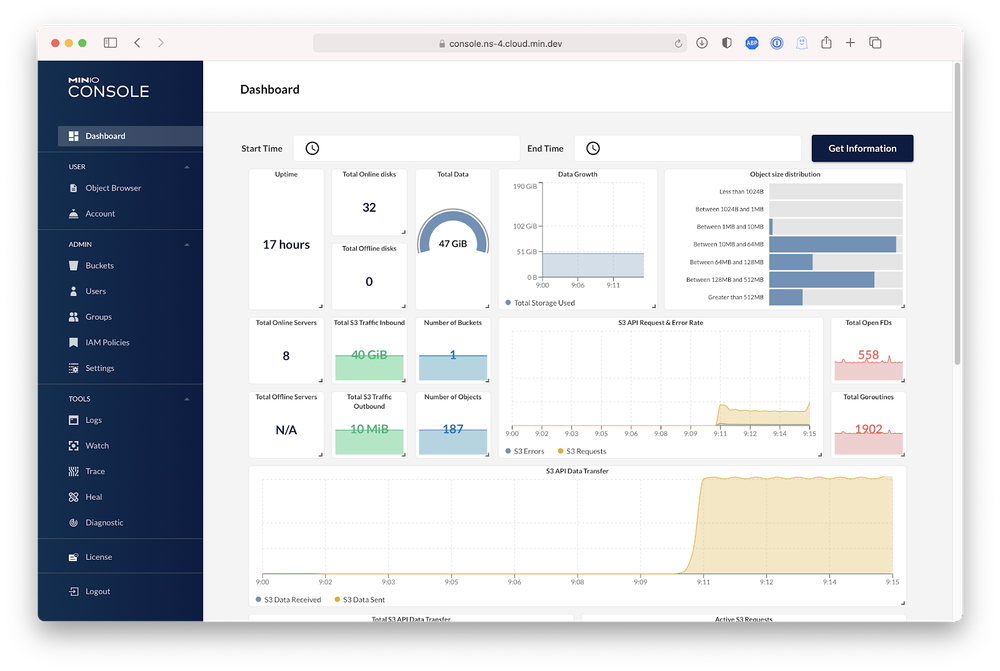
MinIO
{% embed url="" %}
Link to MinIO
{% endembed %}
***
---
# Agent Instructions
This documentation is published with GitBook. GitBook is the documentation platform designed so that both humans and AI agents can read, navigate, and reason over technical content effectively. Learn more at gitbook.com.
## Querying This Documentation
If you need additional information that is not directly available in this page, you can query the documentation dynamically by asking a question.
Perform an HTTP GET request on the current page URL with the `ask` query parameter, and the optional `goal` query parameter:
```
GET https://academy.pentaho.com/pentaho-data-integration/data-integration/data-sources/storage/minio.md?ask=&goal=
```
`ask` is the immediate question: it should be specific, self-contained, and written in natural language.
`goal` is optional and describes the broader end goal you are ultimately trying to accomplish on behalf of the user. GitBook uses it to tailor the answer towards what is most useful for that goal.
The response will contain a direct answer to the question and relevant excerpts and sources from the documentation.
Use this mechanism when the answer is not explicitly present in the current page, you need clarification or additional context, or you want to retrieve related documentation sections.