# My First Dashboard

{% hint style="warning" %}

#### Workshop - My First Dashboard

Building effective dashboards is both an art and a science, requiring the ability to transform complex data into clear, actionable insights through compelling visualizations. In this comprehensive workshop, you'll master the Community Dashboard Editor (CDE), learning how to create professional, interactive dashboards that leverage Pentaho's powerful OLAP capabilities and the flexibility of CTools components. Using the SteelWheels sample dataset, you'll build a complete dashboard from the ground up, gaining hands-on experience with layout design, chart creation, and component configuration that forms the foundation for all enterprise dashboard development.

In this hands-on workshop, you'll experience the complete dashboard development lifecycle, starting with template selection and progressing through layout customization, data connection configuration, and chart component implementation. You'll learn how to work with CDE's three core perspectives - Layout, Components, and Data Sources - to create a cohesive, visually appealing dashboard that presents sales data across multiple dimensions including territory, product line, and time.&#x20;

As you work through the exercises, you'll master essential techniques for customizing headers and footers with HTML, configuring OLAP connections to Mondrian cubes, and fine-tuning chart properties to create polished, professional visualizations. You'll also gain practical experience with database connectivity, learning how to establish and test JDBC connections that power your dashboard's data queries.

**What You'll Accomplish:**

* Launch the Community Dashboard Editor and select an appropriate dashboard template
* Customize dashboard layout structure including rows, columns, and panel containers
* Design professional headers and footers with HTML content and corporate branding
* Configure color schemes and styling to create visually consistent dashboards
* Connect to OLAP data sources using the SteelWheels Mondrian schema
* Understand the relationship between OLAP cubes, dimensions, levels, and measures
* Create multiple chart types using the OLAP Chart Wizard (pie, line, and bar charts)
* Configure chart component properties including titles, legends, and dimensions
* Adjust panel heights and alignments for optimal visual presentation
* Establish JDBC database connections for direct SQL query access
* Install and configure JDBC drivers for MariaDB connectivity
* Test and validate database connections through the Pentaho User Console
* Save and publish completed dashboards to the Pentaho repository
* Preview and iterate on dashboard design to achieve professional results

By the end of this workshop, you'll have created a fully functional sales dashboard that demonstrates best practices in dashboard design and CTools development. You'll understand how to structure dashboard layouts for clarity and impact, leverage OLAP schemas for multidimensional analysis, and configure chart components for effective data visualization.&#x20;

**Prerequisites:** Pentaho Business Analytics Server with CTools installed, SteelWheels sample data and Mondrian schema configured, MySQL JDBC driver available for download\
**Estimated Time:** 30 minutes
{% endhint %}

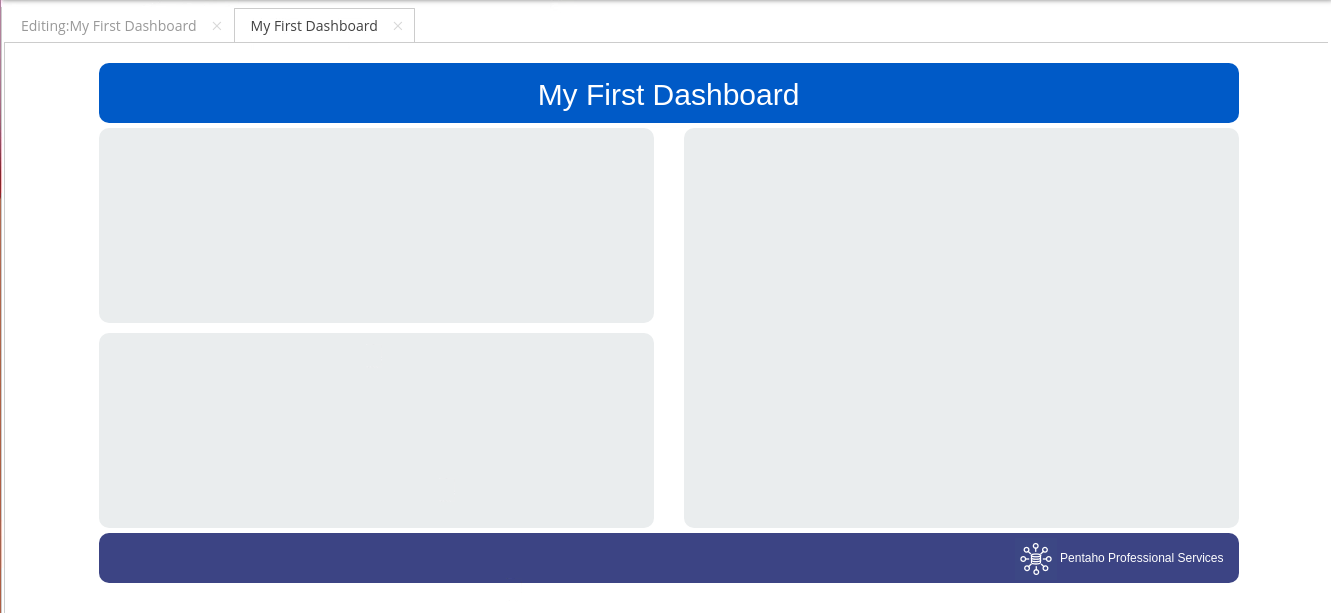
<figure><img src="/files/qnPVdvixT2qraPSj8UT1" alt=""><figcaption><p>My First dashboard</p></figcaption></figure>

{% tabs %}
{% tab title="CDE - Layout" %}
{% hint style="info" %}
Don't worry about all he features & options  ..  We'll be diving into each perspective in the next set of workshops.
{% endhint %}

#### To create a New Dashboard

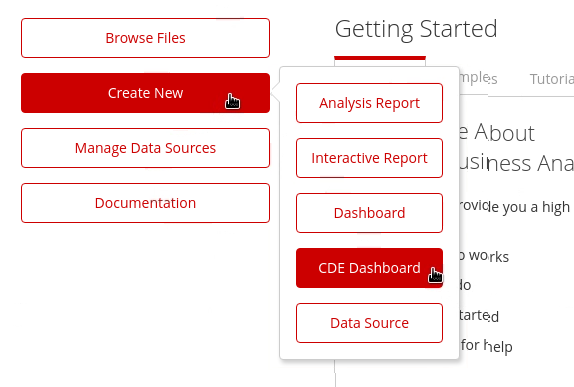
1. Log in Pentaho Server -> Create New -> CDE Dashboard.

<figure><img src="/files/DbANaWjWxLhalCuWstYg" alt=""><figcaption><p>New CDE Dashboard</p></figcaption></figure>

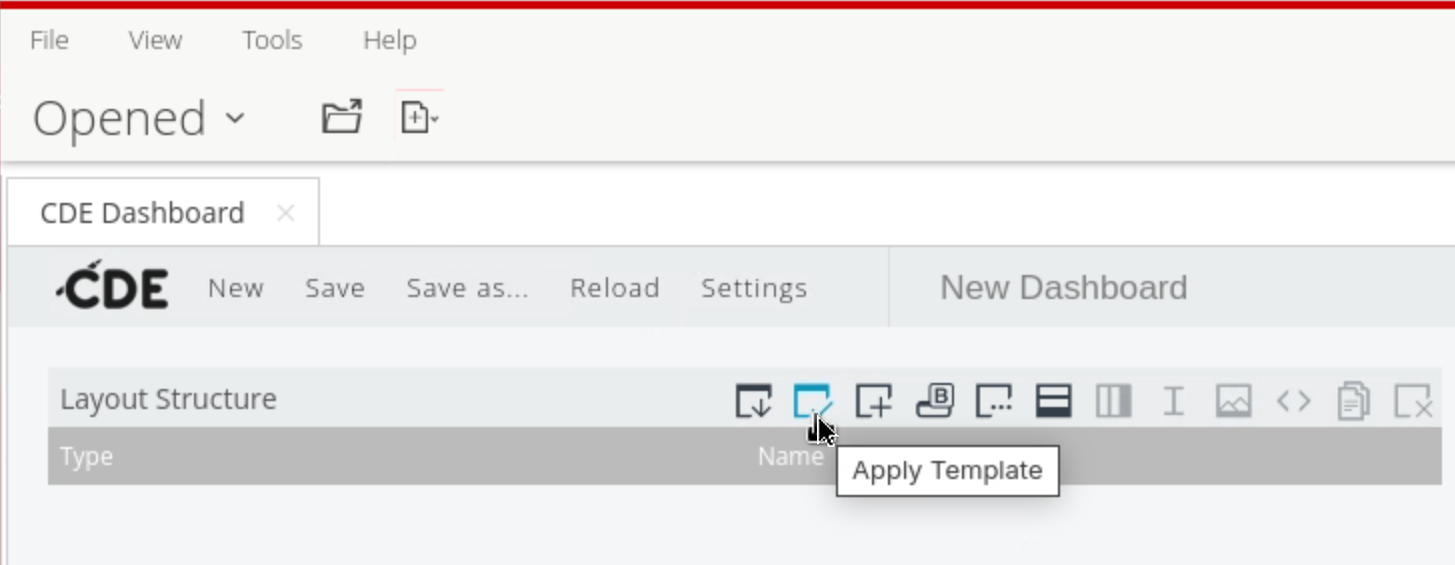
2. Click on the Template option.

<figure><img src="/files/Q1uiLmPrLJPGBxwLpEAQ" alt=""><figcaption><p>Apply a Template</p></figcaption></figure>

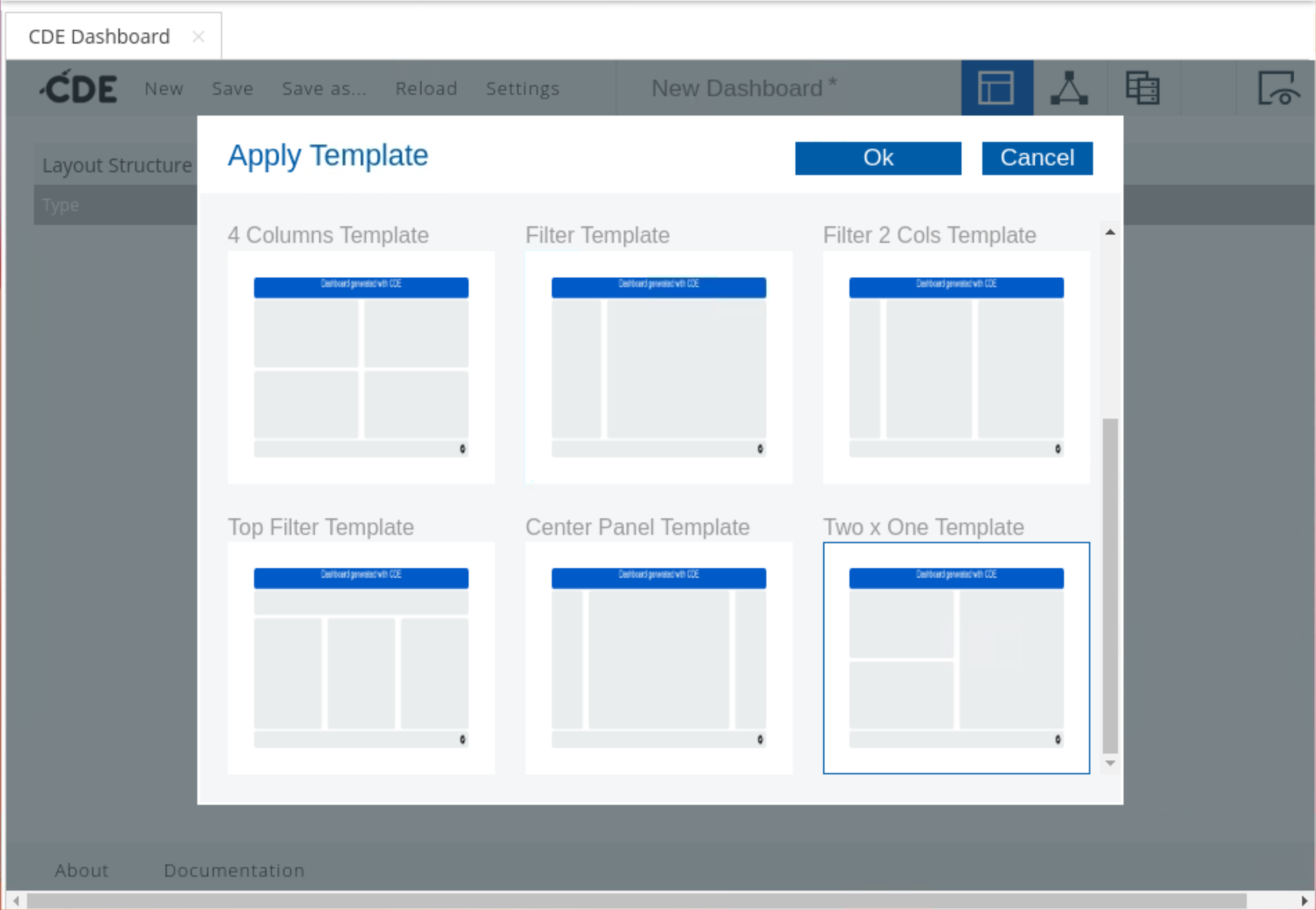
3. Select: Two x One Template

<figure><img src="/files/RbfFcHY3d5MKEqV6TspV" alt=""><figcaption><p>Apply a Template - Two x One</p></figcaption></figure>

{% hint style="info" %}
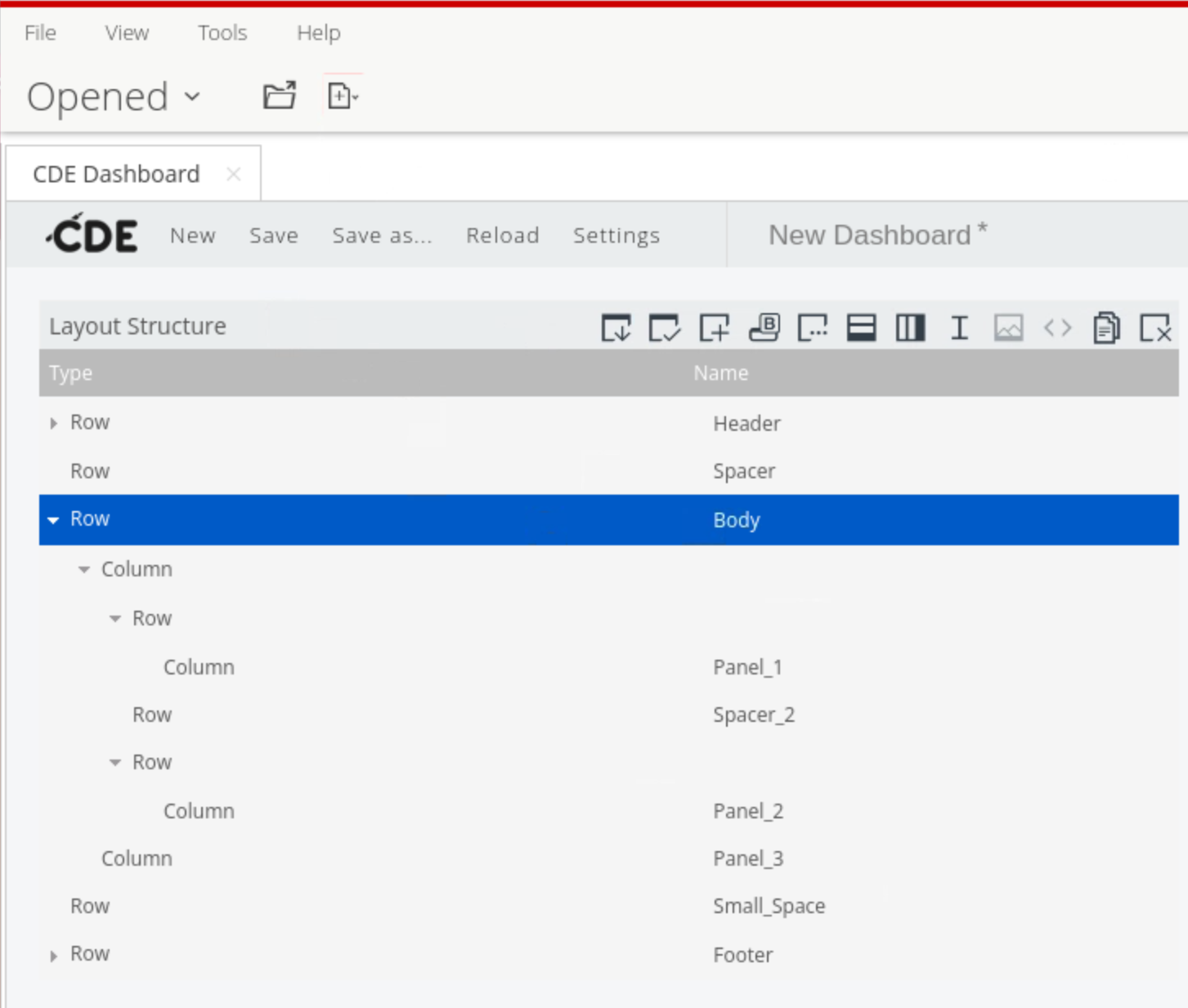
The resulting Dashboard is composed of:

&#x20; • 5 main rows

&#x20; • body row is split into 2 columns

&#x20; • the first column is split into a further 3 rows

&#x20; • the first & third rows have columns which hold Panel\_1 & Panel\_2

&#x20; • Panel\_3 is held in the second column

&#x20; • further rows define header, footer and spacers
{% endhint %}

<figure><img src="/files/cEk292qU6Z95DyM6F7eU" alt=""><figcaption><p>CDE Layout - Two x One</p></figcaption></figure>

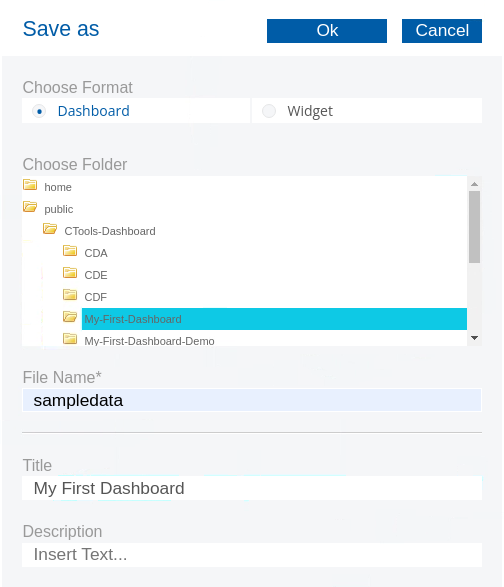
4. Click on 'Save as ..' in the toolbar & enter the following details.

<figure><img src="/files/6C9g8Lj4gC6flNlk9qnN" alt=""><figcaption><p>Save as ..</p></figcaption></figure>

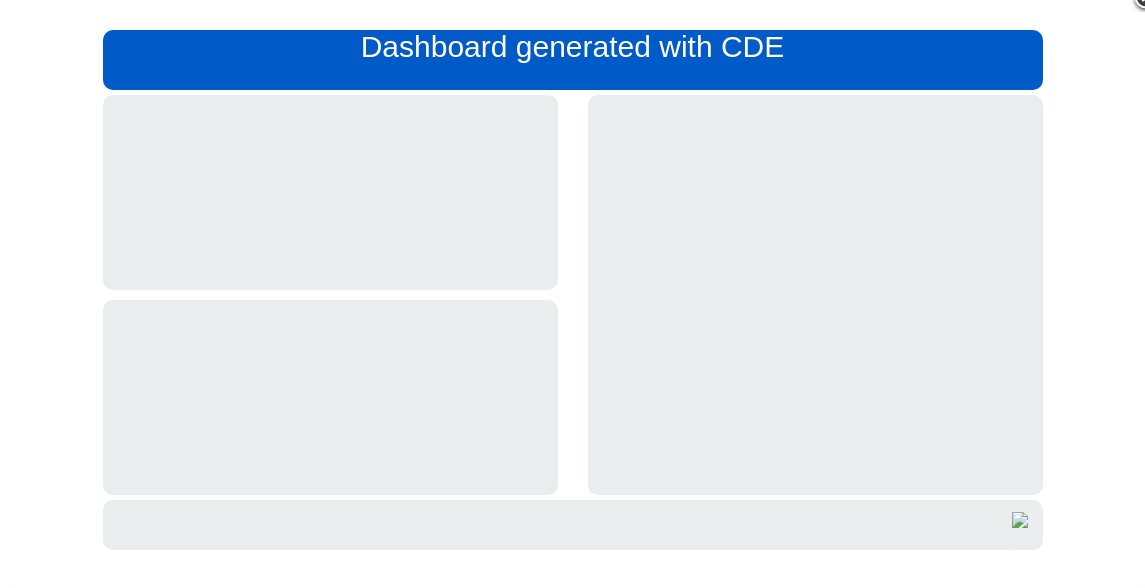
5. Preview the dashboard (eye icon - top right).

<figure><img src="/files/tojD5ENzcwwOvAiU3nFd" alt=""><figcaption><p>Dashboard template - preview</p></figcaption></figure>
{% endtab %}

{% tab title="Header & Footer rows" %}
{% hint style="info" %}
Let's start with the Header & Footer rows..
{% endhint %}

Header Row

1. Expand the Header row until you reach the HTML Property.
2. Click on the ... and edit the HTML - we're going to enter some padding to align the text.

```html
<h2 style="color:#FFFFFF; padding: 15px 0">My First Dashboard</h2> 
```

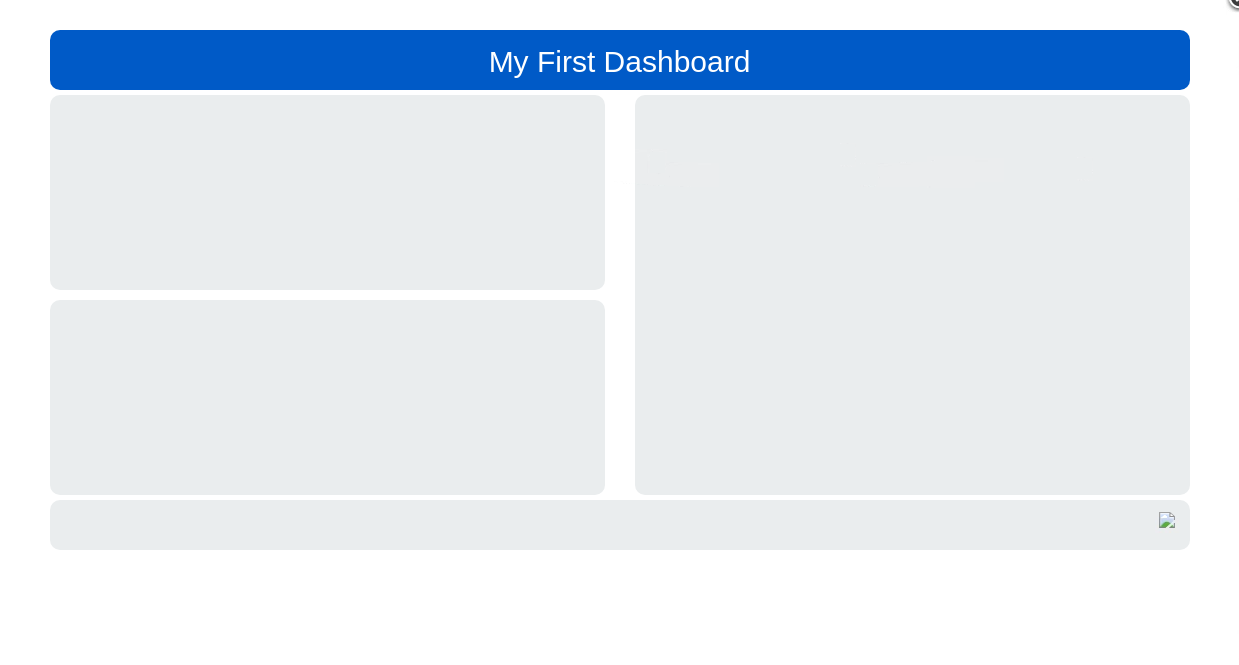
3. Click on the Preview icon - last one in toolbar.

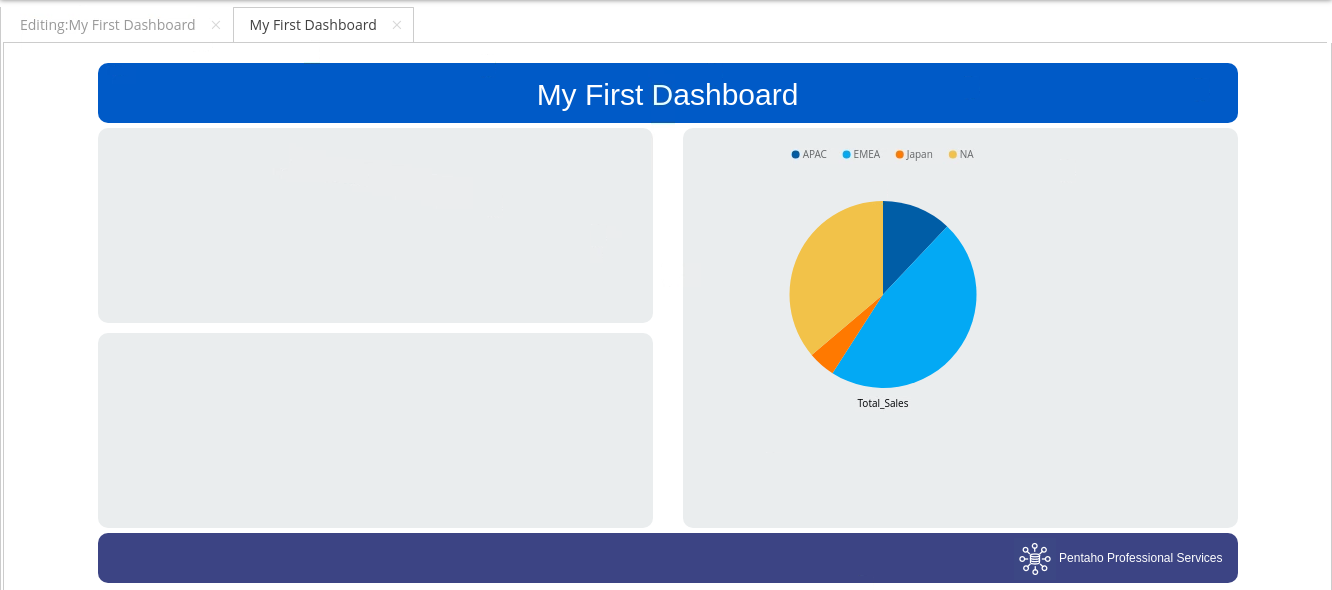
<figure><img src="/files/MUv3EMJQanwbMVW6j5KR" alt=""><figcaption><p>Preview dashboard</p></figcaption></figure>

***

#### Footer

1. Create a folder: /resources/img
2. Upload: logo\_pentaho.png
3. Expand the Footer row until you reach the HTML property.
4. Edit the HTML

```html
<a style="position:relative;top:5px; right:15px; float:right; color:#FFFFFF;" " border="0" title="Pentaho Professional Services" href="https://pentaho.com/pentaho-professional-services/">
<img src="./resources/img/logo.png"/>    Pentaho Professional Services</a>   
```

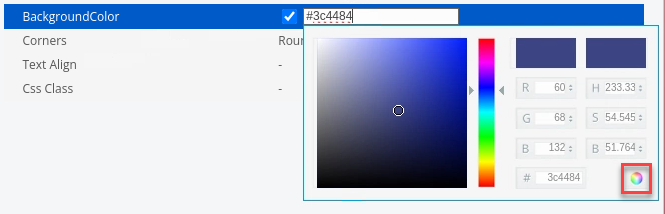
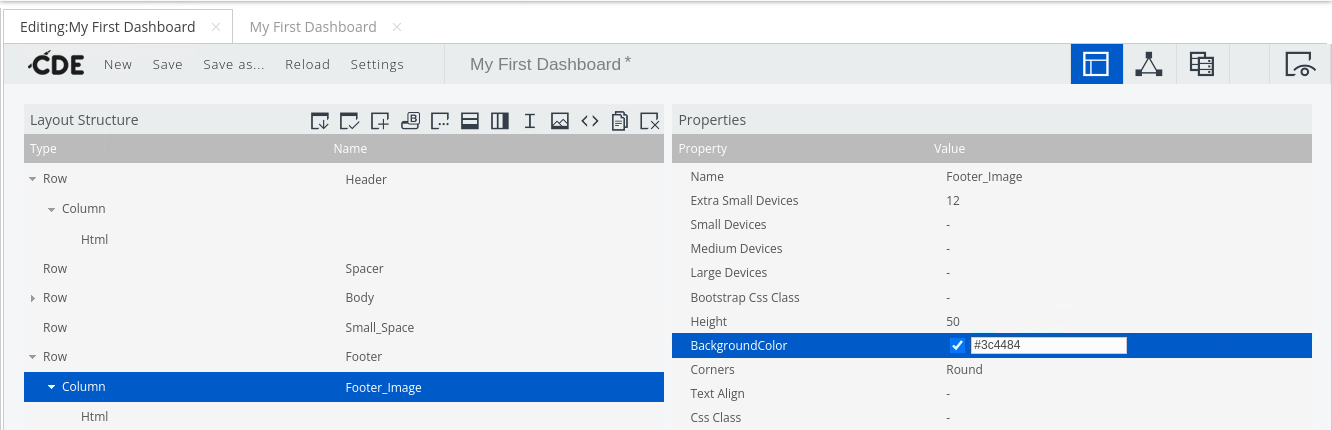
5. Change the Footer column color to match the logo.
<figure><img src="/files/BVpfbwGXLASnSw39ONh9" alt=""><figcaption></figcaption></figure>

```
BackgroundColor: #3c4484
```

{% hint style="warning" %}
Dont forget to click on the color wheel ..
{% endhint %}

<figure><img src="/files/zfdiq79SaCu6Kfd9Mm5L" alt=""><figcaption><p>Color picker</p></figcaption></figure>

6. Save & Preview the dashboard.

<figure><img src="/files/trw2HoS8rbSvGZm4A83S" alt=""><figcaption><p>Dashboard Layout - Header &#x26; Footer</p></figcaption></figure>
{% endtab %}

{% tab title="Charts" %}
{% hint style="info" %}
Bit of background info ..

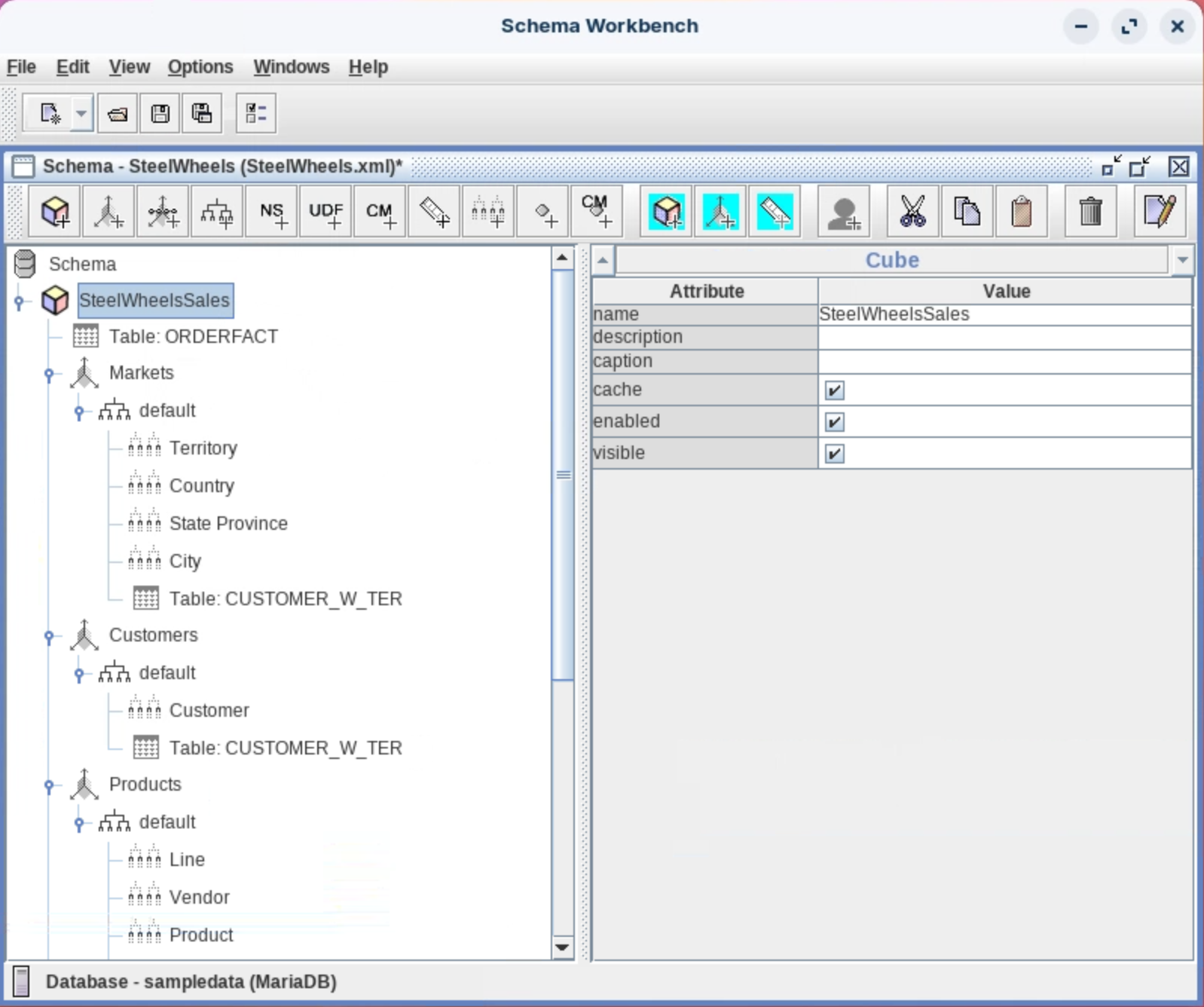
Schema WorkBench is a Pentaho Design Tool used to define a multidimensional MDX schema. &#x20;

&#x20; • Cube - is the FACT table in a STAR schema.

&#x20; • Dimensions - map to the database tables.

&#x20; • Levels - map to the database columns in the table. The order defines the 'paths' you can take to 'slice& dice' the data.
{% endhint %}

<figure><img src="/files/i1TvWp0MQXLPc5XyUoud" alt=""><figcaption><p>SteelWheelsSales OLAP Schema</p></figcaption></figure>

{% hint style="info" %}
If you need to 'slice & dice' your data, then you will have spent many hours in Schema Workbench, defining your OLAP reporting cubes.

CTools - OLAP Chart Wizard - can leverage the schema.xml that connects to the underlying sampledata database tables.

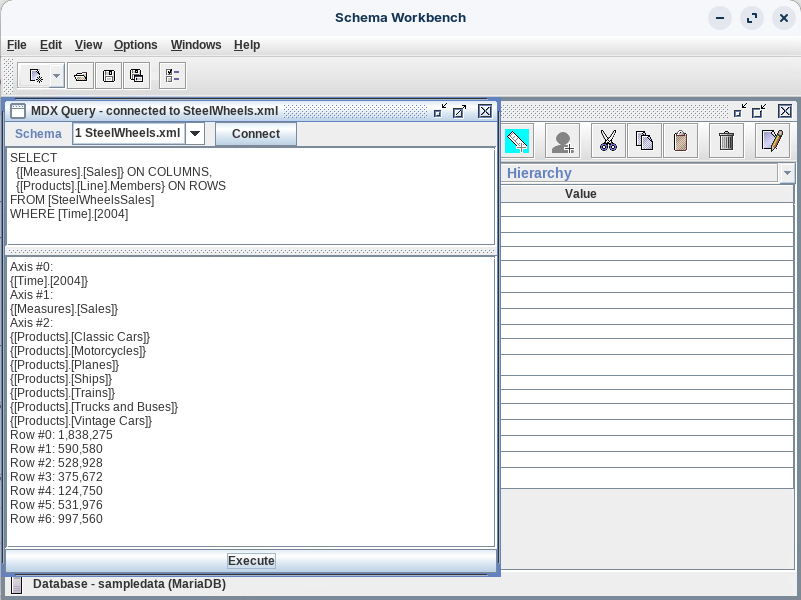
You can test MDX queries against your cubes..
{% endhint %}

<figure><img src="/files/vah9lwdcS1lCQVygXktS" alt=""><figcaption><p>MDX Query</p></figcaption></figure>

***

#### Add a Chart

1. Select: Connection Perspective.

<figure><img src="/files/kblt3G2gOSq3yebkAU8u" alt=""><figcaption><p>Connection Perspective</p></figcaption></figure>

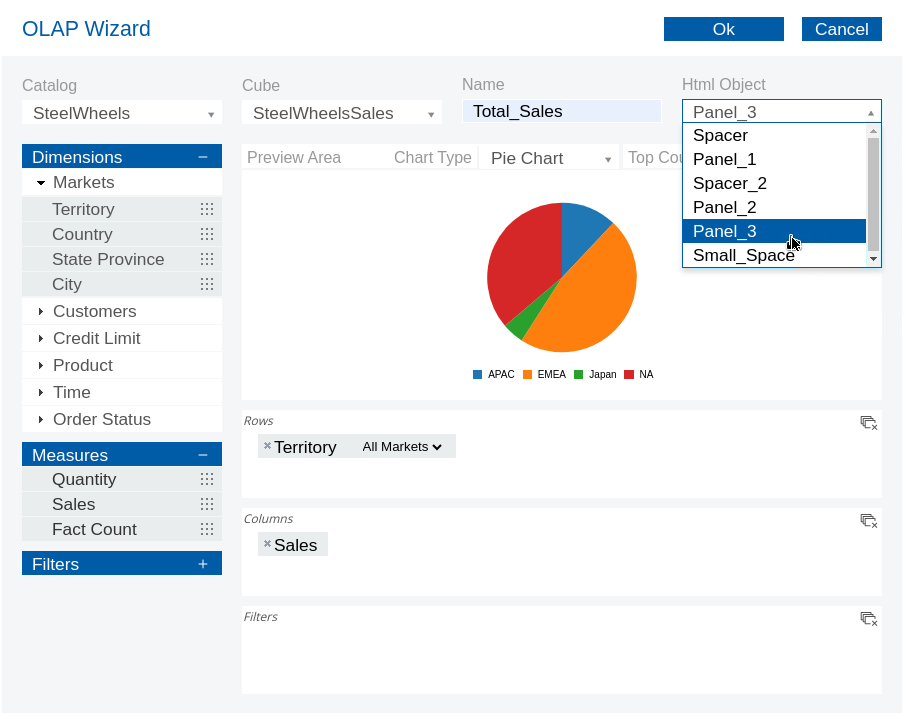
2. Click on OLAP Chart Wizard & enter the following details:

<figure><img src="/files/2jMrgPXpfmkfcoVEfjAS" alt=""><figcaption><p>Pie Chart - Total Sales</p></figcaption></figure>

<table><thead><tr><th width="262">Property</th><th>Value</th></tr></thead><tbody><tr><td>Name</td><td>Total_Sales</td></tr><tr><td>Html Object</td><td>Panel_3</td></tr><tr><td>Catalog</td><td>SteelWheels</td></tr><tr><td>Cube</td><td>SteelWheelsSales</td></tr><tr><td>Dimensions</td><td>Territory</td></tr><tr><td>Measures</td><td>Sales</td></tr></tbody></table>

3. Click OK.
4. Save & Preview dashboard.

<figure><img src="/files/UJTQnmWGRei5BawM7g19" alt=""><figcaption><p>Panel_3 - Total sales</p></figcaption></figure>

{% hint style="info" %}
Looks like we made need to apply a few tweaks to align and so on .. &#x20;

Let's add our other Charts and then take a look at the Chart Components.
{% endhint %}

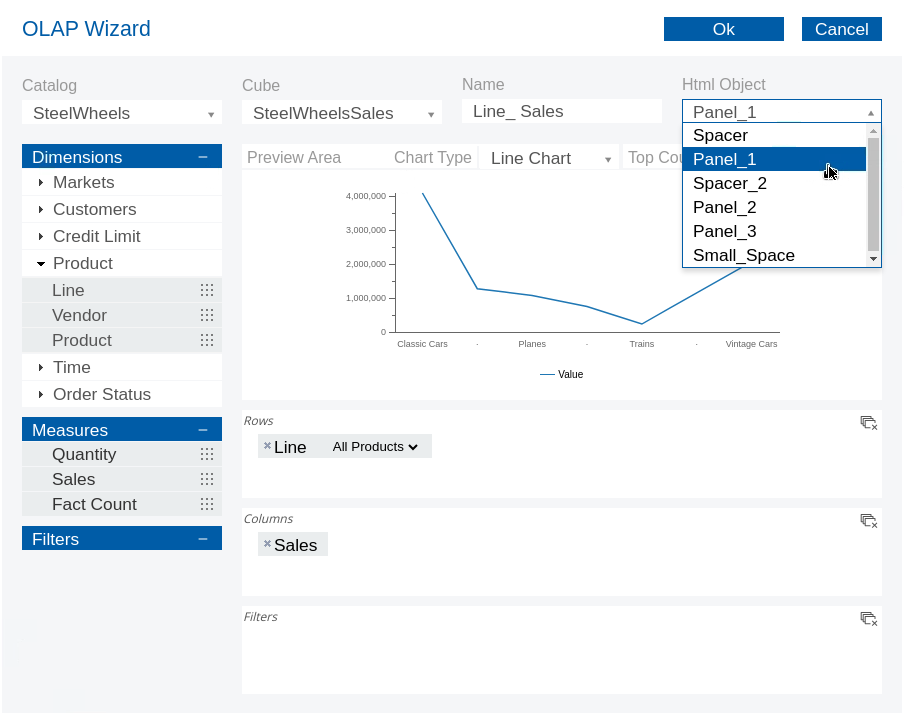
5. Again .. Click on the OLAP Chart Wizard & enter the following details:

<figure><img src="/files/NDmvAX4TSLiZm8P9Q2LW" alt=""><figcaption><p>Line Chart - Line sales</p></figcaption></figure>

<table><thead><tr><th width="240">Setting</th><th>Value</th></tr></thead><tbody><tr><td>Name</td><td>Line_Sales</td></tr><tr><td>Html Object</td><td>Panel_1</td></tr><tr><td>Catalog</td><td>SteelWheels</td></tr><tr><td>Cube</td><td>SteelWheelsSales</td></tr><tr><td>Dimensions</td><td>Line</td></tr><tr><td>Measures</td><td>Sales</td></tr></tbody></table>

6. Click OK.
7. Save.
8. Again .. Click on the OLAP Chart Wizard & enter the following details:

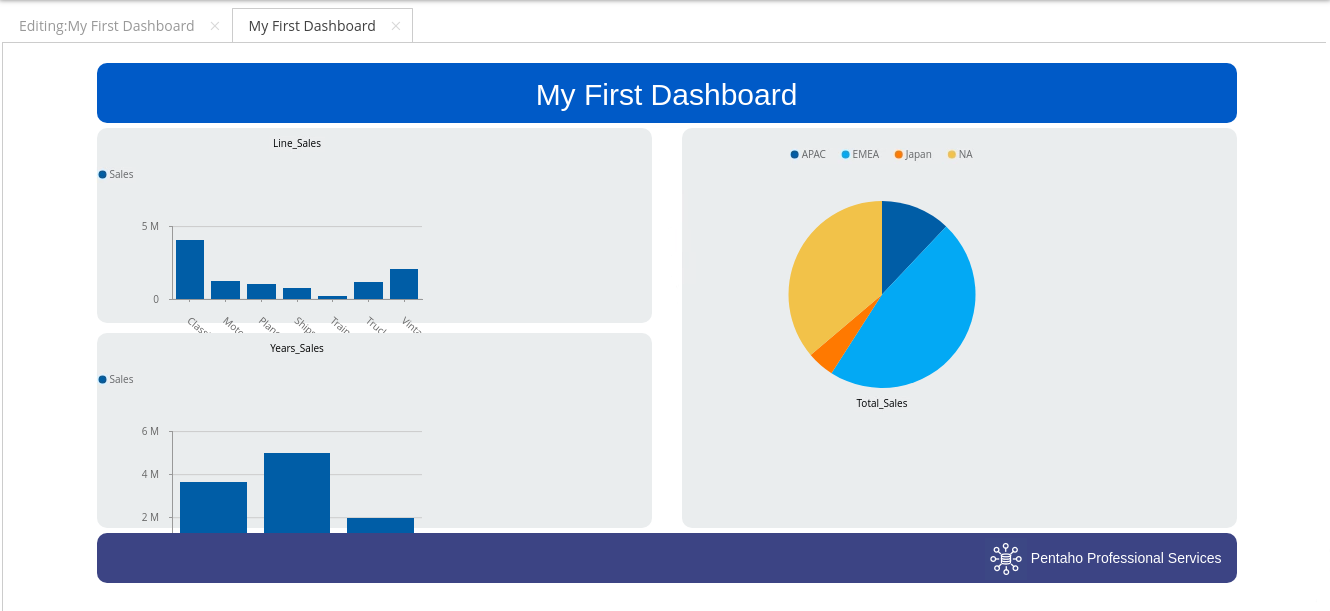
<table><thead><tr><th width="242">Property</th><th>Value</th></tr></thead><tbody><tr><td>Name</td><td>Years_Sales</td></tr><tr><td>Html Object</td><td>Years_Sales</td></tr><tr><td>Catalog</td><td>SteelWhels</td></tr><tr><td>Cube</td><td>SteelWheelsSales</td></tr><tr><td>Dimensions</td><td>Years</td></tr><tr><td>Measures</td><td>Sales</td></tr></tbody></table>

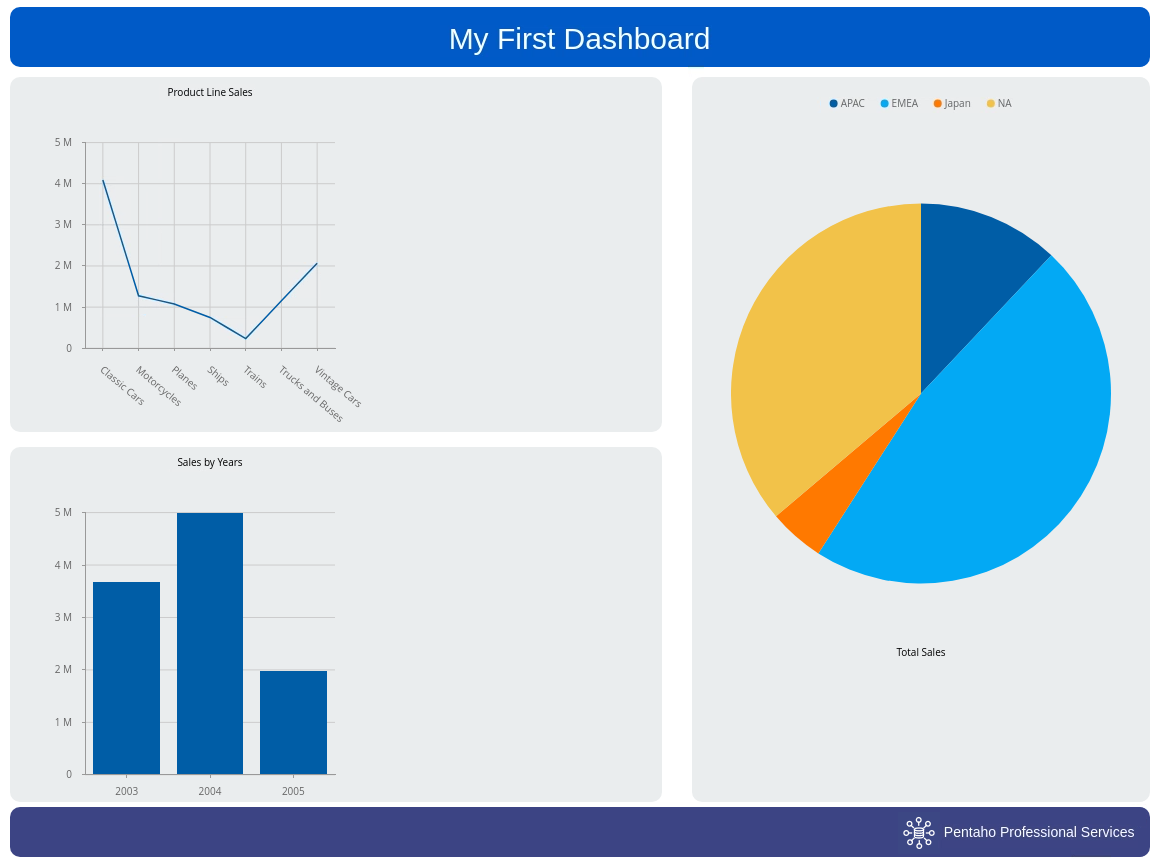
9. Save and Render.

<figure><img src="/files/nP5DyfdWitbuiQuMQYB1" alt=""><figcaption><p>My First Dashboard</p></figcaption></figure>

***

{% hint style="info" %}
These components are configured with a set of Properties.
{% endhint %}

#### Chart Component

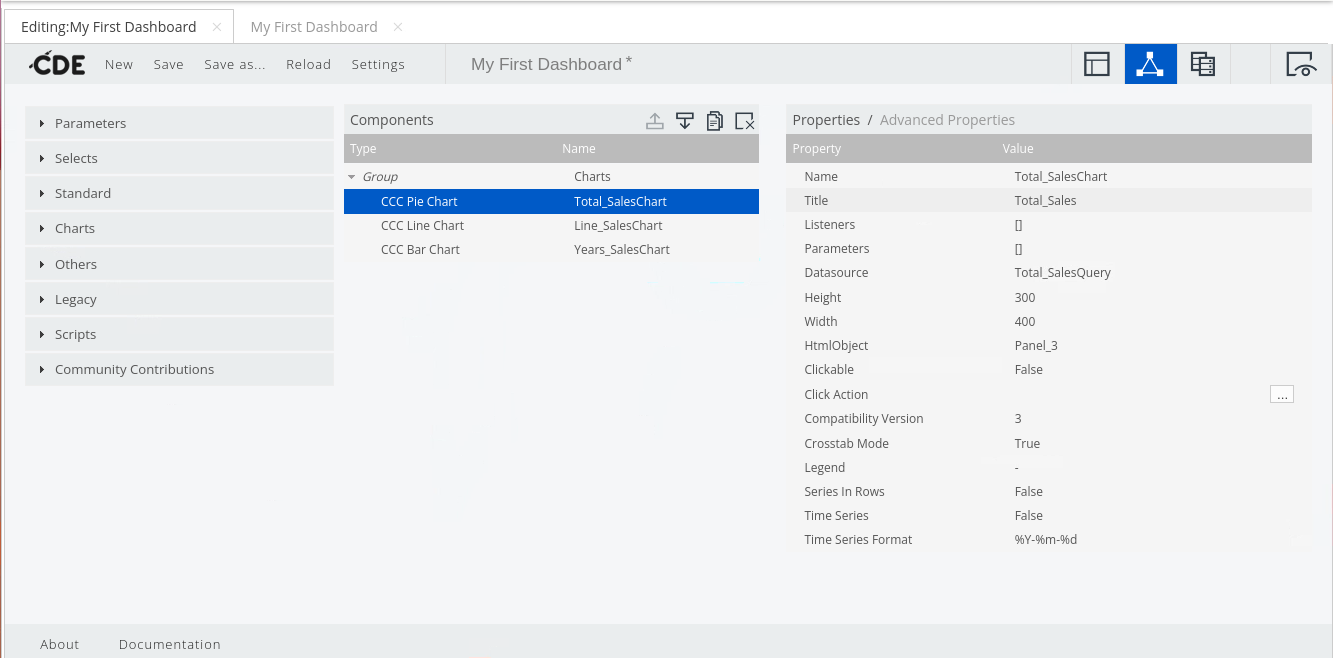
1. Click on the Components option in the toolbar.

<figure><img src="/files/jG6FYUxe9oS8M1VqutNo" alt=""><figcaption><p>Chart Components</p></figcaption></figure>

{% hint style="info" %}
As you can see ..  the Wizard has automatically added 3 Chart components with their associated properties.&#x20;
{% endhint %}

2. Highlight the CCC Pie Chart Component.
3. Edit the following property values:

<table><thead><tr><th width="218">Property</th><th>Value</th></tr></thead><tbody><tr><td>Title</td><td>Total Sales</td></tr><tr><td>Height</td><td>400</td></tr></tbody></table>

4. Highlight the CCC Line Chart Component.
5. Edit the following property values:

<table><thead><tr><th width="220">Property</th><th>Value</th></tr></thead><tbody><tr><td>Title</td><td>Product Line Sales</td></tr><tr><td>Legend</td><td>False</td></tr></tbody></table>

6. Highlight the CCC Bar Chart Component.

<table><thead><tr><th width="223">Property</th><th>Value</th></tr></thead><tbody><tr><td>Title</td><td>Yearly Sales</td></tr><tr><td>Legend</td><td>False</td></tr></tbody></table>

7. Again Save & Preview the dashboard.
   {% endtab %}

{% tab title="Final Layout" %}
{% hint style="info" %}
Unless you have previously created the Charts, you will need to make some adjustments to the Layout.
{% endhint %}

1. Click on the Layout option and enter the following details:

<table><thead><tr><th width="245">Layout Structure</th><th>Property</th><th>Value</th></tr></thead><tbody><tr><td>Row 3  Body</td><td>Height</td><td>720</td></tr><tr><td>Column 1-1 Row 1</td><td>Height</td><td>360</td></tr><tr><td>Column Panel_1</td><td>Height</td><td>355</td></tr><tr><td>Row 3-3</td><td>Height </td><td>360</td></tr><tr><td>Column 1-2 Panel_2</td><td>Height</td><td>355</td></tr><tr><td>Column 2 Panel_3</td><td>Height</td><td>725</td></tr><tr><td></td><td>Text Align</td><td>Center</td></tr></tbody></table>
{% endtab %}

{% tab title="JDBC Connection" %}
{% hint style="info" %}
The Steel Wheels Inc sampledata dataset resides on a MariaDB.

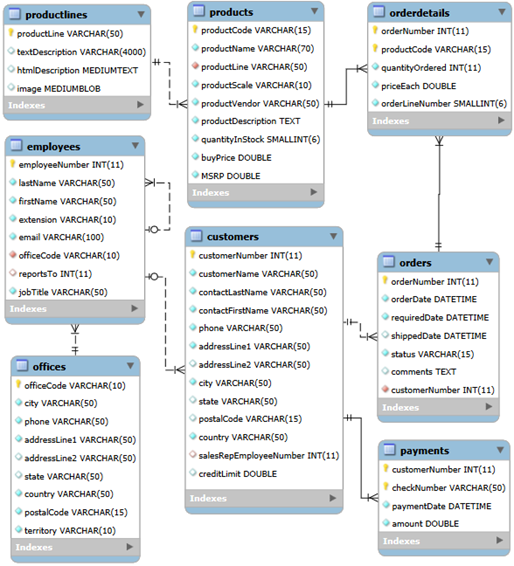
Based on the ER diagram, we can build our SQL Query, restricting to YR 2004.&#x20;
{% endhint %}

<figure><img src="/files/MkKraAC52wW3Ephivzyl" alt=""><figcaption><p>ER - sampledata</p></figcaption></figure>

1. Download the MariaDB JDBC driver.

{% embed url="<https://dbschema.com/databases.html>" %}
Download MariaDB JDBC driver
{% endembed %}

2. Stop the Pentaho Server

```bash
cd
cd /opt/pentaho/server/pentaho-server/
sudo ./stop-pentaho.sh
```

3. Copy the driver to the \~/opt/pentaho/server/pentaho-server/tomcat/lib/ directory.

```
// Some code
```

4. Restart the Pentaho Server.

```bash
cd
cd /opt/pentaho/server/pentaho-server/
sudo ./start-pentaho.sh
```

5. Once logged in select: Manage Data Sources.
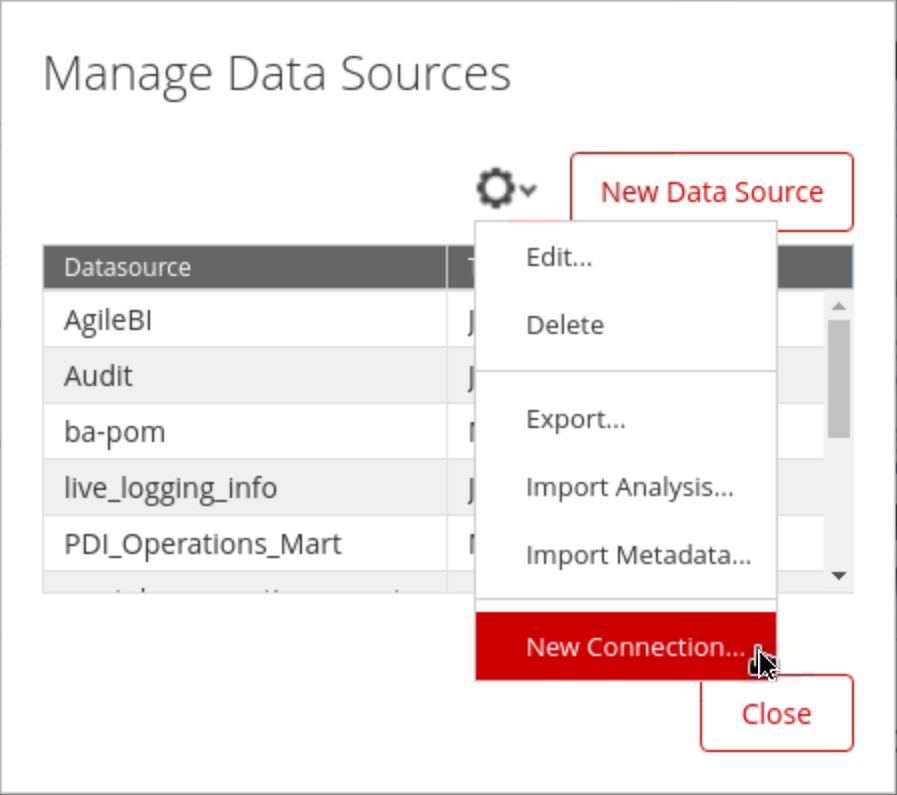
6. Click on the Cog wheel and from the drop-down menu, select: New Connection

<figure><img src="/files/vnP67rq57mKnGP1Cvu47" alt="" width="375"><figcaption><p>New Connection</p></figcaption></figure>

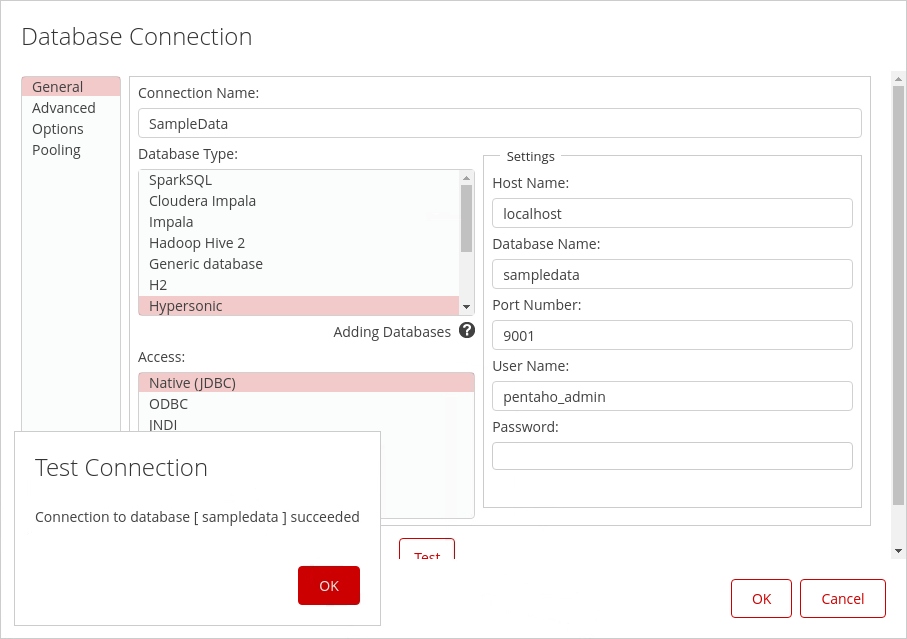
7. Enter your connection details in the selected database panel.

<figure><img src="/files/WCsC91kykaJM6rKFU0ZR" alt=""><figcaption><p>Database connection - SampleData</p></figcaption></figure>

7. Test the database connection.

{% hint style="warning" %}
If connecting to a Mondrian schema, ensure the connection name is the same as the schema connection name.
{% endhint %}
{% endtab %}
{% endtabs %}


---

# Agent Instructions: Querying This Documentation

If you need additional information that is not directly available in this page, you can query the documentation dynamically by asking a question.

Perform an HTTP GET request on the current page URL with the `ask` query parameter:

```
GET https://academy.pentaho.com/pentaho-ctools/c-tools/getting-started/my-first-dashboard.md?ask=<question>
```

The question should be specific, self-contained, and written in natural language.
The response will contain a direct answer to the question and relevant excerpts and sources from the documentation.

Use this mechanism when the answer is not explicitly present in the current page, you need clarification or additional context, or you want to retrieve related documentation sections.