Carrier Dashboard
Wireless Carrier dashboard ..
Workshop - Carrier Dashboard
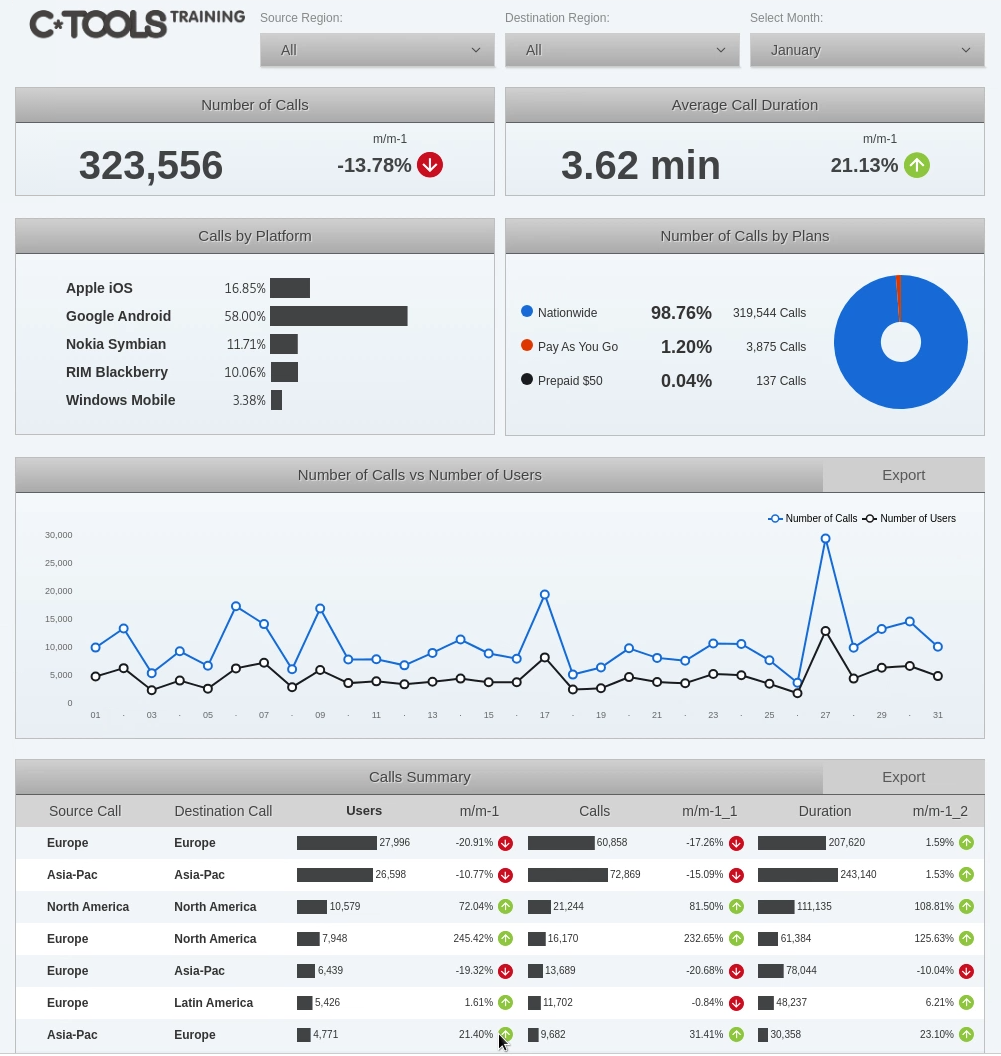
Enterprise dashboards demand sophisticated analytical capabilities that seamlessly integrate multidimensional data analysis with intuitive user interfaces, enabling business users to explore complex telecommunications metrics through interactive visualizations and dynamic filtering. In this comprehensive workshop, you'll build a complete Wireless Carrier analytics dashboard from the ground up, mastering advanced CTools techniques including Mondrian OLAP schema integration, complex MDX query development with calculated members and parameter substitution, hierarchical layout design with CSS styling, and the creation of interactive components that respond to user selections.
Working with a real-world telecommunications dataset, you'll learn how to transform raw call traffic data into a polished, production-ready dashboard that tracks regional calling patterns, platform usage metrics, and month-over-month performance trends across multiple analytical dimensions.
In this hands-on workshop, you'll experience the complete enterprise dashboard development lifecycle, beginning with database setup and Mondrian schema configuration in Schema Workbench, progressing through sophisticated multi-level layout construction with CSS-based styling, and culminating in the creation of parameterized MDX queries that power dynamic selectors, KPI displays, visualizations, and detailed analytical tables.
You'll learn how to work with the baseline_demo PostgreSQL database containing fact tables and dimension tables structured in a star schema optimized for OLAP analysis. As you work through the exercises, you'll master critical techniques including crafting MDX queries with WITH clauses that define calculated members for month-over-month comparisons, implementing parameter substitution using ${parameterName} syntax for dynamic filtering, configuring output column ordering and renaming for presentation clarity, and handling null values with IIf(IsEmpty()) logic to prevent calculation errors. You'll also develop expertise in creating responsive dashboard layouts with nested rows and columns, applying external CSS stylesheets for consistent visual design, and structuring CDA data sources that support interactive component behavior through parameter-driven queries.
What You'll Accomplish:
Database and OLAP Schema Infrastructure - Groups PostgreSQL connection, JDBC setup, Schema Workbench, Mondrian schema import, and cube navigation
Multi-Level Dashboard Layouts - Combines all layout design elements (rows, columns, headers, KPIs, charts, tables)
CSS Styling - Consolidates external CSS resources, application, and visual consistency validation
MDX Data Source Connections - Groups connection creation, JNDI/schema configuration, and parameter-driven structure
Advanced MDX Queries - Consolidates WITH clauses, calculated members, temporal functions, null handling, hierarchies, and CROSSJOIN
Dynamic Parameterization - Unifies parameter syntax, default values, .Children usage, and multi-parameter filtering
Query Output Configuration - Groups column ordering, index mapping, renaming, and optimization
Testing and Validation - Combines Schema Workbench testing, CDA preview, troubleshooting, and iterative development
By the end of this workshop, you'll have created a sophisticated, fully functional telecommunications analytics dashboard that demonstrates enterprise-grade CTools development practices. You'll understand how to architect complex dashboards that integrate OLAP analysis, dynamic parameter passing, calculated metrics with temporal comparisons, and multi-component interactivity.
Prerequisites: Pentaho Business Analytics Server with CTools installed, PostgreSQL with baseline_demo database configured, Schema Workbench with PostgreSQL JDBC driver, Wireless Carrier Mondrian schema XML file available, administrative access to Pentaho User Console Estimated Time: 90 minutes


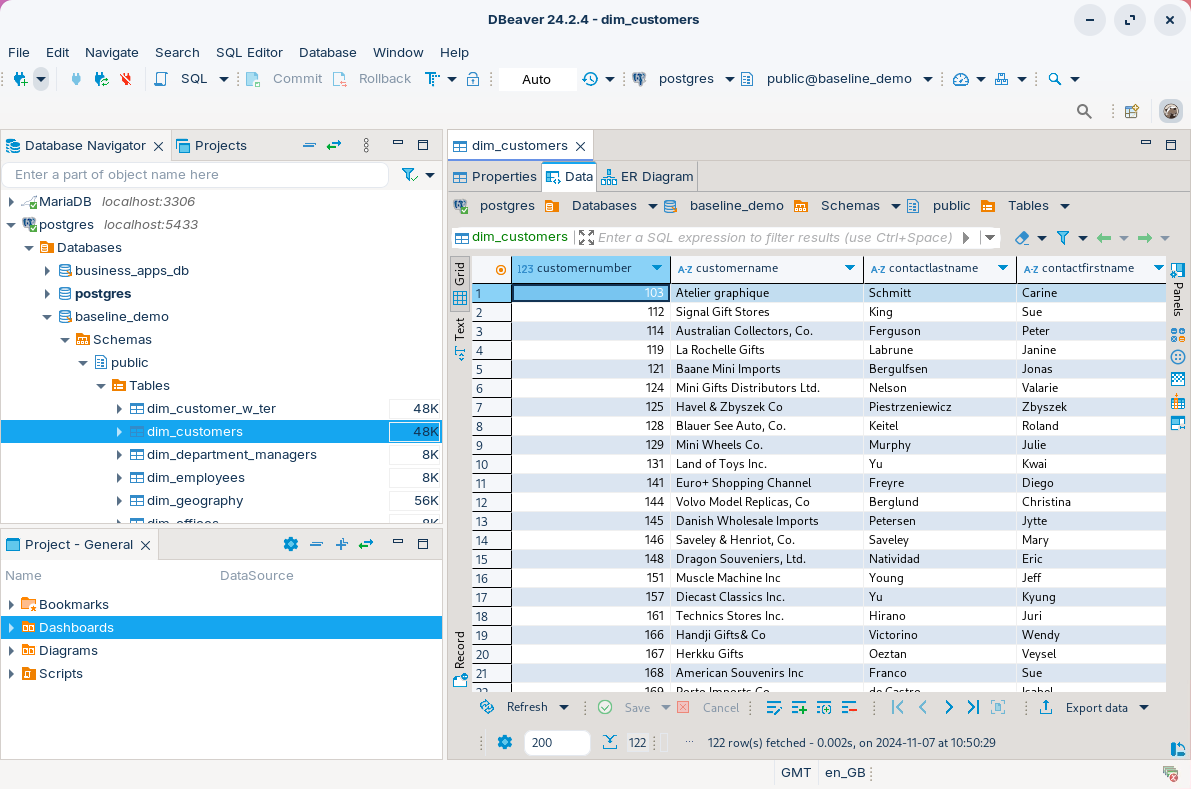
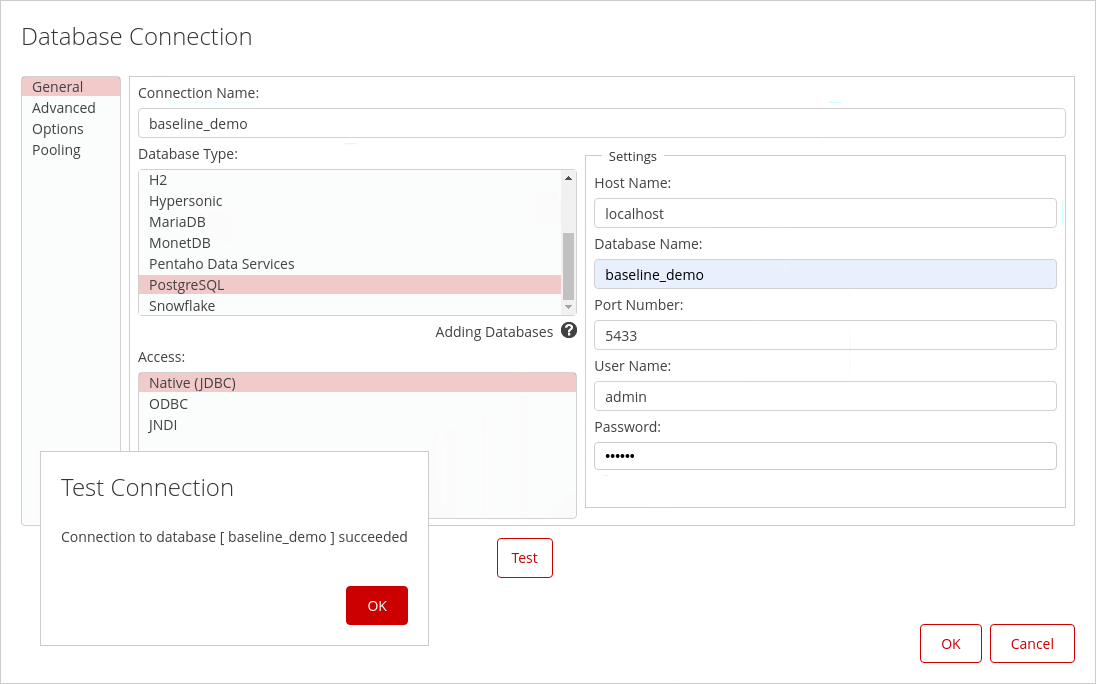
Log into the Postgres baseline_demo database.
You will need to copy over the Postgres database driver to: /schema-workbench/lib
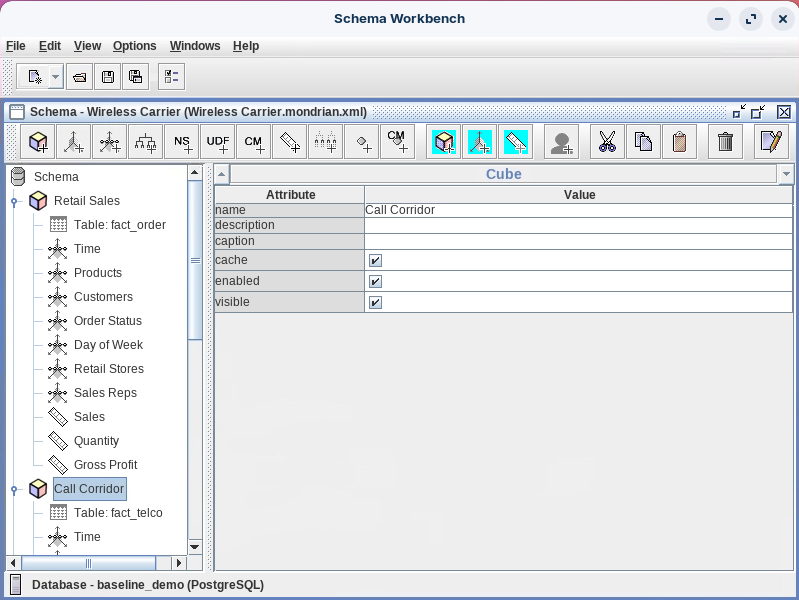
Start Schema Workbench.
Open: Workshop--Ctools/Carrier/schema/Wireless carrier.mondrian.xml
Expand: Retail Sales & Call Corridor cubes - our datasources.

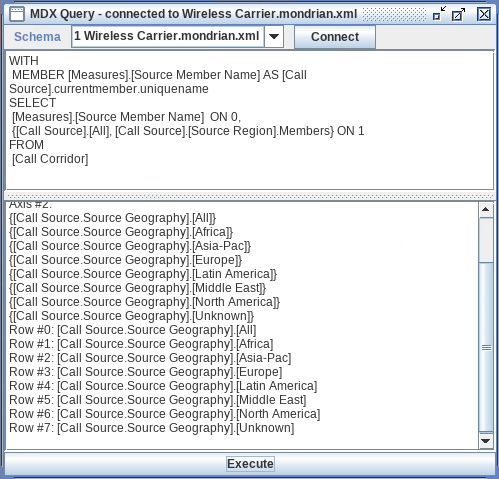
Open the MDX query panel: File -> New -> MDX Query
Copy & paste the following MDX query. Execute.

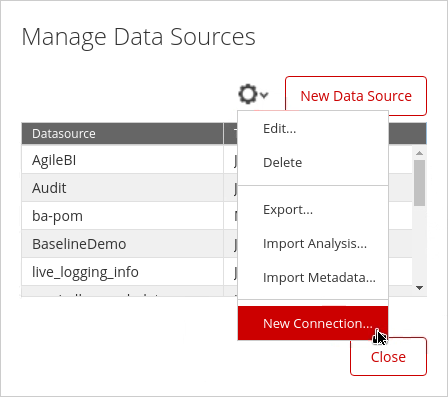
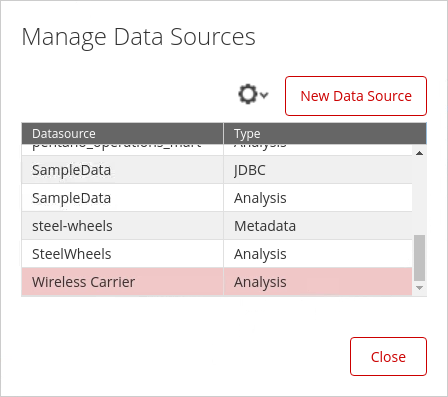
In the PUC select: Manage Data Sources.
Click on the cog wheel & select: New Connection.

Select Postgres and enter the following details:

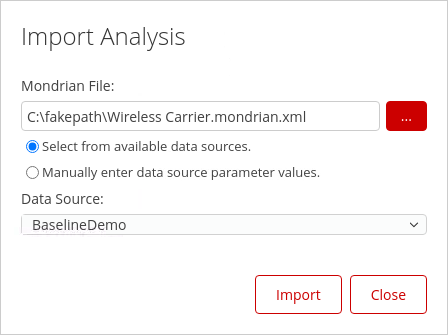
The Manage Data Sources also has the option to: Import Analysis
Browse to: Workshop--CTools/schemas/Wireless Carrier.Mondian.xml and associate with baseline_demo datasource.

Click: Import & check the xml schema has been successfully imported.


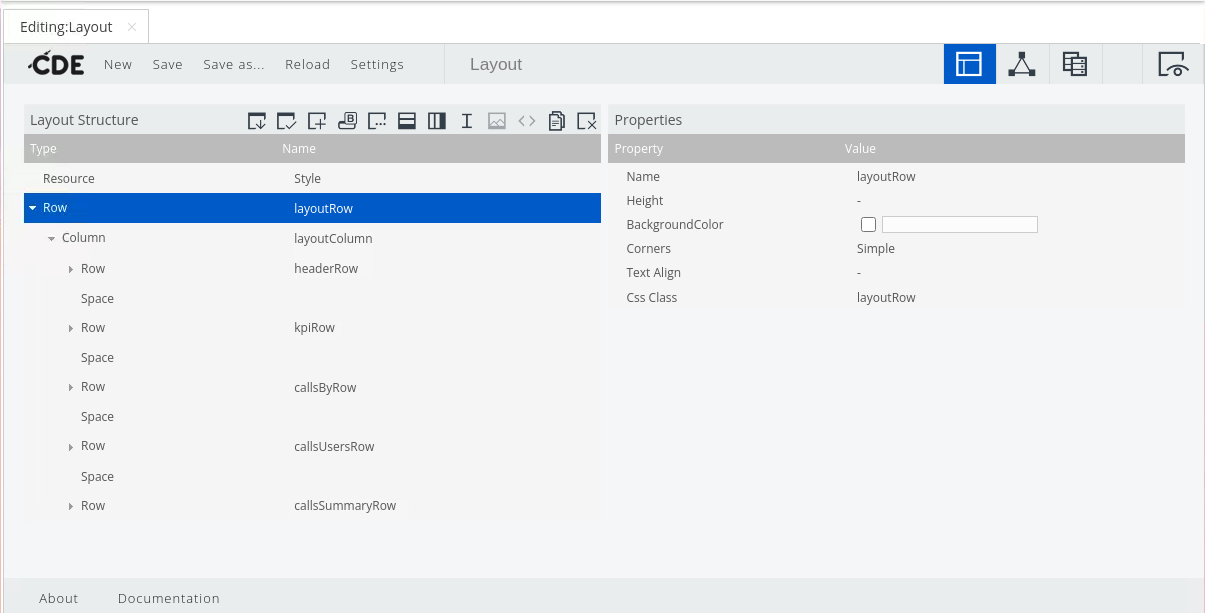
Highlight: /Public/CTools-Dashboard/Carrier-Dashboard-Layout/Layout.
Select: Edit from the Folder Actions.

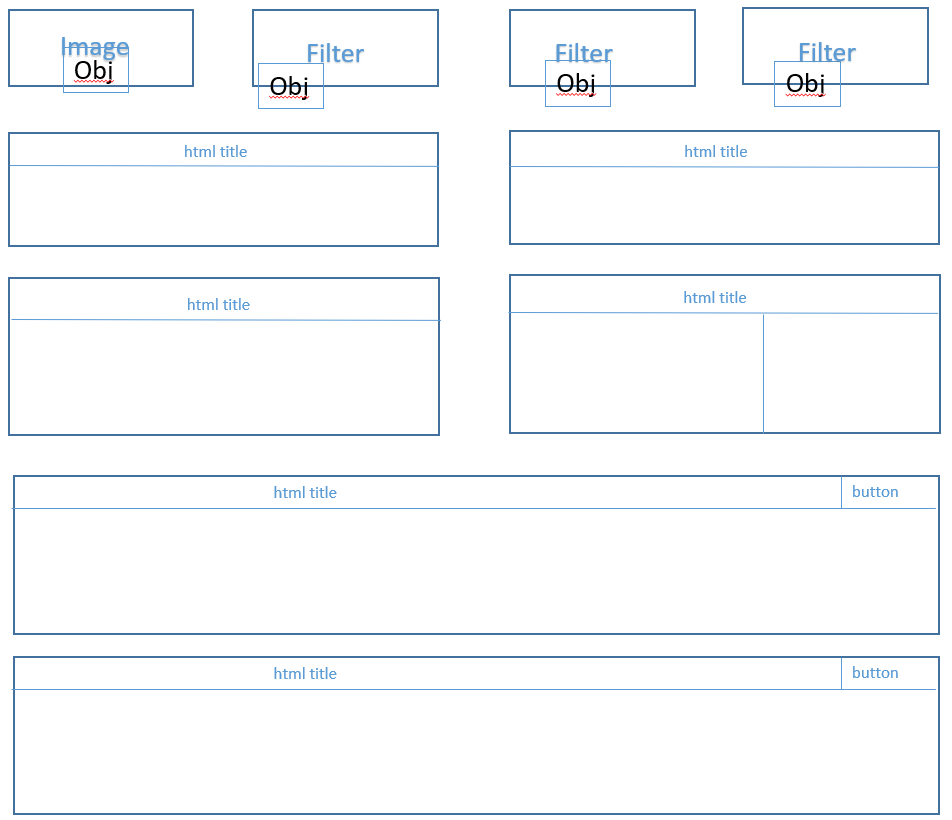
Create a Layout folder in the PUC .. give it a go ..!

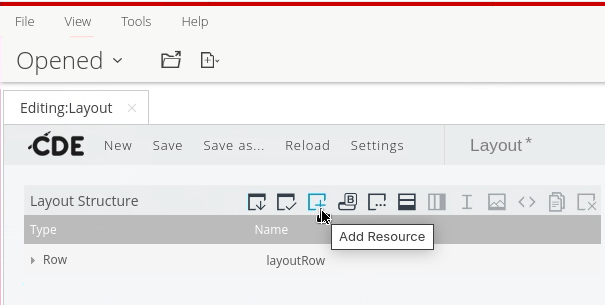
Click on the Add Resource option in the Layout Structure toolbar.

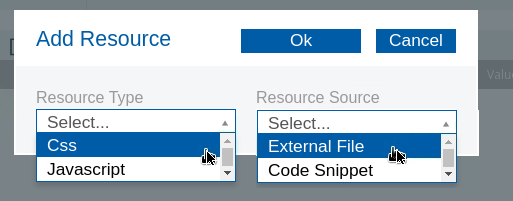
Enter the following options:

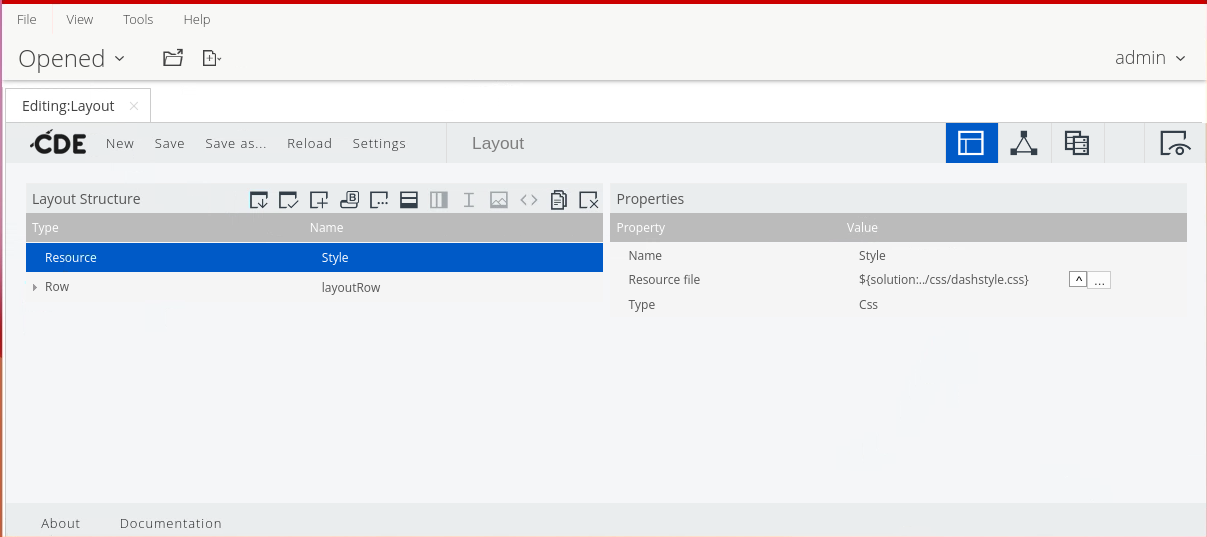
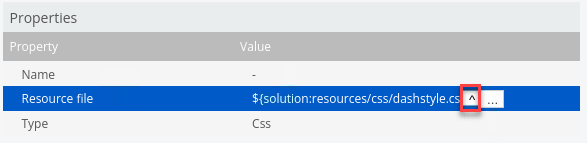
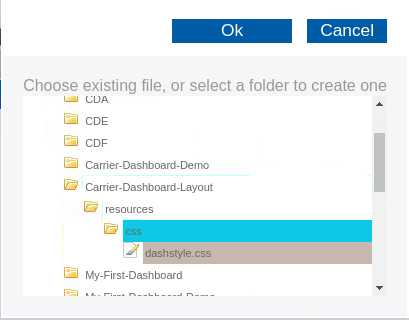
Click on the ^ button and browse for the file.


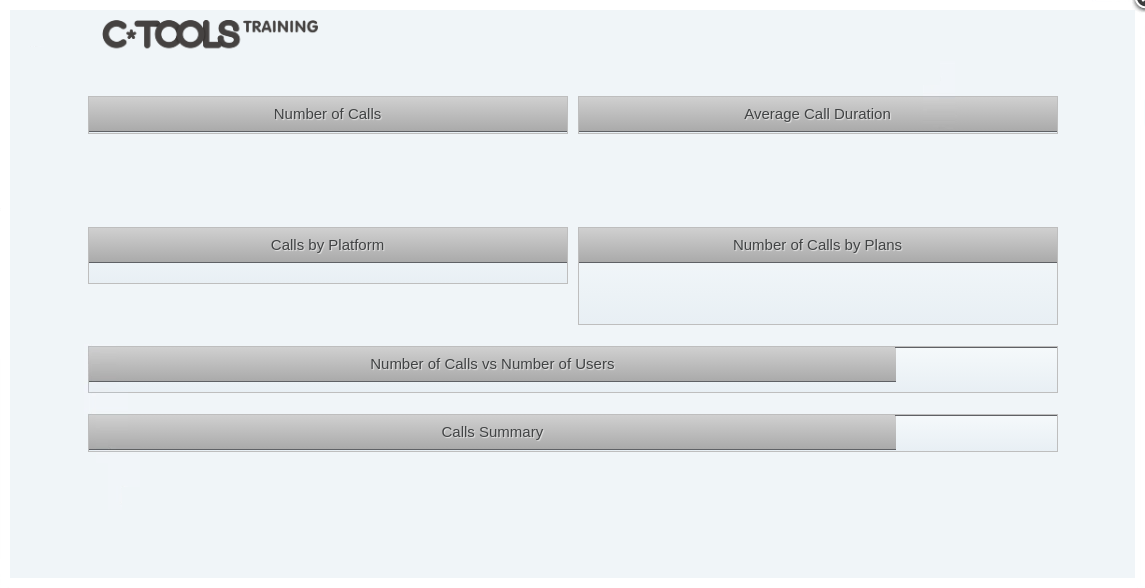
Finally check the CSS has been applied.
Save & Preview the dashboard.

The completed workshop:
/Public/CTools-Dashboard/Carrier-Dashboard-Layout/Layout

Layout
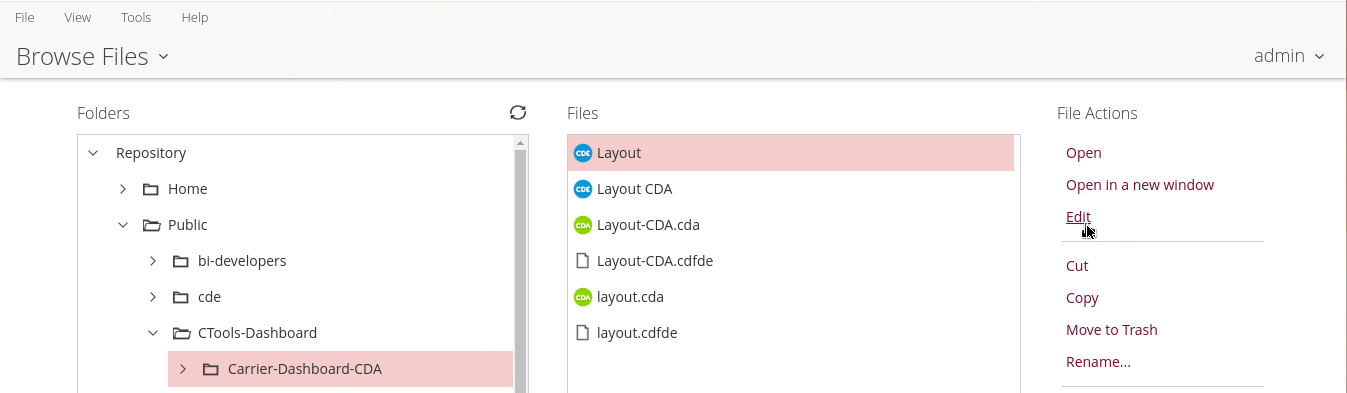
Browse to: /Public/CTools Dashboard/Carrier-Dashboard-CDA/Layout
Click Edit under File Actions.

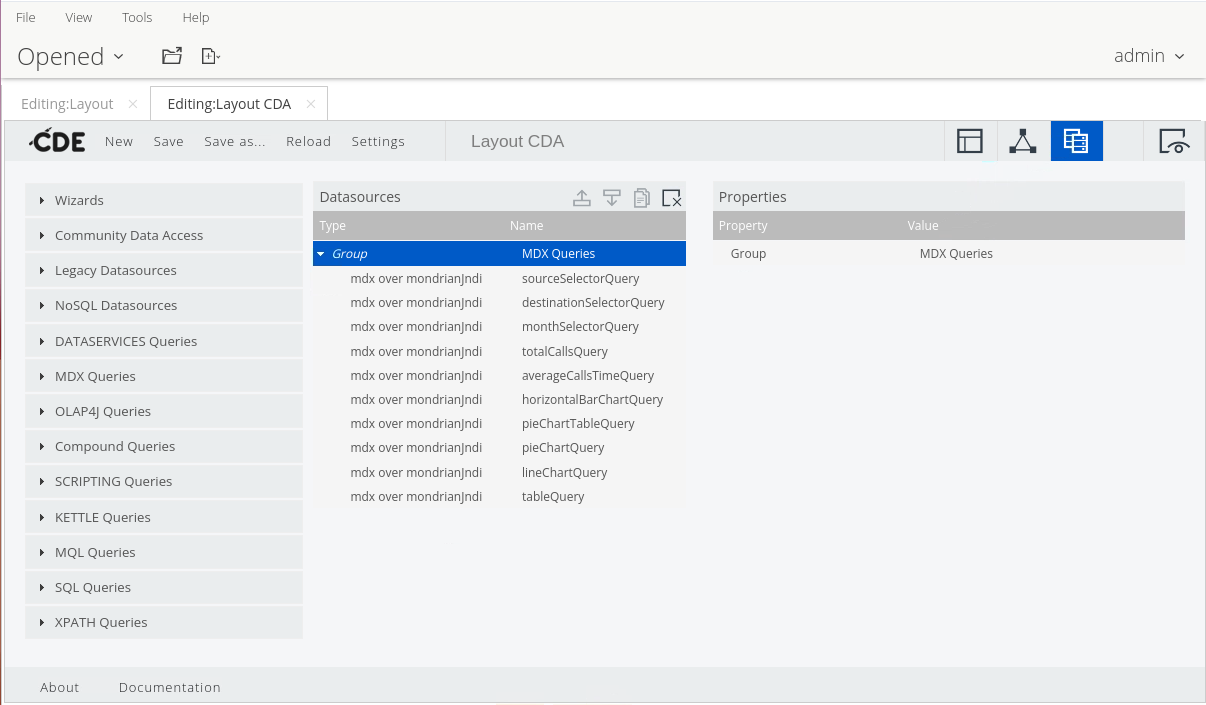
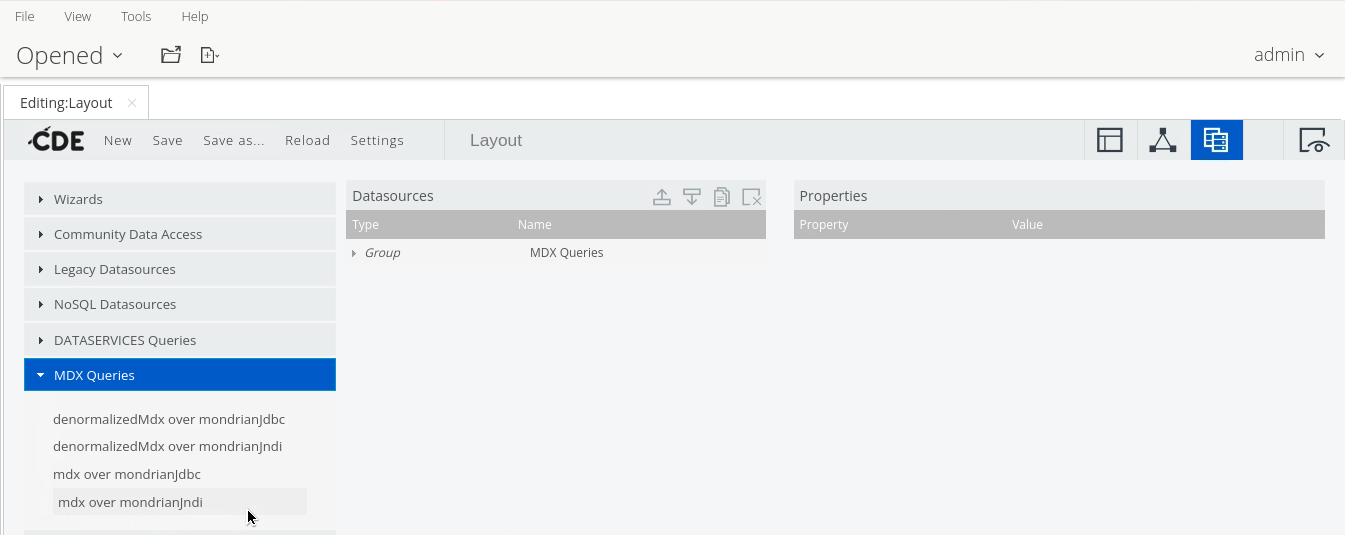
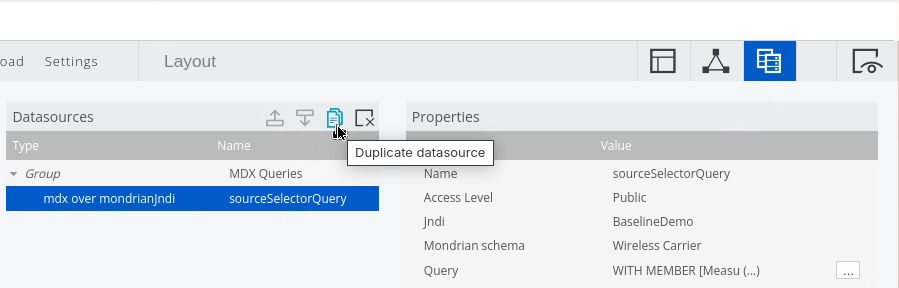
On the CDE Perspectives Toolbar, click the Data Sources Panel icon.

From the Data Source list, expand MDX Queries, and then click mdx over mondrianjndi.
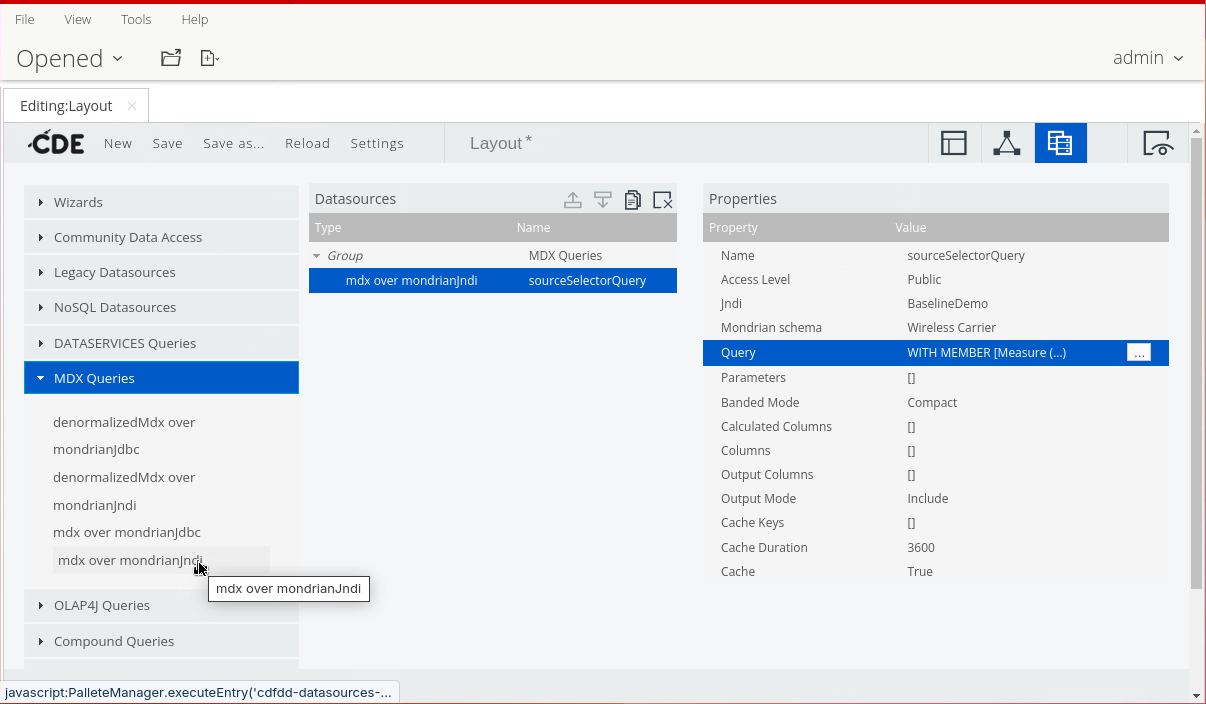
To name this data source, in the Properties pane:
• Click in the Value for the Name property.
• Type sourceSelectorQuery.
• Press Tab or Enter.
In the Properties pane:
• Click in the Value for the Jndi property.
• On the keyboard, press the down arrow.
• Select the BaselineDemo connection.
In the Properties pane:
• Click in the Value for the Mondrian schema property.
• On the keyboard, press the down arrow.
• Select the Wireless Carrier schema.
To enter the MDX query:
• In the Properties pane, click the ellipsis icon to the right of the Query property.
• In the MDX Editor window, enter the following MDX query, and then click OK:

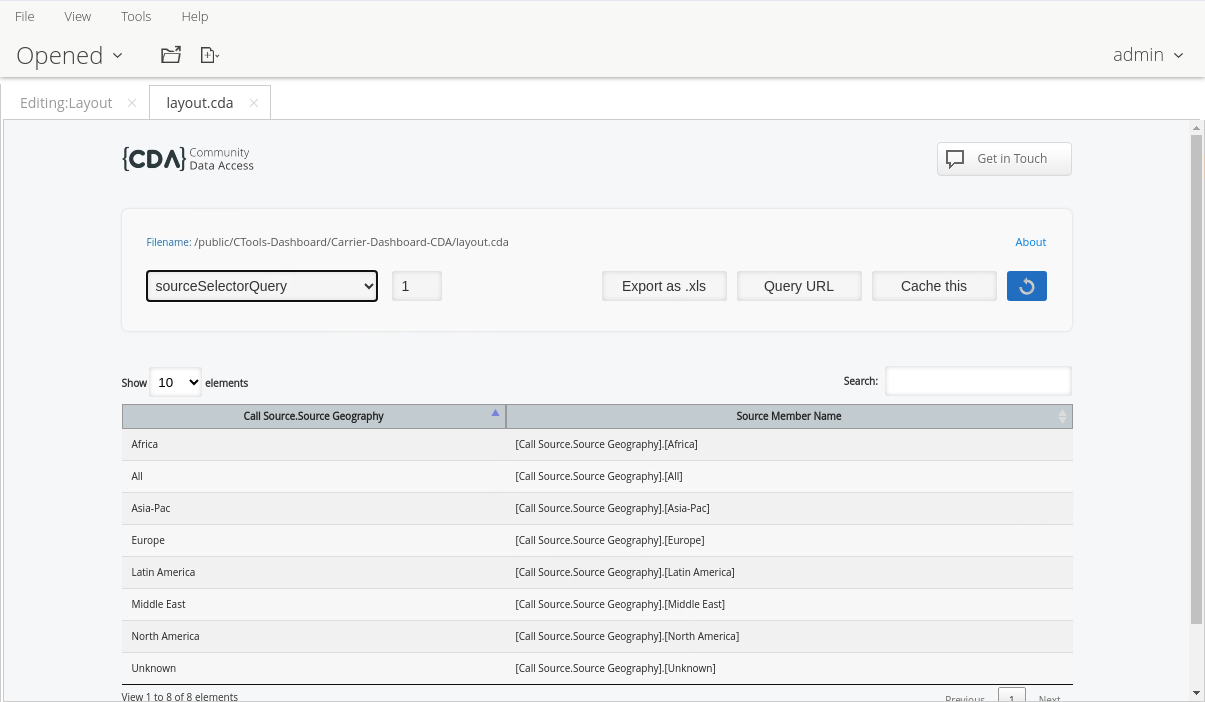
Save & Test the Layout.cda

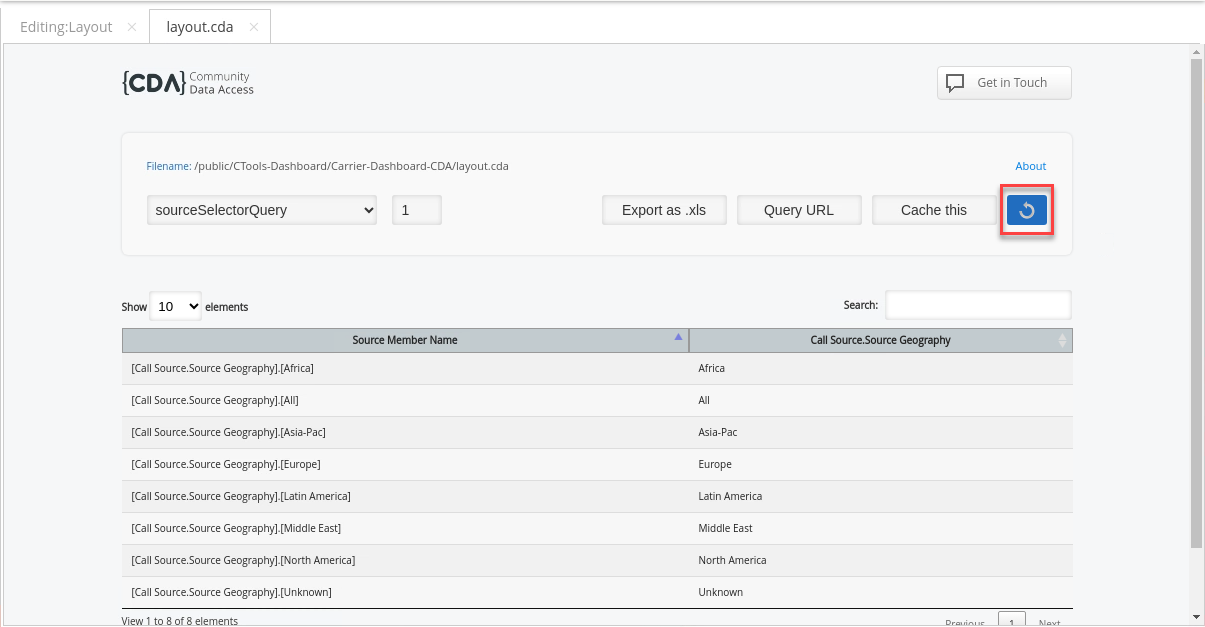
OOOOps the columns are the wrong way around ..
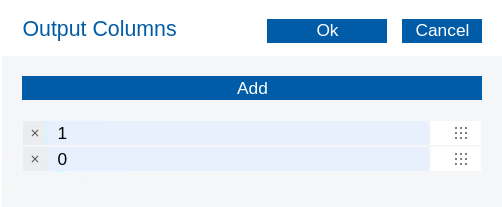
To change the order of the columns:
• In the Properties pane, click in the Value for the Output Columns property.
• In the new window, click the Add button once to add another field.
• In the first Index field, type 1.
• In the second Index field, type 0.
• Click OK.

Save the dashboard and try again .. Refresh the layout.cda

Notice the Query has also returned an 'Unknown' Geography value .. This indicates that the Geography table in the baseline_demo database contains errors.
The completed workshop:
/Public/CTools-Dashboard/Carrier-Dashboard-Layout/Layout CDA
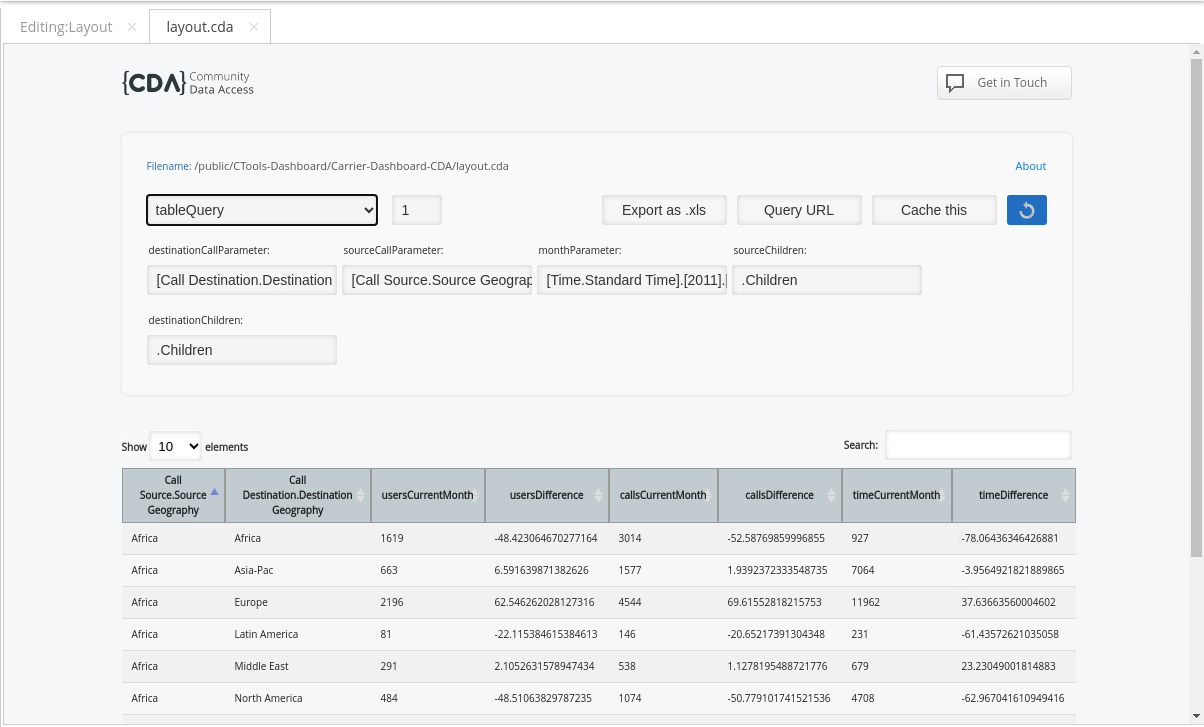
Duplicate the sourceSelectorQuery and change the name to tableQuery.

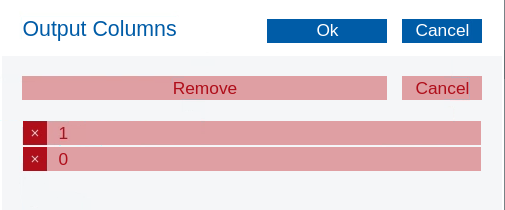
Delete the Output columns.

Add the MDX Query.
Users:
Calls:
Duration:
To specify default values for the parameters:
• In the Properties pane, click in the Value column for the Parameters property.
• In the new window, click the Add button four times.
• In the Name and Value columns, type the following:
destinationCallParameter
[Call Destination.Destination Geography].[All]
sourceCallParameter
[Call Source.Source Geography].[All]
monthParameter
[Time.Standard Time].[2011].[Q1 2011].[January]
sourceChildren
.Children
destinationChildren
.Children
To see the new results in CDA:
• From the Opened perspective, click the layout.cda tab.
• Right-click the layout.cda tab.
• From the menu, select Reload Tab.
• In the Confirm Reload dialog, click Yes.

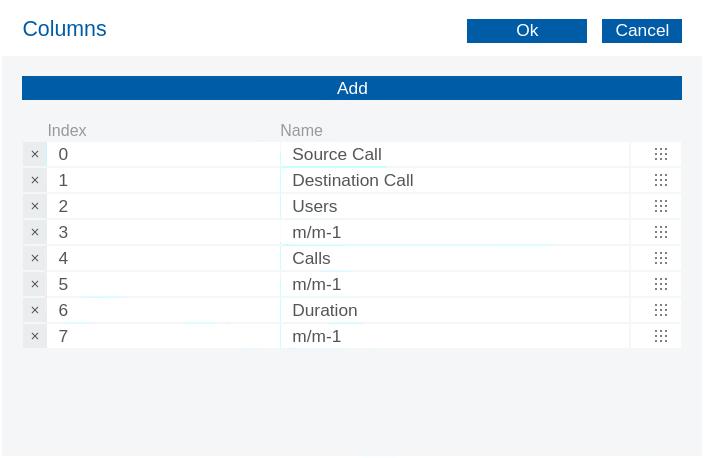
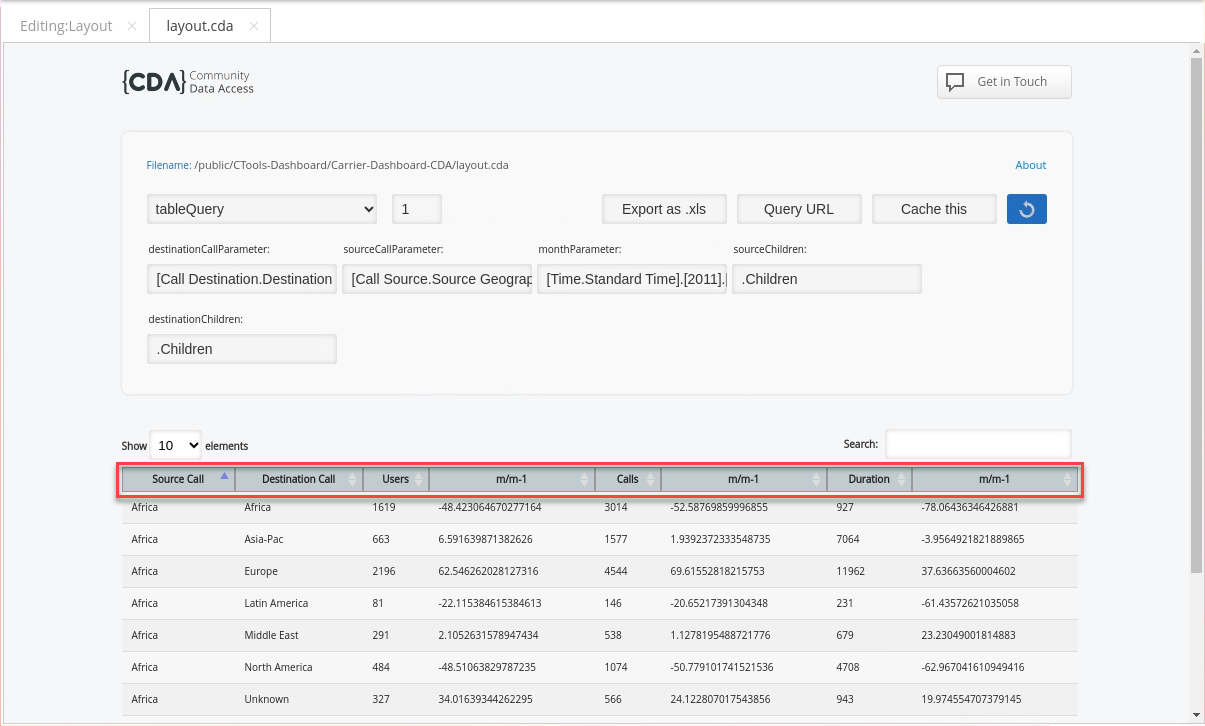
To specify column names for the query output:
• In the Properties pane, click in the Value column for the Columns property.
• In the new window, click the Add button seven times.
• In the Index and Name columns type the following, and then press OK.
0
Source Call
1
Destination Call
2
Users
3
m/m-1
4
Calls
5
m/m-1
6
Duration
7
m/m-1

Save and again check in CDA dashboard.

The completed workshop:
/Public/CTools-Dashboard/Carrier-Dashboard-Layout/Layout CDA
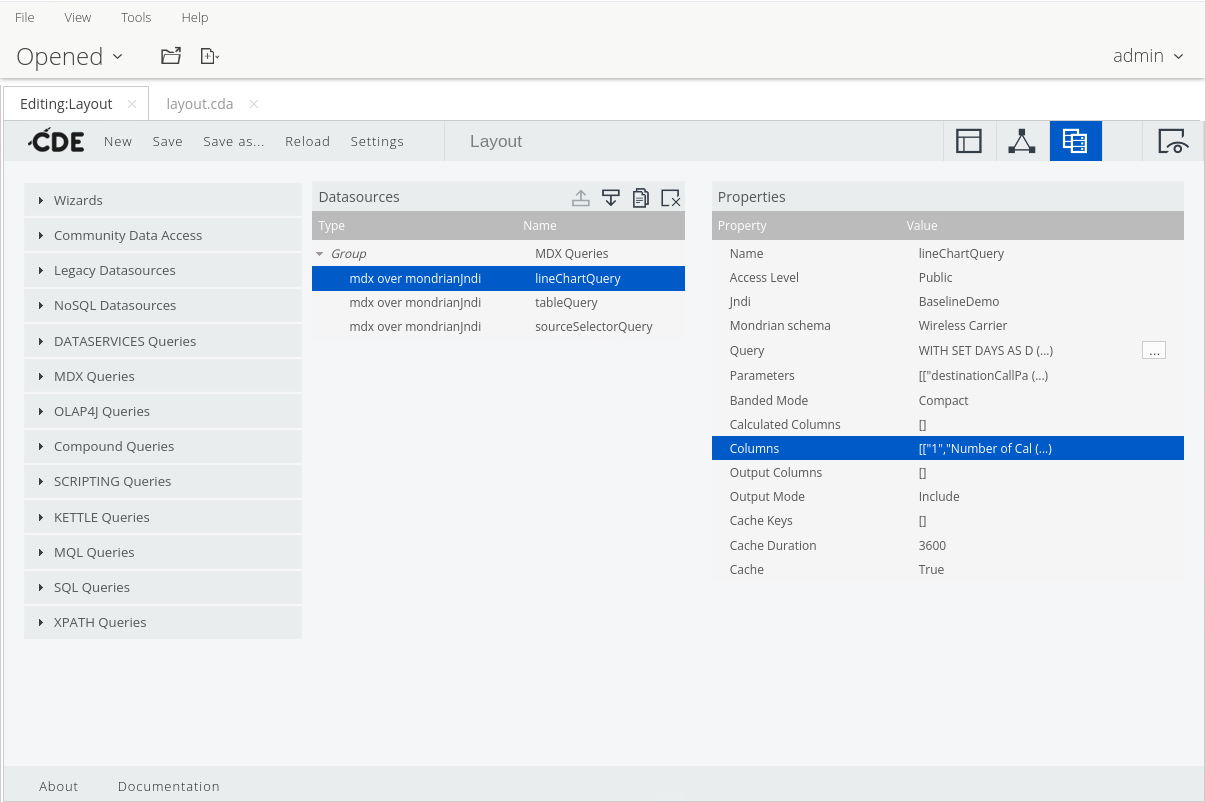
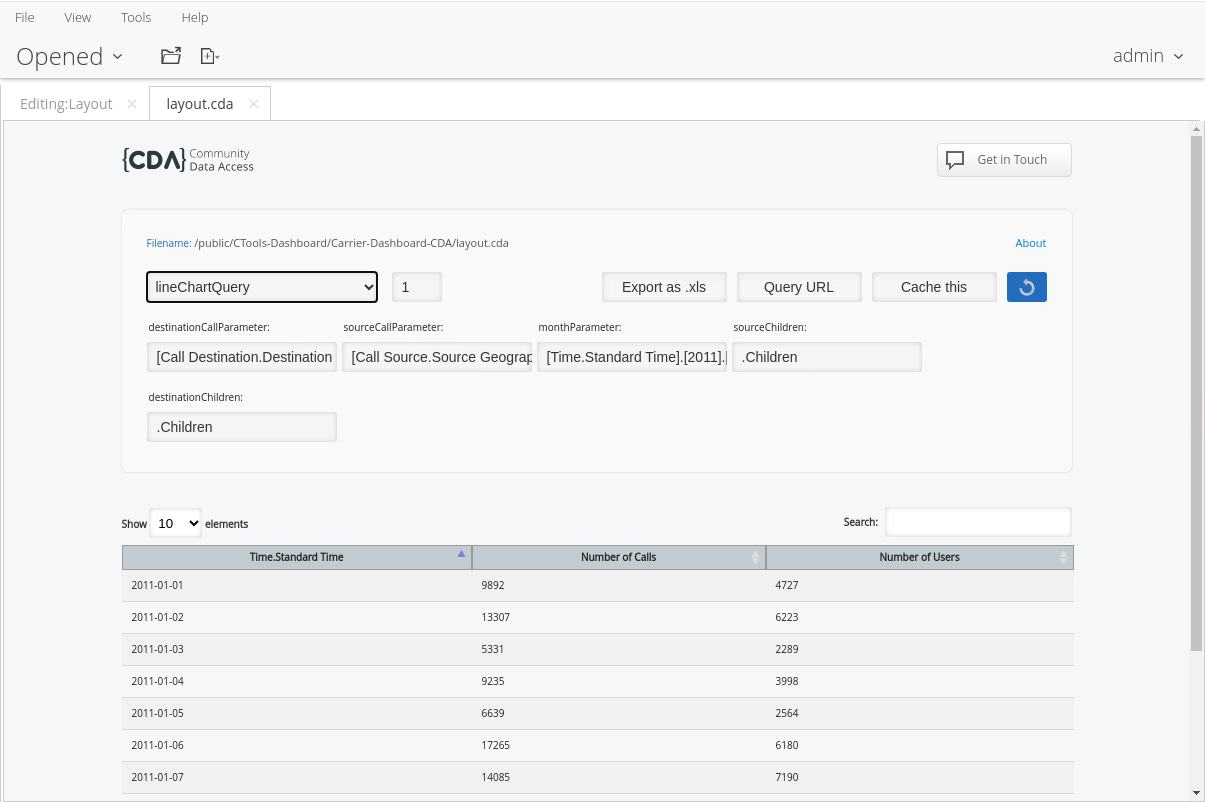
Duplicate the tableQuery and rename to: lineChartQuery.

Replace the existing MDX query:
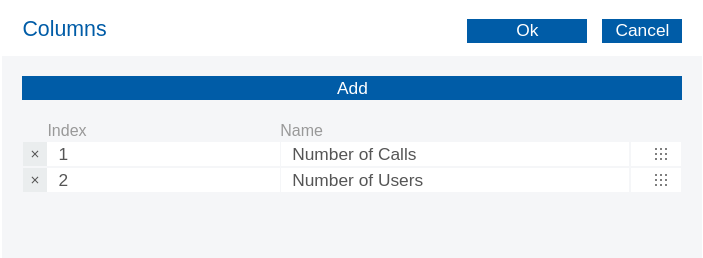
To edit/delete the column names:
• Click in the Value column for the Columns property.
• To the left of Index 0, click the delete icon.
• Click Remove.
• Change Index 1 to Number of Calls.
• Change Index 2 to Number of Users.
• Delete the remaining column names.
• Click OK.

Save and view in CDA Dashboard.

The completed workshop:
/Public/CTools-Dashboard/Carrier-Dashboard-Layout/Layout CDA
Last updated
Was this helpful?