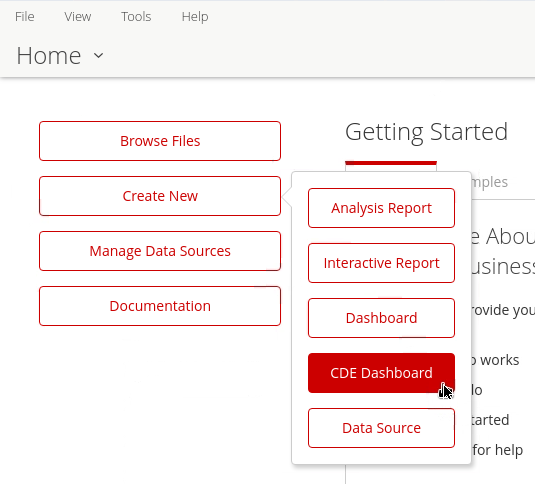
Create a New CDE Dashboard
Create a New CDE Dashboard
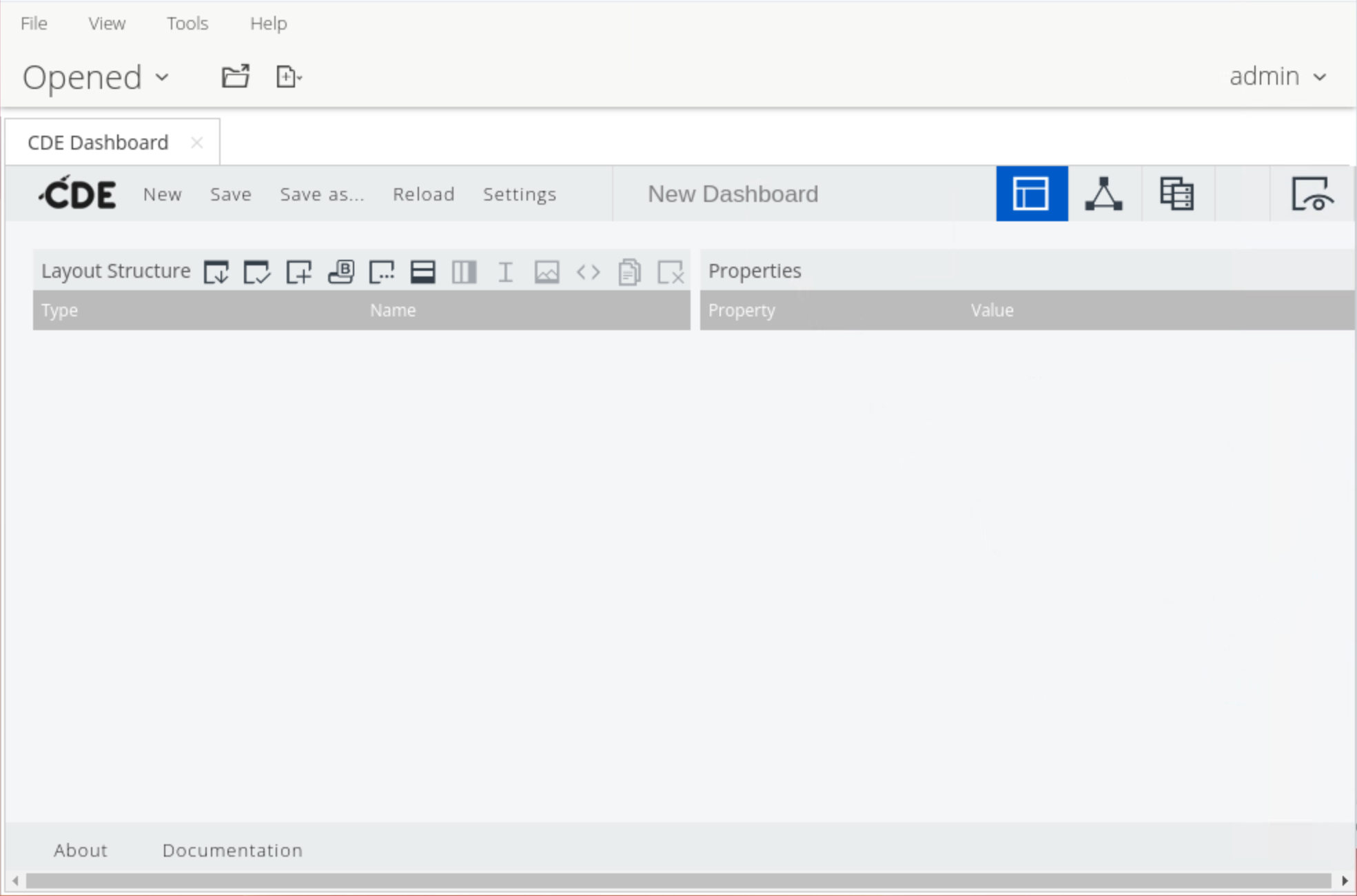
Community Dashboard Editor
| Menu | Description |
| New | Select to create a new CDE dashboard. When clicked, a blank dashboard appears. |
| Save | Select to save the CDE dashboard which you are currently editing. It is recommended that you continuously save your work while editing. If you have not previously saved this dashboard, the Save as dialog box displays. Choose the location to save your new dashboard and enter a file name for it. |
| Save as | Select to save the current CDE dashboard in a new location and/or rename it. You can also modify the title and the description. When clicked, the Save as dialog box displays. Choose the location to save your new dashboard and enter a file name for it. In addition, you can choose to save your work as a Dashboard or as a Widget. For now, it is recommended you keep the default option of Dashboard. |
| Reload | Select to refresh the CDE interface to the last saved state. This is useful when you make changes which are not immediately reflected after saving, or when you want to discard your most recent changes and return to the last saved state. |
| Settings | Select to define settings for your dashboard, such as metadata information, HTML templates, and dashboard type. You can do the following: • Add or modify the Title and Description for your dashboard • Set the Author for your dashboard. • Select the Style (HTML template) which you want to apply to the dashboard. Clean is selected by default. • Select the Dashboard Type. Bootstrap is selected by default. • Click the RequireJS Support check box. By default, this check box is cleared. |
| Icon | Name | Description |
|---|---|---|
 | Layout | In the Layout perspective, you can design the layout of your dashboard from scratch or by using a CDE template. While defining the layout you can apply styles and add HTML elements as text or images. |
 | Components | In the Components perspective, you add and set up the different components that make up your dashboard. These components are the central elements of a dashboard. They link the layout elements with the data sources. |
 | Data Sources | In the Data Sources perspective you can find various types of data sources which you can employ in a dashboard. These allow you to access the data that you want to use in your dashboard. |
 | Preview | Select to test the look and feel as well as the behavior of your dashboard as you are working. When selected, your dashboard opens in the Preview window. |
| Property | Description |
|---|---|
| Type | This property assumes a variety of values such as ComponentsParameter, ComponentsSelect, and ComponentscccBarChart. You cannot edit this property through the CDE interface. It is set on the backend. |
| Name | This property is the identifier of the component. It is recommended you use camel case when entering a name for a component. |
| Parameter | For components such as the Select component, the Filter Component and others where user input is required, this field is where the input is stored for later use throughout the dashboard. |
| Listeners | This property is composed of the dashboard parameters which may trigger a component’s reaction. These parameters allow for interaction between components, allowing you to control when some components will execute and in which order. For example, you may have a component which will only be executed after a change to a parameter which the component is listening to. A component can have more than one parameter in the Listeners property, and a parameter can be listened by more than one component. Every time the parameter changes, all the components which listen to it are updated in the dashboard. |
| Parameters | On the case of xAction components, PRPT components, Query components, and others, some parameters may be passed by specifying the desired value in an array of arrays. |
| HtmlObject | This is the ID of the HTML object on which the component will be appended to. This ID corresponds to the name you attributed to the HTML column element onto which you want to place the component. |
| Priority | Use this property to control the order in which the dashboard elements are executed. By default a component’s priority is set to 5. The lower the number, the higher the priority the component has. Note that components with the same priority value may not be executed at the same time, so if order of execution is critical, assign priority. |
| Execute at Start | This property controls whether or not the component will execute when the dashboard loads itself. By default, this property is set to True. In the cases where this property is set to False, the component will only be executed when a change occurs in one of the parameters which the component is listening to. |
| Pre Execution/Post Execution | These functions are executed before/after the component is initialized, updated, or presented to the user. If the preExecution returns false, the component is not updated. |
| Pre Change/Post Change | These properties are for component selectors. Before/after the input value is updated, these functions are executed. This property is useful for validating user input. |
| Post Fetch | This function is involved if the update stage calls queries. Once the query is executed, the data returned is passed to the postFetch function. The component is rendered only after the execution of this function. |
| Data Source | Description |
|---|---|
| Wizards | A setup assistant to guide you through the steps of creating an OLAP selector or chart. |
| Community Data Access (CDA) | CDA allows data to be retrieved from multiple data sources and combined in a single output which can easily be passed on to dashboard components. |
| Legacy Datasources | Legacy data sources include PDI/Kettle transformations, OLAP MDX queries, SQL queries, and Xaction result sets. |
| MDX Queries | You can retrieve data from a Mondrian cube via an MDX query. |
| OLAP4J Queries | These data sources execute queries using the olap4j specification. |
| Compound Queries | These queries allows you to combine the result of two distinct queries. Compound queries can be either JOIN or UNION. |
| SCRIPTING | QueriesCreate ad hoc result sets for prototyping purposes using Beanshell scripts |
| KETTLE Queries | Define a Kettle transformation file to fetch data. |
| MQL Queries | Pentaho Metadata defines a business model and query implementation so business users can query data sources using Pentaho reporting tools. |
| SQL Queries | Use this type of data source to access data from SQL databases if you have a JNDI connection or a JDBC driver setup |
| XPATH Queries | Provides the ability to read data from any type of XML file using XPath specifications. |