> For the complete documentation index, see [llms.txt](https://academy.pentaho.com/llms.txt). Markdown versions of documentation pages are available by appending `.md` to page URLs; this page is available as [Markdown](https://academy.pentaho.com/pentaho-data-integration/data-integration/enterprise-solution/metadata-injection/mdi.md).
# MDI
Overview of Metadata Injection ..
{% hint style="info" %}
In this Workshop, you will:
• Create a number of transformations that prepare the metadata and inject these specific values through the ETL Metadata Injection step.
{% endhint %}
{% tabs %}
{% tab title="Why MDI.?" %}
{% hint style="info" %}
Metadata is traditionally defined and configured at design time, in a process known as hard coding, because it does not change at run time.
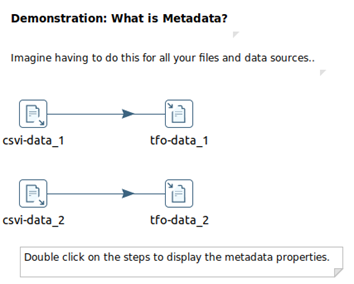
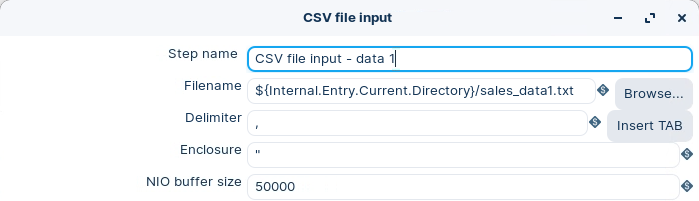
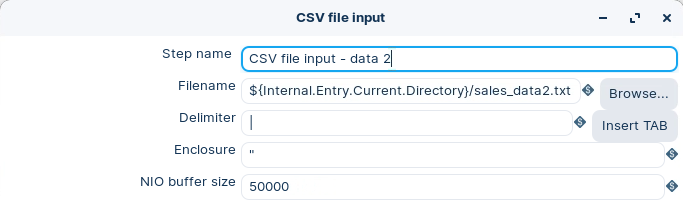
In this scenario, onboarding the files would require a CSV file input step for each of the different delimiters.
{% endhint %}
hard coded values in ktr
1. Double-click on the CSV File Input steps to display the metadata properties:
\~/How-To--Metadata-Injection/Overview of Metadata Injection/file\_hard\_coded.ktr
hard coded values
{% hint style="info" %}
Each data source requires its own workflow.
The challenge becomes to find a way to dynamically inject the required metadata properties at run time via a template.
{% endhint %}
***
**Metadata Properties**
{% hint style="info" %}
Steps in a Transformation are configured with associated metadata property values, e.g. step name, filename, delimiter, and so on ..
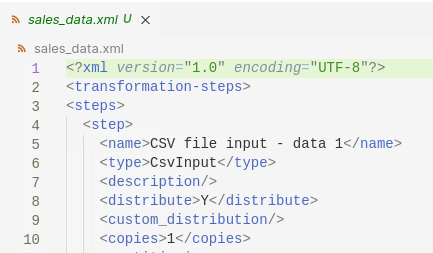
These metadata properties are saved as .ktr=xml
A neat way to introduce metadata injection is to change a metadata property in the xml of a step.
{% endhint %}
1. Copy / Paste the step into Visual Studio Code:
csv input step xml
2. Change a metadata property: \Whatever\
3. Copy / Paste xml into a new transformation:
{% hint style="info" %}
Each of the Step 'settings' are defined in the .xml. By changing the step name, you've manually 'injected' a new value.
{% endhint %}
{% endtab %}
{% tab title="Standard" %}
{% hint style="info" %}
These Guided Demonstrations outline the ‘Use Case’ for Metadata Injection. Onboarding data workflows follow repeatable patterns, with just different metadata properties.
* Standard Metadata Injection – rename data stream fields
Once the repeatable pattern has been defined in a template, the ETL Metadata Injection step exposes their metadata properties, which can then be mapped to the corresponding injected source stream field.
* Outline the workflow for standard metadata injection.
* Configure an ETL Metadata Injection Transformation, and Template.
A typical Use Case would be renaming database columns, as you migrate databases from one system to another.
{% endhint %}
**Template**
Lets start with the template. The template is the workflow that utilizes the metadata injection.
1. Open the template:
\~/How-To--Metadata-Injection/Standard Metadata Injection/standard\_template.ktr
***
**Data Grid – Test data - input**
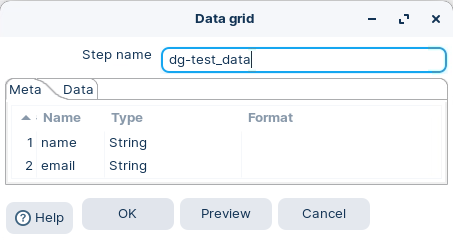
Meta tab: on this tab, you can specify the field metadata (output specification) of the data
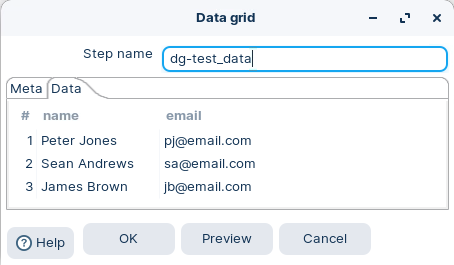
Data tab: This grid contains the data. Everything is entered in String format so make sure you use the correct format masks in the metadata tab.
1. Drag and drop the Data Grid step onto the canvas:
2. Double-click to set the properties as outlined below:
This is the data ingestion step. Could be a table, flat file, etc..
***
**Select Values**
1. Drag the Select values step onto the canvas:
There’s nothing to configure as the ‘metadata rules’ will be defined in the ETL Metadata Injection step.
***
**Text File Output**
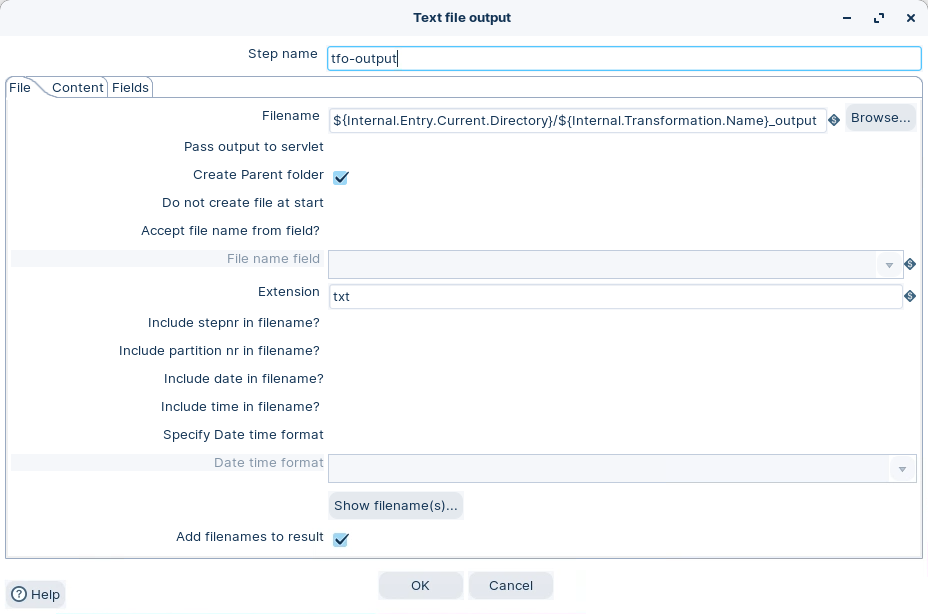
The Text file output step is used to export data to text file format. This is commonly used to generate Comma Separated Values (CSV files) that can be read by spreadsheet applications. It is also possible to generate fixed width files by setting lengths on the fields in the fields tab.
1. Drag and drop the Text file output step onto the canvas:
2. Double-click to set the properties as outlined below:
3. Just add the path to the output file. Notice the internal variables used to define the filename:
Filename: ${Internal.Entry.Current.Directory}/${Internal.Transformation.Name}\_output
4. Save the Transformation as:
\~/How-To--Metadata-Injection/Standard Metadata Injection/standard\_template.ktr
***
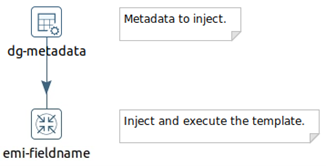
**Metadata Injection**
The Transformation sets the metadata fieldname values that are going to be used in the Metadata Injection Template.
***
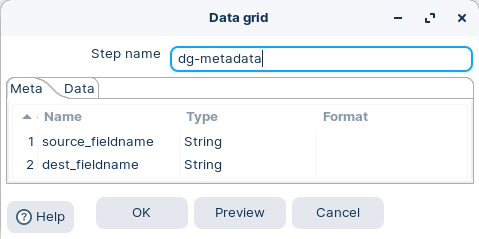
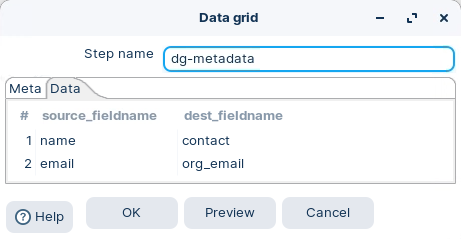
**Data Grid**
1. Drag and drop the Data Grid step onto the canvas:
2. Double-click to set the properties as outlined below:
***
**ETL Metadata Injection**
The ETL Metadata Injection step inserts metadata into a template transformation. Instead of statically entering ETL Metadata in a step dialog, you pass it at run-time. This step enables you to solve repetitive ETL workloads like loading of text files, data migration, and so on.
1. Drag and drop the ETL Metadata step onto the canvas:
2. Double-click to set the properties as outlined below:
3. Click the Browse button to locate the Metadata Injection Template:
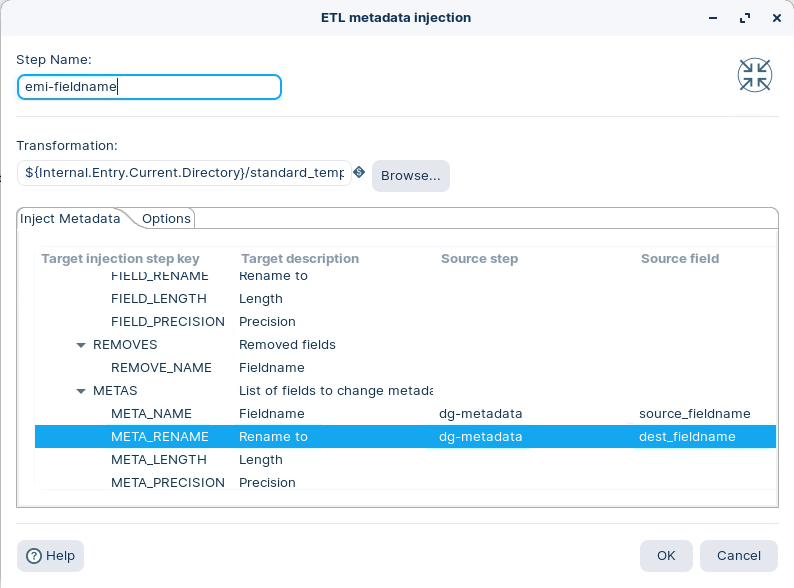
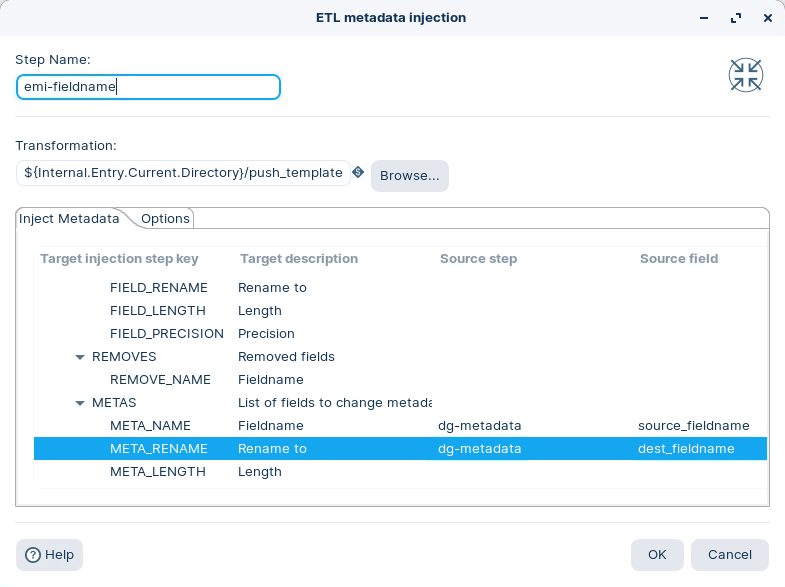
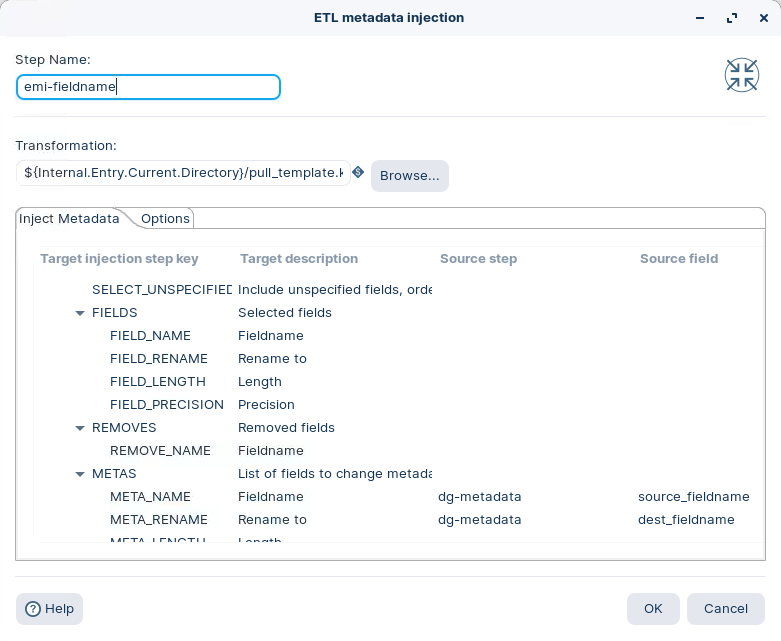
4. Notice the Inject Metadata tab:
These options define the ‘metadata rules’ for each step in the template. In this example, the Select values step will change the ‘source\_fieldname’ to ‘dest\_fieldname’ in the meta tab option.
5. Save the Transformation as:
\~/How-To--Metadata-Injection/Standard Metadata Injection/standard\_mdi.ktr
***
**RUN the MDI Workflow**
1. RUN standard\_mdi.ktr:
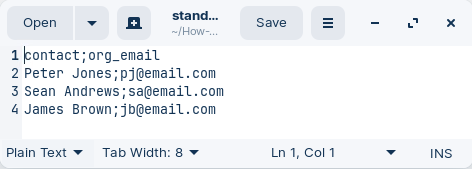
2. Open the file located at:
\~/How-To--Metadata-Injection/Standard Metadata/standard\_mdi\_output.txt
{% endtab %}
{% tab title="Push / Pull" %}
{% hint style="info" %}
In certain scenarios you will need to push/pull the rows to/from the template:
* Push Metadata Injection.
* Pull Metadata Injection.
* Push – Pull Metadata Injection.
{% endhint %}
{% tabs %}
{% tab title="Push" %}
{% hint style="info" %}
Streams the dataset **to** the template.
{% endhint %}
**Template**
Lets start with the template. The template is the workflow that utilizes the metadata injection.
1. Open the template:
\~/How-To--Metadata-Injection/Push - Pull Metadata Injection/push mdi/push\_template.ktr
***
**Dummy**
1. Drag the Dummy step onto the canvas:
2. Rename: dmmy-input:
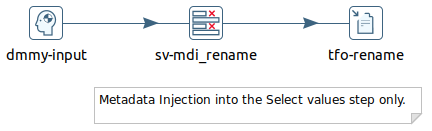
The rows are streamed / ‘pushed’ into the transformation template -dummy-input step.
***
**Select Values**
1. Drag the Select values step onto the canvas:
There’s nothing to configure as the ‘metadata rules’ will be defined in the ETL Metadata Injection step.
***
**Text File Output**
1. Drag and drop the Text file output step onto the canvas:
2. Double-click to set the properties as outlined below:
3. Just add the path to the output file. Notice the internal variables used to define the filename:
Filename: ${Internal.Entry.Current.Directory}/${Internal.Transformation.Name}\_output
4. Save the Transformation as:
\~/How-To--Metadata-Injection/Push - Pull Metadata Injection/push mdi/push\_template.ktr
***
**Metadata Injection**
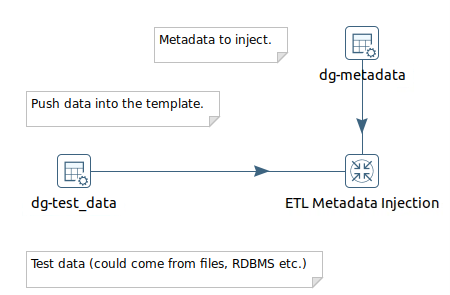
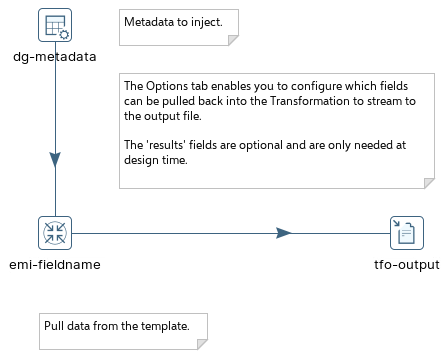
Here the result set from the Test data – input step, is pushed down into the Template.
***
**Data Grid – Test data - input**
Meta tab: on this tab, you can specify the field metadata (output specification) of the data
Data tab: This grid contains the data. Everything is entered in String format so make sure you use the correct format masks in the metadata tab.
1. Drag and drop the Data Grid step onto the canvas:
2. Double-click to set the properties as outlined below:
This is the data ingestion step. Could be a table, flat file, etc..
***
**Data Grid**
1. Drag and drop the Data Grid step onto the canvas:
2. Double-click to set the properties as outlined below:
***
**ETL Metadata Injection**
1. Drag and drop the ETL Metadata Injection step onto the canvas:
2. Double-click to set the properties as outlined below:
Filename: ${Internal.Entry.Current.Directory}/tr\_push\_template.ktr
3. Click on the Options tab::
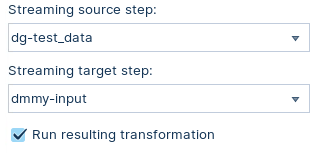
4. Ensure the following details are configured, as outlined below:
💡Ensure the 'Run resulting transformation' is checked.
The data is streamed – pushed - from the Test data -input step of the MDI workflow to the Input Stream step of the template.
5. Save the Transformation as:
\~/How-To--Metadata-Injection/Push - Pull Metadata Injection/push mdi
***
**RUN the MDI Workflow**
1\. RUN tr\_push\_mdi.ktr
2\. Open the file located at:
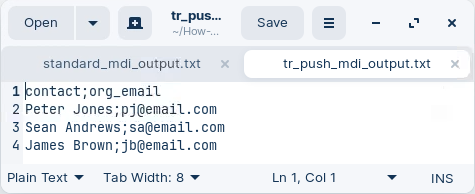
\~/How-To--Metadata-Injection/Push - Pull Metadata Injection/push mdi/push\_mdi\_output.txt
{% endtab %}
{% tab title="Pull" %}
{% hint style="info" %}
Streams the dataset **from** the template.
{% endhint %}
**Start Pentaho Data Integration**
```bash
cd
cd ~/Pentaho/design-tools/data-integration
sh spoon.sh
```
**Template**
Lets start with the template. The template is the workflow that utilizes the metadata injection.
1. Open the template:
\~/How-To--Metadata-Injection/Push - Pull Metadata Injection/pull mdi/pull\_template.ktr
**Data Grid – Test data - input**
Meta tab: on this tab, you can specify the field metadata (output specification) of the data
Data tab: This grid contains the data. Everything is entered in String format so make sure you use the correct format masks in the metadata tab.
2. Drag and drop the Data Grid step onto the canvas.
3. Double-click to set the properties as outlined below:
This is the data ingestion step. Could be a table, flat file, etc..
**Select Values**
To configure the Select values step:
1. Drag the Select values step onto the canvas
There’s nothing to configure as the ‘metadata rules’ will be defined in the ETL Metadata Injection step.
**Dummy**
1. Drag the Dummy step onto the canvas.
2. Rename: dmmy-pull
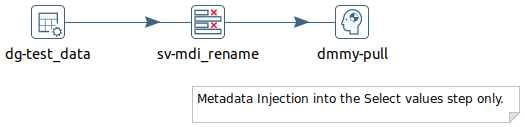
The data is ‘pulled’ from the transformation template - dmmy-pull step. You will need to manually enter the fieldnames to are 'pulled'.
**Metadata Injection**
**Data Grid**
To configure the Data Grid step:
1. Drag and drop the Data Grid step onto the canvas.
2. Double-click to set the properties as outlined below:
**Text File Output**
1. Drag and drop the Text file output step onto the canvas.
2. Double-click to set the properties as outlined below:
**ETL Metadata Injection**
1. Drag and drop the ETL Metadata Injection step onto the canvas.
2. Double-click to set the properties as outlined below:
Filename: ${Internal.Entry.Current.Directory}/pull\_template.ktr
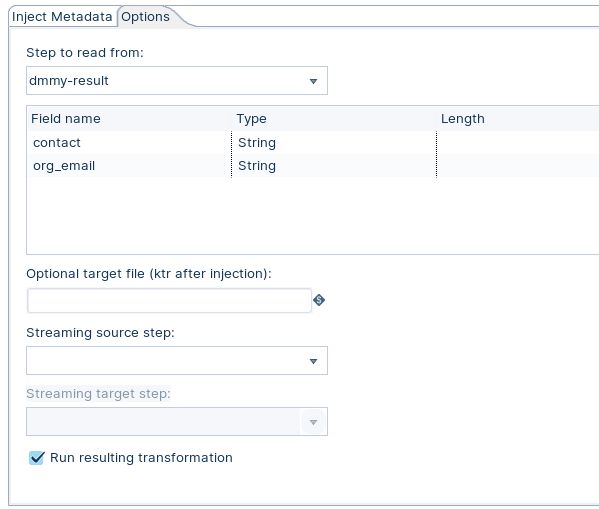
3. Click on the Options tab.
4. Ensure the following details are configured, as outlined below:
💡Ensure the 'Run resulting transformation' is checked.
The data is streamed – pushed - from the Test data -input step of the MDI workflow to the Input Stream step of the template.
5. Save the Transformation as:
\~/How-To--Metadata-Injection/Push - Pull Metadata Injection/pull mdi/pull\_midi\_output.txt
{% endtab %}
{% endtabs %}
{% endtab %}
{% endtabs %}
---
# Agent Instructions
This documentation is published with GitBook. GitBook is the documentation platform designed so that both humans and AI agents can read, navigate, and reason over technical content effectively. Learn more at gitbook.com.
## Querying This Documentation
If you need additional information that is not directly available in this page, you can query the documentation by asking a question.
Perform an HTTP GET request on the following URL with the `ask` and `goal` query parameters:
```
GET https://academy.pentaho.com/pentaho-data-integration/data-integration/enterprise-solution/metadata-injection/mdi.md?ask=&goal=
```
`ask` is the immediate question: it should be specific, self-contained, and written in natural language.
`goal` is what the user is ultimately trying to achieve, the reason they need the answer. Sharing it helps GitBook give you a better, more relevant answer. A goal is most helpful when it describes the outcome the user wants rather than restating the question. For example, with `ask=how do I create an API token`, a goal like `automate deployments from our CI pipeline` lets GitBook tailor the answer to that use case.
The response will contain a direct answer to the question and relevant excerpts and sources from the documentation.
Use this mechanism when the answer is not explicitly present in the current page, you need clarification or additional context, or you want to retrieve related documentation sections.
%20(1).png?alt=media)