Install Pentaho Server
Installation of Pentaho Server components ..
Pentaho Server Installation
This section will guide you through the installation of the Pentaho Server:
create installation directories
create Pentaho Repository databases
configure JDBC database connections
start Pentaho server - systemd
license manager

Pentaho Server Directories
The Pentaho server is a web application that runs in an Apache Tomcat servlet container.
Create /opt/pentaho server directories.
Create /opt/pentaho/software sub-directories.
Unpack Pentaho Server Packages
The jar command is a general-purpose archiving and compression tool, based on ZIP and the ZLIB compression format.
x - Extract files from a JAR archive
f - Sets the file specified by the jarfile operand to be the name of the JAR file that is created
Copy Pentaho server package.
Unjar pentaho-server-ee-10.2.0.0-222.zip to /opt/pentaho/server/
Change the permission for all .sh files.
All .sh files will need executable permission.
Check that it matches the following directory structure:
/opt/pentaho/
server/
pentaho-server/
pentaho-solutions/
system
The server plugins are installed into the system folder.
Pentaho Repository
The Pentaho Repository resides on the database that you installed during the Windows or Linux environment preparation step, and consists of the following components:
Jackrabbit
Contains the solution repository, examples, security data, and content data from reports that you use Pentaho software to create.
Quartz
Holds data that is related to scheduling reports and jobs.
Hibernate
Holds data that is related to audit logging.
Pentaho Operations Mart
Report on system usage and performance.
For your production server, Pentaho recommends that you change the default passwords in the following SQL script files to make the databases more secure.
Examine postgresql database scripts.
For this workshop we're going to keep the defaults user and password.
Examine postgresql database scripts.
Exit.
Change Authentication Mode
Client authentication is controlled by pg_hba.conf and is stored in the database cluster's data directory. (HBA stands for host-based authentication.)
You need ensure that users defined in the scripts are able to be authenticated to connect to the tables.
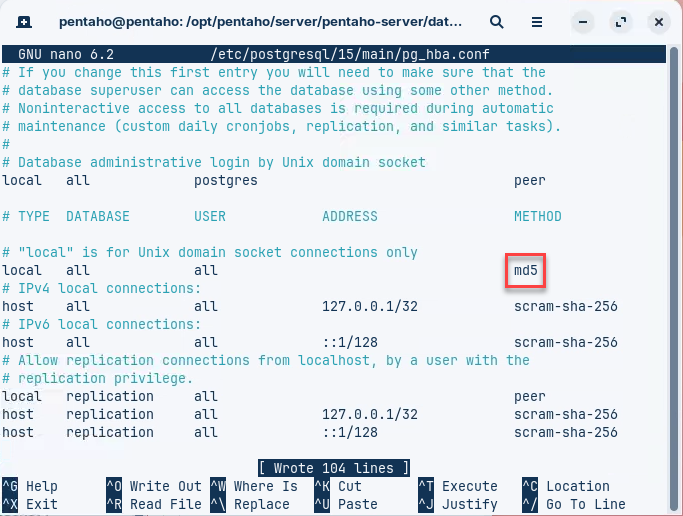
Edit pg_hba.conf.
Replace 'peer' for local connection with 'md5'.

The MD5 (message-digest algorithm) hashing algorithm is a one-way cryptographic function that accepts a message of any length as input and returns as output a fixed-length digest value to be used for authenticating the original message.
Save.
Restart service.
Run SQL Scripts
You will find SQL scripts for each supported Repository database:
PostgreSQL
Oracle
MS Sql Server
MySQL
MariaDB
Check postgresql repository is running.
Select postgresql scripts directory.
Log in as 'pentaho' superuser.
💡The default password for each user: password
💡You can switch database in PostgreSQL with the command: \c
\i create_jcr_postgresql.sql
Jackrabbit
\i create_quartz_postgresql.sql
Quartz
pentaho_user/password
\i create_repository_postgresql.sql
Hibernate
\i pentaho_mart_postgresql.sql
OpsMart
hibuser/password
\i pentaho_logging_postgresql.sql
Logging
hibuser/password
Ensure you're in the
/opt/pentaho/server/pentaho-server/data/postgresql directory.
Refer to the table above for username / password.
You may need to \q and log back in.
Execute the scripts.
Enter password:
Quit:
Log back in as 'pentaho' superuser.
Enter password:
Quit:
Log back in as 'pentaho' superuser.
Enter password:
Quit:
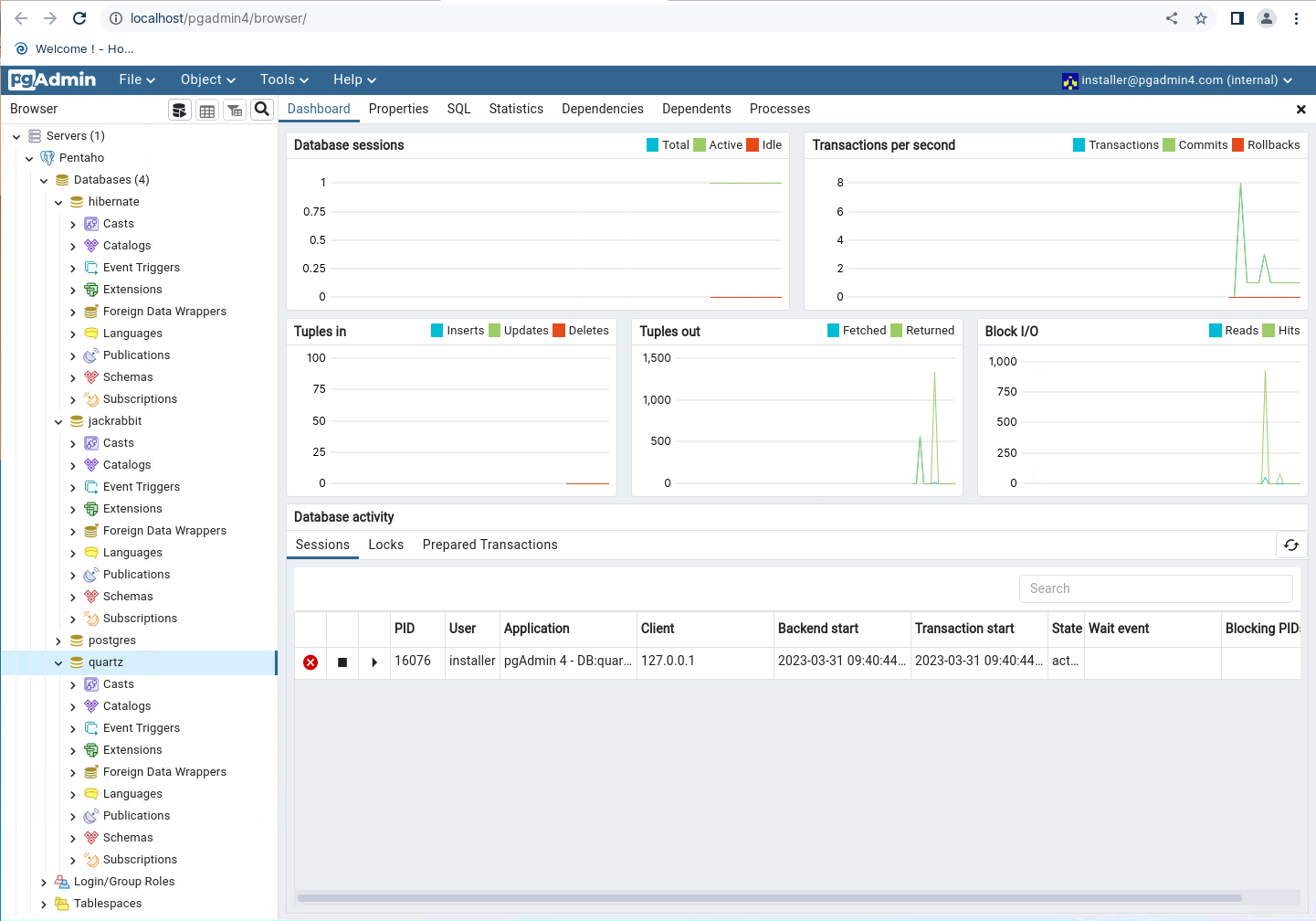
Check the databases in pgAdmin.
No tables are created in the Hibernate and Jackrabbit databases. These are created during the installation of the Pentaho server.

Pentaho Repository
Now that you have initialized your repository database, you will need to configure Quartz, Hibernate, Jackrabbit, and Pentaho Operations Mart for a PostgreSQL database.
PostgreSQL is configured by default; if you kept the default passwords and port, you will not need to set up Quartz, Hibernate, Jackrabbit or the Pentaho Operations Mart.
By default, the examples in this section are for a PostgreSQL database that runs on port 5432. The default password is also in these examples.
If you have a different port or different password, make sure that you change the password and port number in these examples to match the ones in your configuration.
Quartz
Event information, such as scheduled reports, is stored in the Quartz JobStore. During the installation process, you must indicate where the JobStore is located by modifying the quartz.properties file.
Navigate to quartz directory.
Locate the #_replace_jobstore_properties section and check.
Locate the # Configure Datasources section and check.
Exit.
Hibernate
Modify the Hibernate settings file to specify where Pentaho should find the Pentaho Repository’s Hibernate configuration file. The Hibernate configuration file specifies driver and connection information, as well as dialects and how to handle connection closes and timeouts.
The Hibernate database is also where the Pentaho Server stores the audit logs that act as source data for the Pentaho Operations Mart.
Navigate to hibernate-settings directory.
Locate the config-file section and check.
Exit.
Display postgresql.hibernate.cfg.xml.
Check postgresql has been set as default.
Exit.
Jackrabbit
Apache Jackrabbit is a platform of java open source content repository. A JCR (Java content repository) is a type of object database to customizing, storing, searching and retrieving hierarchical data.
As shown in the table below, locate and verify or change the code so that the PostgreSQL lines are not commented out, but the MySQL, Oracle, and MS SQL Server lines are commented out.
If you have a different port or different password, make sure that you change the password and port number in these examples to match the ones in your configuration.
Navigate to jackrabbit directory.
line 71/442
Repository
Filesystem schema: postgresql
line 129/442
Datastore
databaseType: postgresql
line 231/442
Workspace
Filesystem schema: postgresql
line 279/442
Persistence Manager (1)
PersistenceManager schema: postgesql
line 347/442
Versioning
Filesystem schema: postgresql
line 398/442
Persistence Manager (2)
PersistenceManager schema: postgesql
line 434/442
Database Journal
Journal schema: postgresql
Exit.
Tomcat
After your Repository has been configured, you must configure the web application servers to connect to the Pentaho Repository. In this step, you will make JDBC and JNDI connections to the Hibernate, Jackrabbit, and Quartz components.
Database Drivers
To connect to a database, including the Pentaho Repository database, you will need to download and install a JDBC driver to the appropriate places for Pentaho components as well as on the the web application server that contains the Pentaho Server.
Due to licensing restrictions, Pentaho cannot redistribute some third-party database drivers. You must download the file yourself and install it yourself.
For this workshop we're going to distribute a MySQL driver ..
Copy the JDBC drivers to jdbc-distribution.
Distribute the drivers.
You will need to restart the Pentaho Server and Client Tools to register the driver.
Multiple distribution paths can be set, separated by a 'space'.
Location of JDBC drivers in Pentaho+:
Pentaho Server
/server/pentaho-server/tomcat/lib
Pentaho Data Integration (Spoon)
/design-tools/data-integration/lib
Pentaho Report Designer (PRD)
/design-tools/report-designer/lib/jdbc
Pentaho Aggregation Designer (PAD)
/design-tools/aggregation-designer/drivers
Pentaho Schema Workbench (PSW)
/design-tools/schema-workbench/drivers
Pentaho Metadata Editor (PME)
/design-tools/metadata-editor/libext/JDBC
Check that the driver(s) have been added .. sometimes the distribution tool fails.. !!
context.xml
Database connection and network information, such as the username, password, driver class information, IP address or domain name, and port numbers for your Pentaho Repository database are stored in the context.xml file.
Check context.xml.
In a Production environment, check the username, password, driver class information, IP address (or domain name), and port numbers to match the correct values for your environment.
Exit.
Start Server
Now that you have completed the initial Pentaho Archive installation steps, you are ready to start the Pentaho Server.
Switch to pentaho-server directory.
Tail the log (new terminal).
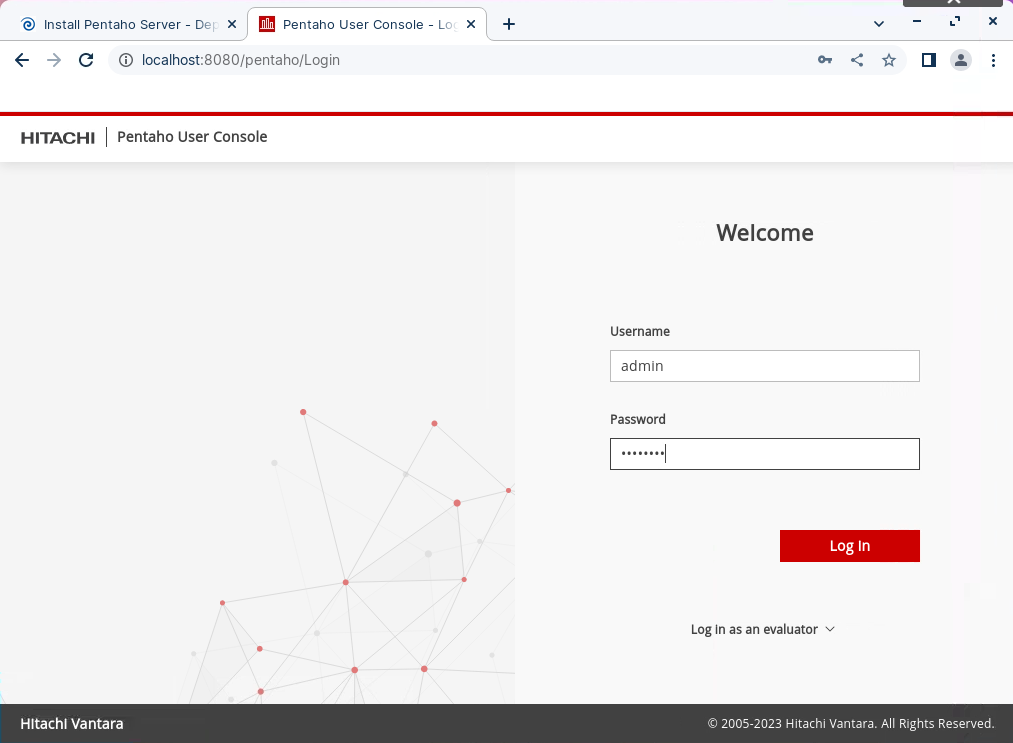
Pentaho User Console
The Pentaho User Console (PUC) is a web-based design environment where you can analyze data, create interactive reports, dashboard reports, and build integrated dashboards to share business intelligence solutions with others in your organization and on the internet.

Systemd
Systemd is a system and service manager for Linux operating systems. It's designed to be backwards compatible with SysV init scripts, and provides several features to start system services in parallel, which can reduce boot times.
To use this service:
Save the file below as:
/etc/systemd/system/pentaho-server.service
Reload the systemd daemon.
Start the service.
Enable the service to start on boot.
You can then manage the service using standard systemd commands:
To stop:
To restart:
To check status:

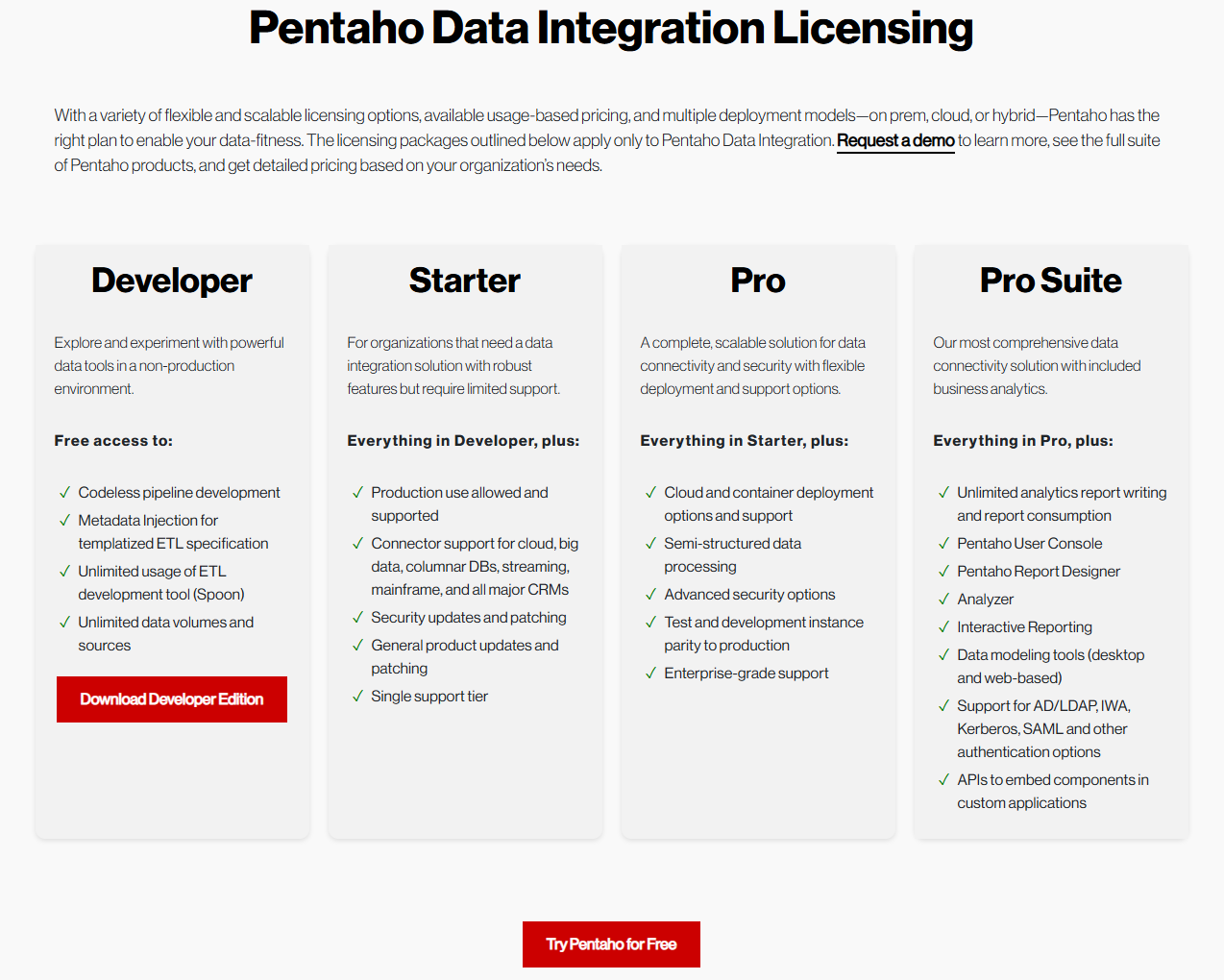
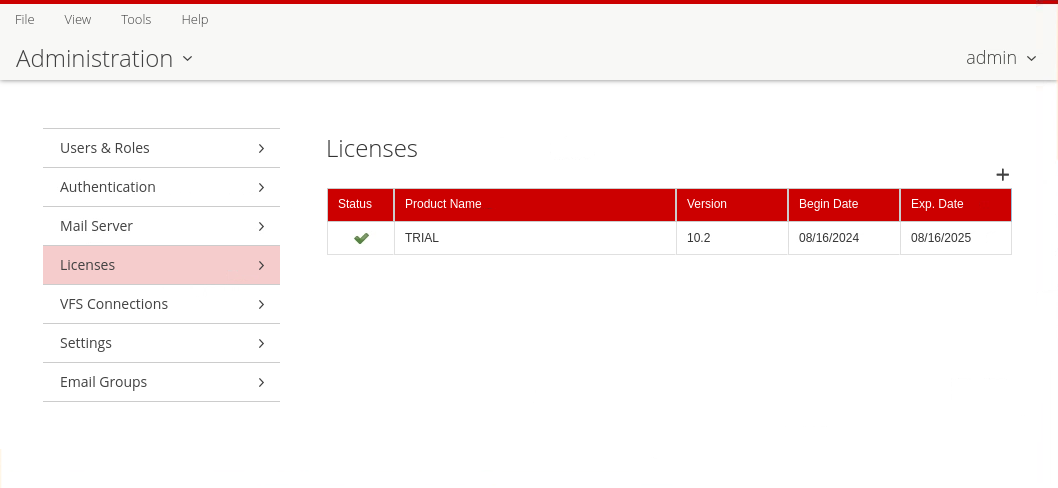
The Pentaho Licensing model has changed in Pentaho Pro Suite 10.+ Licenses are now handled via a License Manager.
This embedded service (on-prem / cloud) will enable our customers (Direct & OEM) to manage their PDI & BA entitlements with greater visibility and ease.
The License manger also checks EE plugins.
Trial license
You can obtain a Pentaho trial license to test the product before you acquire it. You need internet access to activate a trial license and run the installed trial version. It is not possible to run it for an extended period of time while disconnected from internet.
The temporary license expires thirty days after the start of the evaluation period.
To request a trial activation ID, go to the Pentaho Enterprise download page. Alternatively, contact the Pentaho Sales team.
On the download page, click Start a Free 30 Day Trial to open the trial registration form.
Complete the trial registration form and click Submit. The trial entitlement and activation ID is sent to you by email.
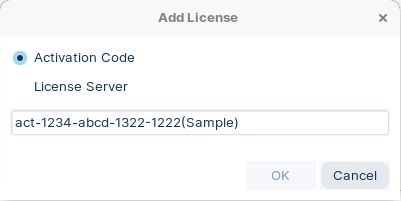
Download and install the Pentaho product. When launching the product, the Add License window opens.

Select Activation Code.
Copy the activation ID that you received from the local license manager, paste it into the provided field, and click OK

Enterprise licenses
If you are an existing customer wanting to upgrade from Pentaho 9.x or earlier supported versions, do not start the server before upgrading the licenses. You must install the new version of the product before activating the licenses.
Activate a license using a cloud license server
If you are able to access our cloud license server without any security restrictions, this is the quickest way to get up and running with Pentaho.
Copy the cloud license server URL that Pentaho emails you into the License Server field of the Add License dialog box that opens when you launch the product and click OK.
Set ENV License Path
To ensure that the Pentaho Server uses the same location to store and retrieve your Pentaho licenses, you must create a PENTAHO_LICENSE_INFORMATION_PATH system environment variable for your Pentaho user account if it does not exist. It does not matter what location you choose; however, the location needs to be available to the user account(s) that run the Pentaho Server.
Perform the following steps to set the environment variable for the license path in Linux.
Edit the /etc/environment file.
Add this line in a convenient place (changing the path if necessary)
The license information file is saved in the /home/pentaho/.pentaho folder.
Log out and log back into the operating system for the change to take effect.
Verify that the variable is properly set using the following command.
The PENTAHO_LICENSE_INFORMATION_PATH variable is now set.
Last updated
Was this helpful?