

Connectors
Connect to various data sources ..
x
x
Before you define the Snowflake connection, ensure the prerequisite steps have been completed.
For further information:
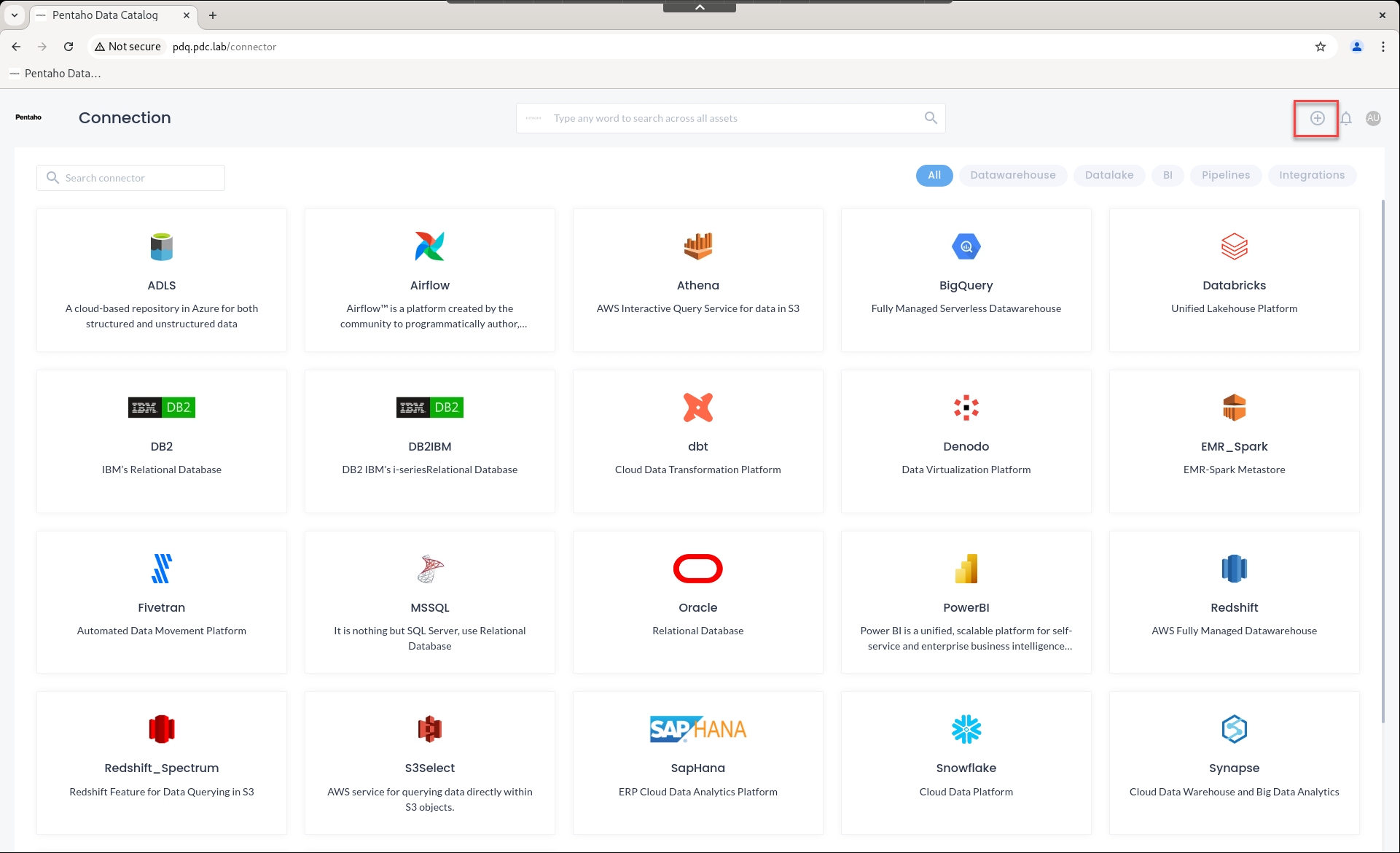
Click: + icon in the top right-hand corner of the UI.
Select Snowflake from the connector list.
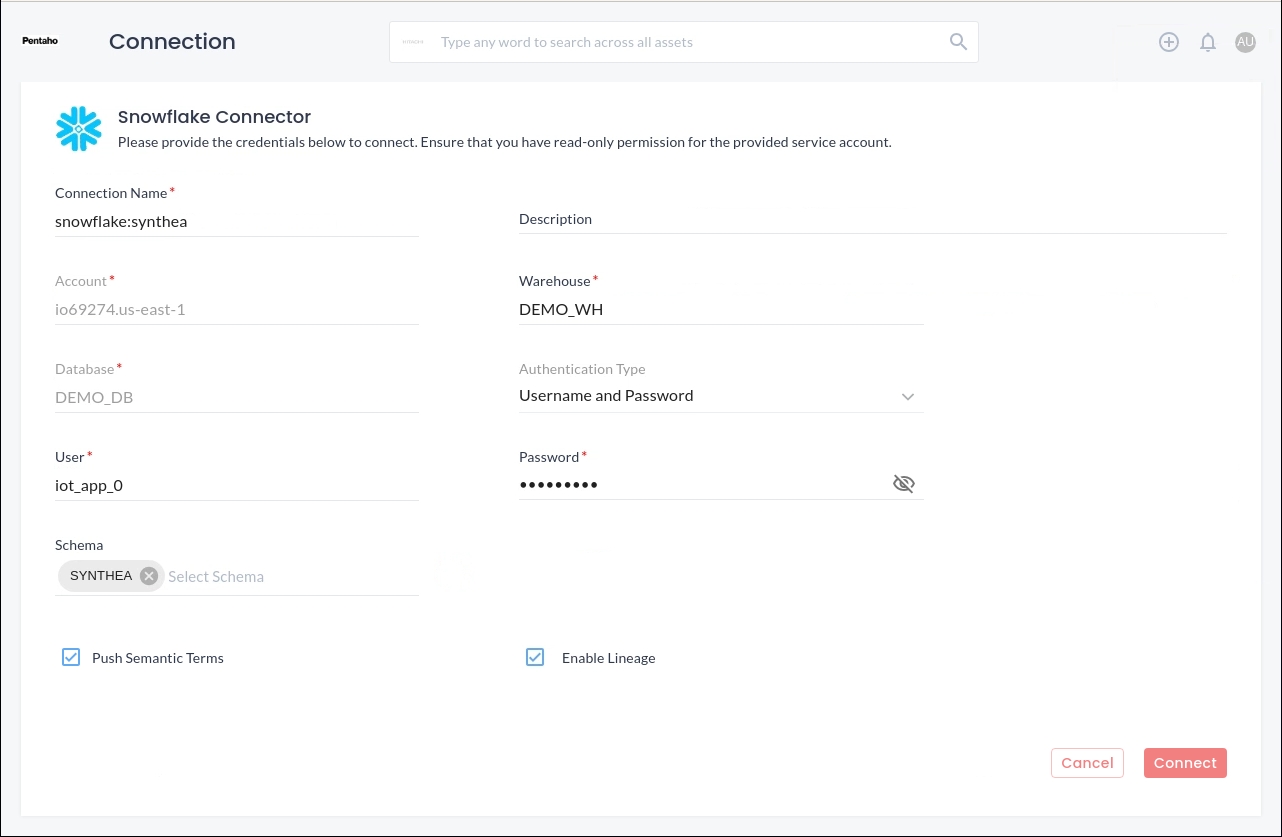
Enter the following details to connect to your database.
Connection name
The connection name has to be the same as defined in PDC.
Description
Account
Your Snowflake account
Warehouse
Database
Authentication Type
Username and Password
User
Password
Validate the connection details.
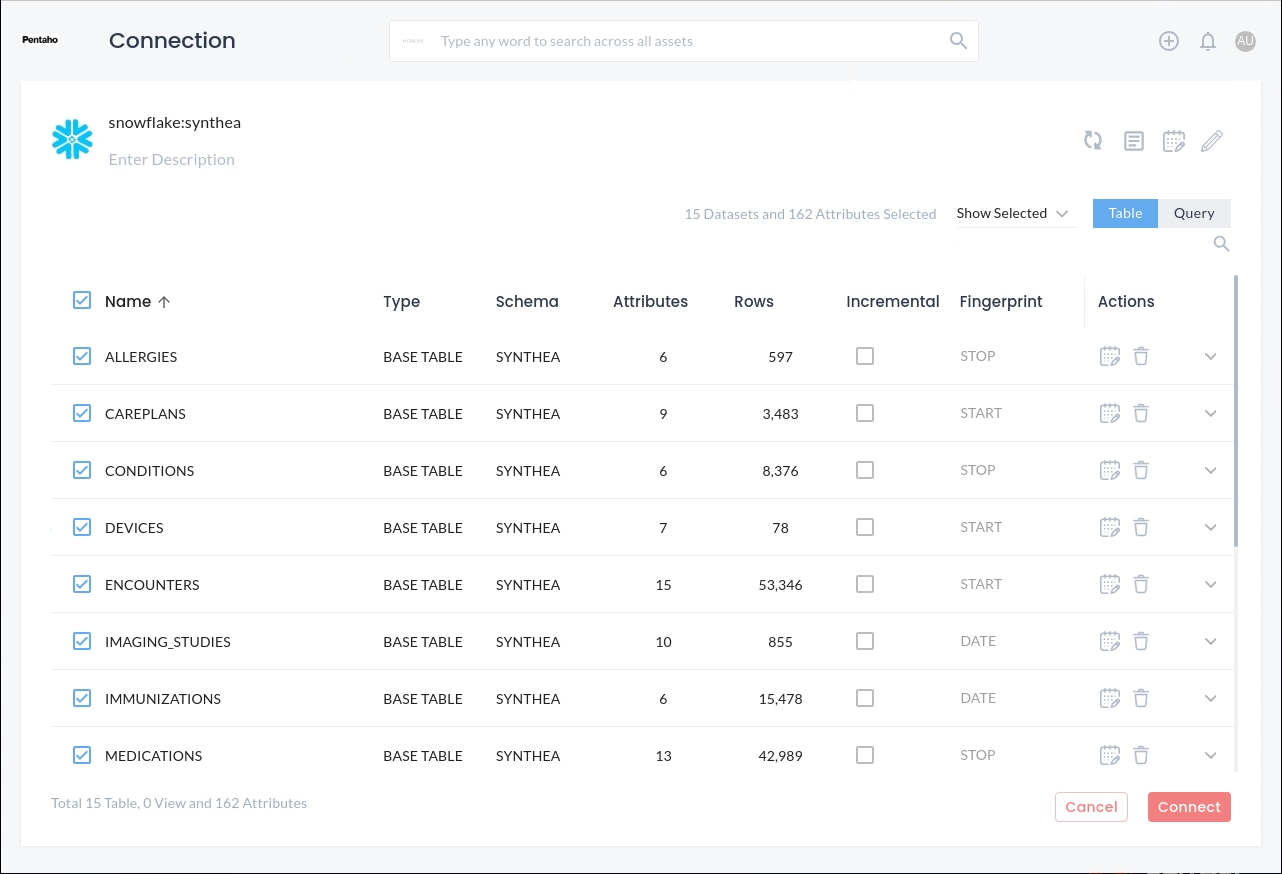
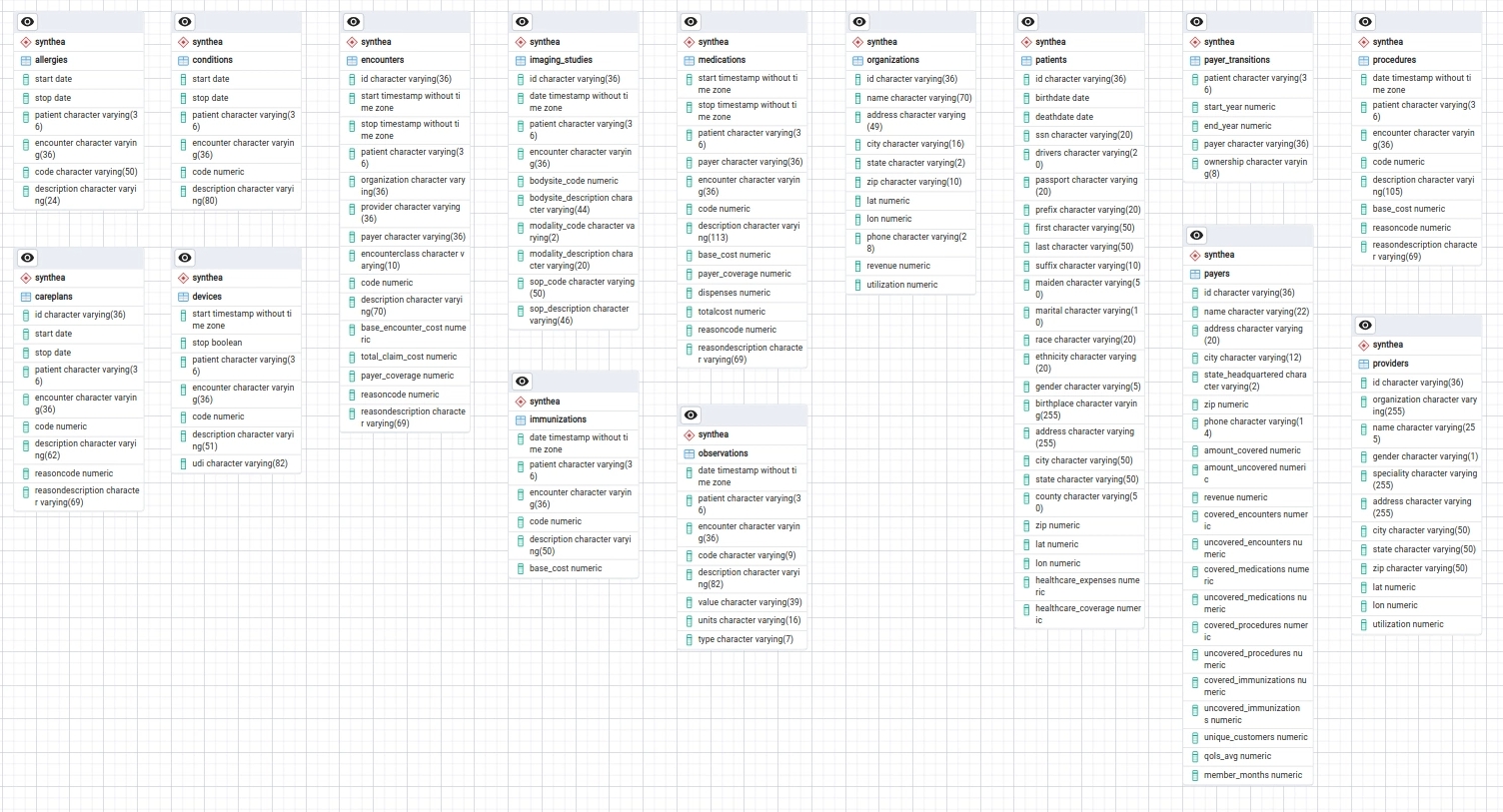
Click: 'Connect' and select the required Table and Queries - the following screenshot dsiplays the 'Synthea' tables.
x
x
x
Click: + icon in the top right-hand corner of the UI.
x
Select MSSQL from the connector list.
x
Enter the following details to connect to: MSSQL AdventureWorks2019 database.
Connection name
mssql:adventureworks2019
Description
Demo dataset of fictitious bicycle manufacturer
Server
pdc.pdc.lab
Port
1433
Database
AdventureWorks2019
Authentication Type
Username and Password
User
sqlreader
Password
2Petabytes
Schema
Sales
Driver
mssql-jdbc-9.2.1.jre15.jar
x
Validate the connection details.
x
Click; 'Connect' and select the required Table and Queries.
x
x
x
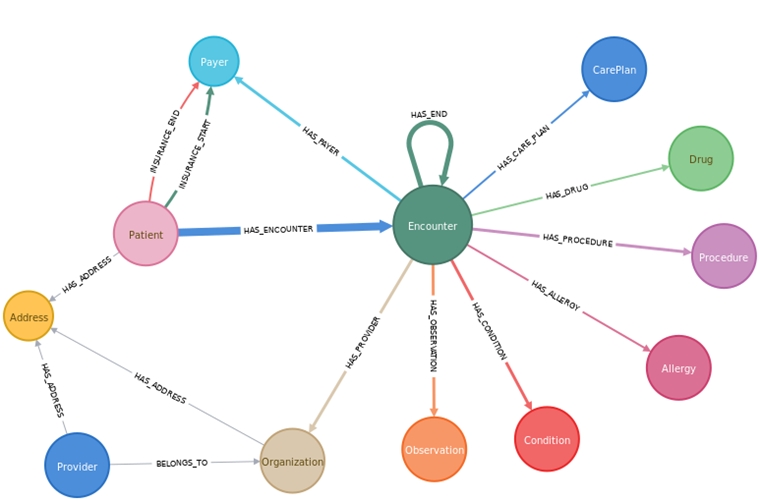
The generated data is free from legal and privacy concerns.
x
x
Enter the following details to connect to: Oracle business_apps_db (Synthea) database.
Data Source Name
oracle:synthea
Data Source ID
Leave Blank to autogenerate
Description
Demo dataset of patients medical records
Data Source Type
Oracle
Affinity
Default
Configuration Method
Credentials
Username
sqlreader
Password
2Petabytes
*Host
pdc.pdc.lab
Port
**Driver
postgresql-42.7.1.jar
Database Name
business_apps_db
x
Was this helpful?