# Use Cases

{% hint style="success" %}
**Use Cases**

Complete hands-on workshops for learning Kafka-based streaming data integration with Pentaho Data Integration (PDI) Kafka Enterprise Edition plugin.

Scenario: Basic Kafka Consumer - Real-time User Activity Stream

{% endhint %}

{% hint style="info" %}

#### Kafka PlugIn

x
{% endhint %}

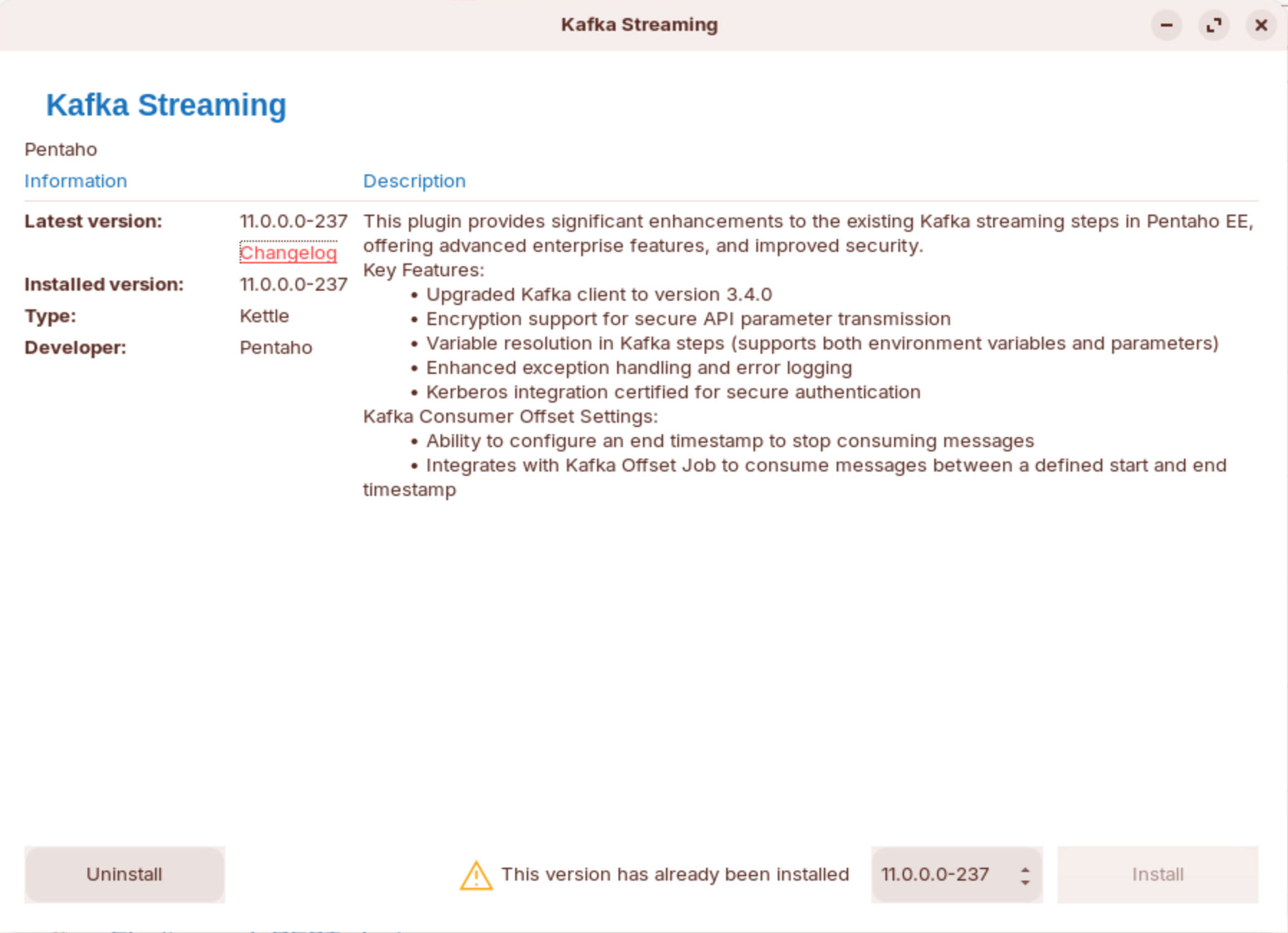
1. Ensure the Kafka EE plugin is installed.

<figure><img src="https://3680356391-files.gitbook.io/~/files/v0/b/gitbook-x-prod.appspot.com/o/spaces%2FZpCSy6Skj215f4oWypdc%2Fuploads%2FrtXinJU94MUqszPT0HPp%2Fimage.png?alt=media&#x26;token=b40bded7-86f9-4255-8eef-5ddb7a930e4c" alt=""><figcaption><p>Kafka EE plugin</p></figcaption></figure>

2. Start Pentaho Data Integration.

```bash
cd
cd Pentaho/design-tools/data-integration
sh spoon.sh
```

***

**Select a Use Case:**

{% tabs %}
{% tab title="Realtime User Events" %}
{% hint style="success" %}

#### Scenario: Basic Kafka Consumer - Real-time User Activity Stream

Your company tracks user registrations across web and mobile platforms. User registration events are published to a Kafka topic in real-time.&#x20;

Your task is to build a streaming pipeline that continuously reads these events, parses the JSON payload, transforms timestamps, and loads the data into a MySQL data warehouse - enabling real-time dashboards and analytics.
{% endhint %}

{% tabs %}
{% tab title="1. Kafka Consumer" %}
{% hint style="info" %}

#### **Kafka Consumer**

The Kafka Consumer step pulls streaming data from Kafka through a transformation. Within the Kafka Consumer step you enter the path that will execute the transformation according to message batch size or duration in near real-time. The child transformation must start with the Get records from stream step.

Additionally, from the Kafka Consumer step, you can select a step in the child transformation to stream records back to the parent transformation. This allows records processed by a Kafka Consumer step in a parent transformation to be passed downstream to any other steps included within the same parent transformation.
{% endhint %}

**Architecture Overview**

This workshop uses PDI's **parent/child transformation pattern** for Kafka streaming:

```
┌──────────────────────────────────────────────┐
│  PARENT TRANSFORMATION (users-to-db-parent)  │
│                                              │
│  ┌────────────────────────┐                  │
│  │    Kafka Consumer      │                  │
│  │    Topic: pdi-users    │                  │
│  │    Batch: 5s / 100 rec │──── batches ───► │
│  └────────────────────────┘                  │
└──────────────────────────────────────────────┘
                    │
                    ▼
┌──────────────────────────────────────────────┐
│  CHILD TRANSFORMATION (users-to-db-child)    │
│                                              │
│  Get records from stream                     │
│       │                                      │
│  JSON Input (parse $.userid, $.regionid,     │
│              $.gender, $.registertime)       │
│       │                                      │
│  Select values (rename + set metadata)       │
│       │                                      │
│  Formula (epoch ms ÷ 1000 → seconds)         │
│       │                                      │
│  Table output (→ user_events)                │
└──────────────────────────────────────────────┘
```

{% hint style="info" %}
**How it works**: The parent transformation's Kafka Consumer step reads messages in batches (every 5 seconds or 100 records, whichever comes first) and passes each batch to the child transformation for processing. The child transformation parses, transforms, and writes each batch to MySQL.
{% endhint %}

***

1. Open the following transformation:

`~/Workshop--Data-Integration/Labs/Module 7 - Use Cases/Streaming Data/Kafka/transformations/users-to-db-parent.ktr`

2. Double-click on the Kafka Consumer step to review the properties:

**Setup Tab**

<figure><img src="https://3680356391-files.gitbook.io/~/files/v0/b/gitbook-x-prod.appspot.com/o/spaces%2FZpCSy6Skj215f4oWypdc%2Fuploads%2FvWmAymjJCPRwI9b9r0ZX%2Fimage.png?alt=media&#x26;token=b3cd5d15-12aa-415c-80b6-7da1880d0702" alt=""><figcaption><p>Setup</p></figcaption></figure>

<table data-full-width="true"><thead><tr><th width="285">Property</th><th width="361">Description</th><th width="474">Value</th></tr></thead><tbody><tr><td>Transformation</td><td>Child transformation to process the records</td><td><code>${Internal.Entry.Current.Directory}/users-to-db-child.ktr</code></td></tr><tr><td>Setup</td><td></td><td></td></tr><tr><td>   Connection</td><td><p>Direct: Specify Bootstrap servers.</p><p>Cluster: Specify a Hadoop cluster configuration.</p></td><td>localhost:9092</td></tr><tr><td>   Topics</td><td>Kafka topics to consume from</td><td>pdi-users</td></tr><tr><td>   Consumer Group</td><td>Each Kafka consumer step starts a single thread. When part of a consumer group, each consumer is assigned a subset of topic partitions.</td><td>pdi-warehouse-users</td></tr></tbody></table>

***

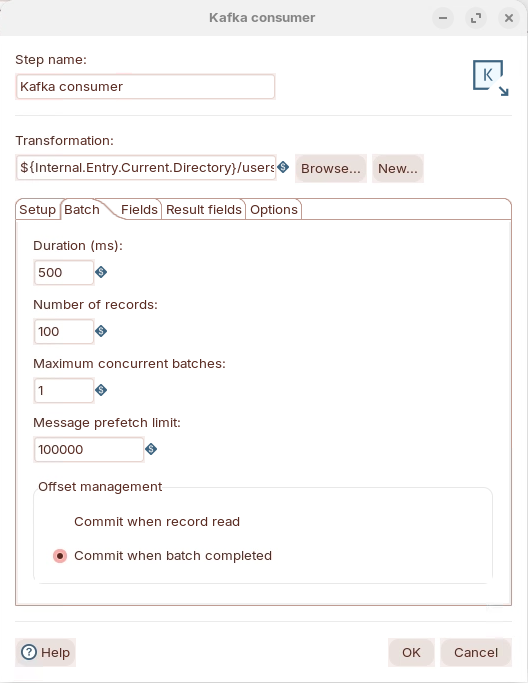
**Batch tab**

{% hint style="info" %}
**How batching works**: Whichever threshold is reached first (duration or record count) triggers the batch to be sent to the child transformation. With `pdi-users` producing \~1 msg/sec, the 5-second duration will usually trigger first, sending \~5 records per batch.
{% endhint %}

<figure><img src="https://3680356391-files.gitbook.io/~/files/v0/b/gitbook-x-prod.appspot.com/o/spaces%2FZpCSy6Skj215f4oWypdc%2Fuploads%2FsElERyHpP08h1VnIc5Oq%2Fimage.png?alt=media&#x26;token=9f4c63ab-80a1-415c-8025-1371ae86c576" alt=""><figcaption><p>Batch</p></figcaption></figure>

<table data-full-width="true"><thead><tr><th width="258">Property</th><th width="326">Description</th><th>Value</th></tr></thead><tbody><tr><td>Duration (ms)</td><td>Time (in milliseconds) to collect records before executing the child transformation.</td><td>500</td></tr><tr><td>Number of records</td><td>Number of records to collect before executing the child transformation.</td><td>100</td></tr><tr><td>Maximum concurrent batches</td><td>Maximum number of batches to collect at the same time.</td><td>1</td></tr><tr><td>Message prefetch limit</td><td>Limit for incoming messages to queue for processing.</td><td>100000</td></tr><tr><td>Offset Management</td><td><p><code>Commit when record read</code>: Commit offset when a record is read.</p><p><code>Commit when batch completed</code>: Commit offsets after the batch is processed.</p></td><td>Commit when batch completed</td></tr></tbody></table>

***

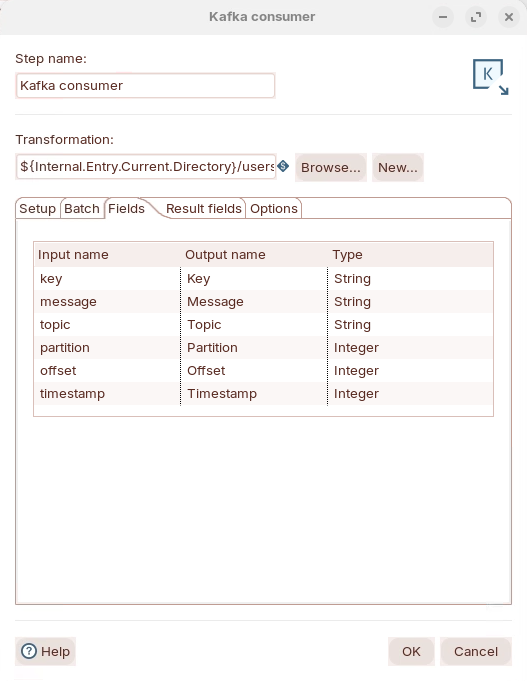
**Fields tab**

<figure><img src="https://3680356391-files.gitbook.io/~/files/v0/b/gitbook-x-prod.appspot.com/o/spaces%2FZpCSy6Skj215f4oWypdc%2Fuploads%2F1EsjTsTU9vLioZ2UiepL%2Fimage.png?alt=media&#x26;token=850ac164-b82e-4948-8693-485781915c29" alt=""><figcaption><p>Fields</p></figcaption></figure>

<table data-full-width="true"><thead><tr><th width="155">Property</th><th width="371">Description</th><th width="539">Value</th></tr></thead><tbody><tr><td>Input Name </td><td>Incoming fields received from Kafka streams. Default inputs include:</td><td><p><code>key</code>: Determines message distribution to partitions. If no key is present, messages are randomly distributed.</p><p><code>message</code>: The message value.</p><p><code>topic</code>: Topic name.</p><p><code>partition:</code> Partition number.</p><p><code>offset</code>: Sequential ID that uniquely identifies the record within the partition.</p><p><code>timestamp</code>: Time the message is received on the server.</p></td></tr><tr><td>Output Name</td><td>Output field name.</td><td></td></tr><tr><td>Type</td><td>Data Type</td><td></td></tr></tbody></table>

***

**Results fields tab**

<figure><img src="https://3680356391-files.gitbook.io/~/files/v0/b/gitbook-x-prod.appspot.com/o/spaces%2FZpCSy6Skj215f4oWypdc%2Fuploads%2F1aRpbs6dQGCCP4Scl6bb%2Fimage.png?alt=media&#x26;token=8b2f93ca-b411-4257-83ac-2b23c9ed19cf" alt=""><figcaption><p>Results fields</p></figcaption></figure>

<table data-full-width="true"><thead><tr><th width="183">Property</th><th width="429">Description</th><th>Value</th></tr></thead><tbody><tr><td>Return fields from</td><td>Step name in the child transformation that returns fields to the parent transformation.</td><td></td></tr></tbody></table>

***

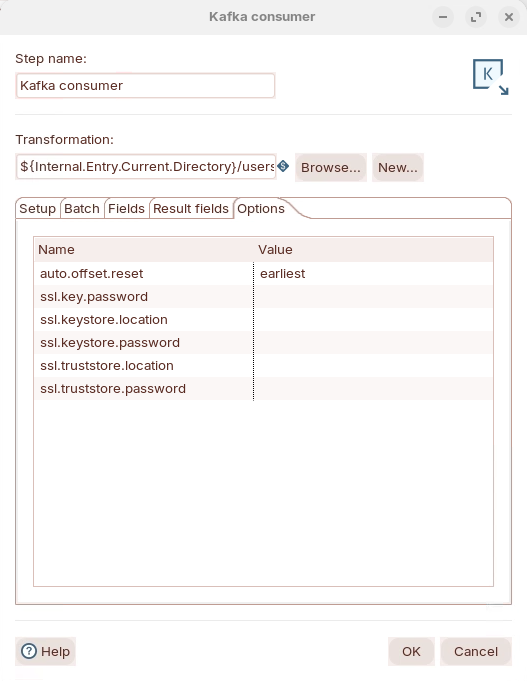
**Options tab**

<figure><img src="https://3680356391-files.gitbook.io/~/files/v0/b/gitbook-x-prod.appspot.com/o/spaces%2FZpCSy6Skj215f4oWypdc%2Fuploads%2FKdUyYInlPHSHHF9BtUrK%2Fimage.png?alt=media&#x26;token=fb2c1723-669c-47c7-8219-23747d9cd907" alt=""><figcaption><p>Options</p></figcaption></figure>

<table data-full-width="true"><thead><tr><th width="182">Property</th><th width="400">Description</th><th width="197">Value</th></tr></thead><tbody><tr><td>auto.offset.reset  </td><td>set the offset from when to process the records: latest, earliest</td><td>earliest</td></tr></tbody></table>
{% endtab %}

{% tab title="2. Process stream" %}
{% hint style="info" %}

#### Get records from stream

This step returns records that were previously generated by another transformation in a job. The records are passed to this step using one of the streaming input steps (for example, Kinesis consumer, Kafka consumer, etc.).&#x20;

This step produces one or more rows and cannot be placed within a stream. It must be the first step in a stream since it produces rows. If you want to add this data to an existing stream, you need to use a join step.
{% endhint %}

<figure><img src="https://3680356391-files.gitbook.io/~/files/v0/b/gitbook-x-prod.appspot.com/o/spaces%2FZpCSy6Skj215f4oWypdc%2Fuploads%2F6u1vRALUm2eYgjIXShrL%2Fimage.png?alt=media&#x26;token=0fc546e7-3edc-4de0-810b-d6d41f61aa2f" alt=""><figcaption><p>users-to-db-child.ktr</p></figcaption></figure>

1. Open the following transformation:

`~/Workshop--Data-Integration/Labs/Module 7 - Use Cases/Streaming Data/Kafka/transformations/users-to-db-child.ktr`

{% tabs %}
{% tab title="1. Get records from stream" %}
{% hint style="info" %}

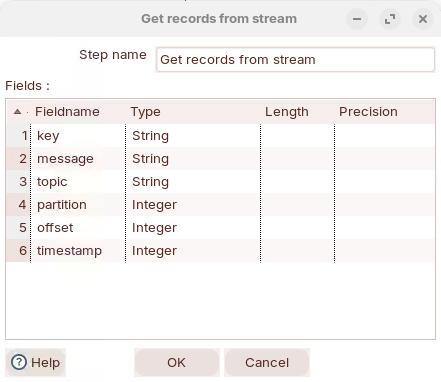
#### Get records from stream

Receive batched records from `users-to-db-parent.ktr`
{% endhint %}

1. Double-click on the step and enter the following Fieldnames and Types:

<figure><img src="https://3680356391-files.gitbook.io/~/files/v0/b/gitbook-x-prod.appspot.com/o/spaces%2FZpCSy6Skj215f4oWypdc%2Fuploads%2FRhsZfju4BDPOksEsdGHH%2Fimage.png?alt=media&#x26;token=371ba9bd-8ad0-44c6-bd40-8b16f147bb70" alt=""><figcaption><p>Stream feilds</p></figcaption></figure>
{% endtab %}

{% tab title="2. JSON Input" %}
{% hint style="info" %}

#### JSON Input

Use the **JSON Input** step to read data from JSON structures, files, or incoming fields.

The step uses a [JSONPath](https://github.com/json-path/JsonPath) expression to extract data and output rows. JSONPath expressions can use either dot notation or square bracket notation.
{% endhint %}

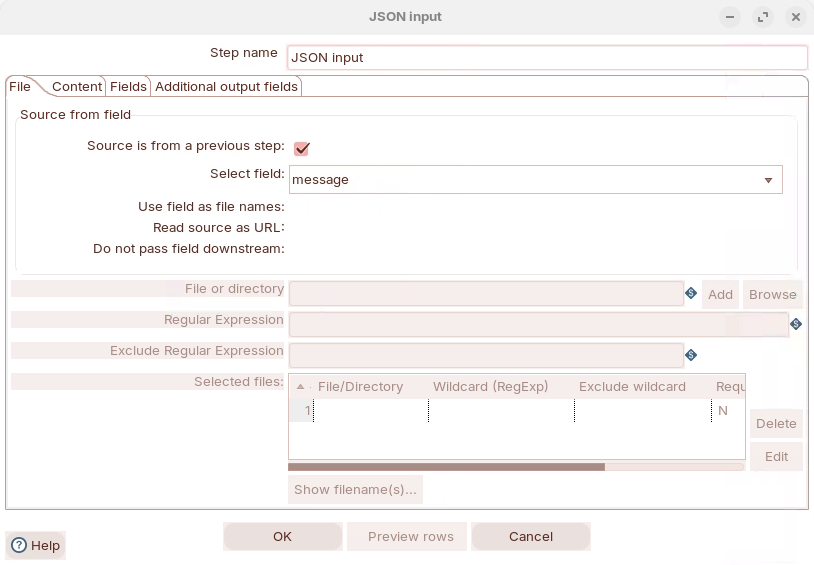
1. Double-click on the JSON Input step to display the settings:

**File tab**

2. Ensure: Source is from previous step - enabled.
3. From the drop down select: `message` field.

<figure><img src="https://3680356391-files.gitbook.io/~/files/v0/b/gitbook-x-prod.appspot.com/o/spaces%2FZpCSy6Skj215f4oWypdc%2Fuploads%2FHAuwo6qtMadzKfPZN7uo%2Fimage.png?alt=media&#x26;token=80f979b2-e4df-4358-9952-58a120582a92" alt=""><figcaption></figcaption></figure>

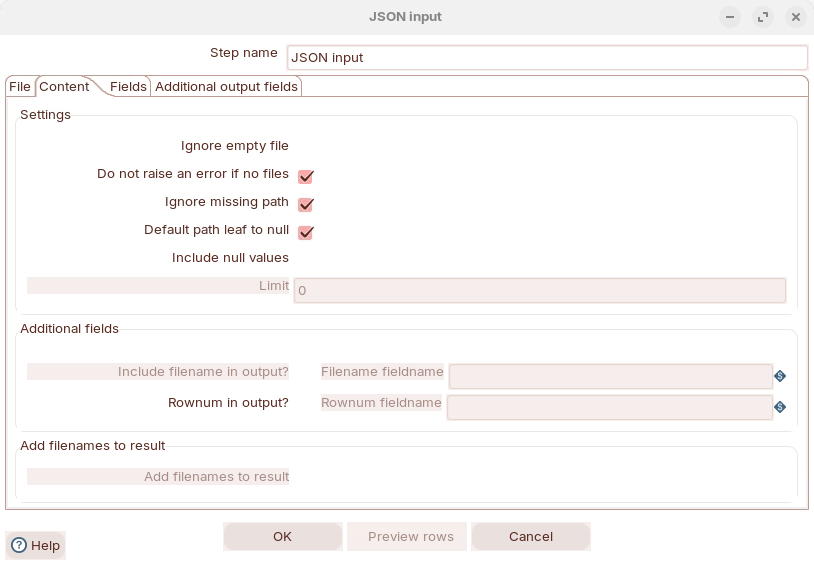
**Content tab**

4. Suppress errors

<figure><img src="https://3680356391-files.gitbook.io/~/files/v0/b/gitbook-x-prod.appspot.com/o/spaces%2FZpCSy6Skj215f4oWypdc%2Fuploads%2F5rpNNV0RtbsVdmhahg46%2Fimage.png?alt=media&#x26;token=1f50e872-41f1-466b-8062-0f4489131119" alt=""><figcaption><p>Content</p></figcaption></figure>

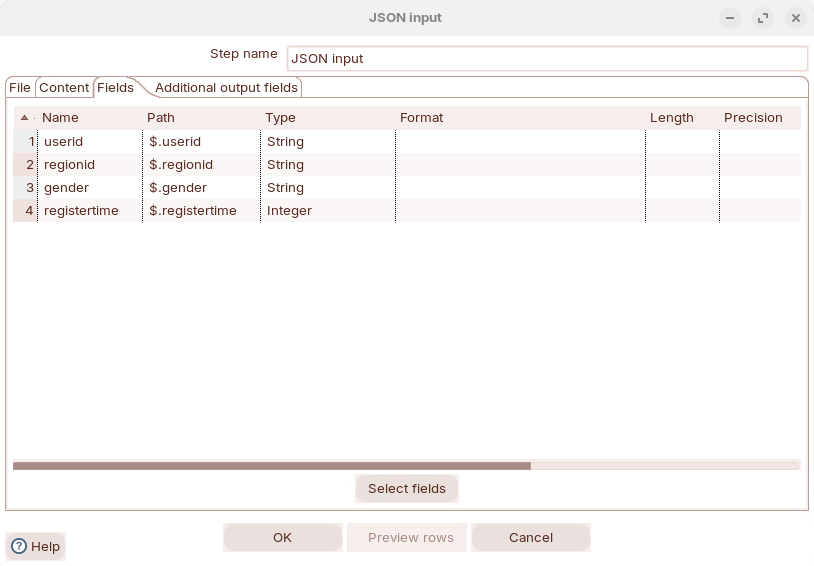
**Fields tab**

5. You will have to manually enter the path.&#x20;

<figure><img src="https://3680356391-files.gitbook.io/~/files/v0/b/gitbook-x-prod.appspot.com/o/spaces%2FZpCSy6Skj215f4oWypdc%2Fuploads%2FeNk5HRm6xhwsR8WmQrQo%2Fimage.png?alt=media&#x26;token=3c00b367-88b5-41f9-9de3-ea823b157e21" alt=""><figcaption><p>Enter path to retrieve fields</p></figcaption></figure>

{% hint style="info" %}
You can get an idea of the JSON object by viewing the messages in the Control Center.

The `pdi-users` topic receives user registration events at \~1 message/second from the datagen connector.
{% endhint %}

**Sample message**:

```json
{"registertime":1493899960000,"userid":"User_1","regionid":"Region_9","gender":"MALE"}
```

**Field descriptions**:

| JSON Field     | Type   | Description                                 |
| -------------- | ------ | ------------------------------------------- |
| `registertime` | Long   | Registration timestamp (epoch milliseconds) |
| `userid`       | String | User identifier (e.g., `User_1`)            |
| `regionid`     | String | Region identifier (e.g., `Region_9`)        |
| `gender`       | String | Gender (`MALE` or `FEMALE`)                 |
| {% endtab %}   |        |                                             |

{% tab title="3. Select values" %}
{% hint style="info" %}

#### Select values

{% endhint %}

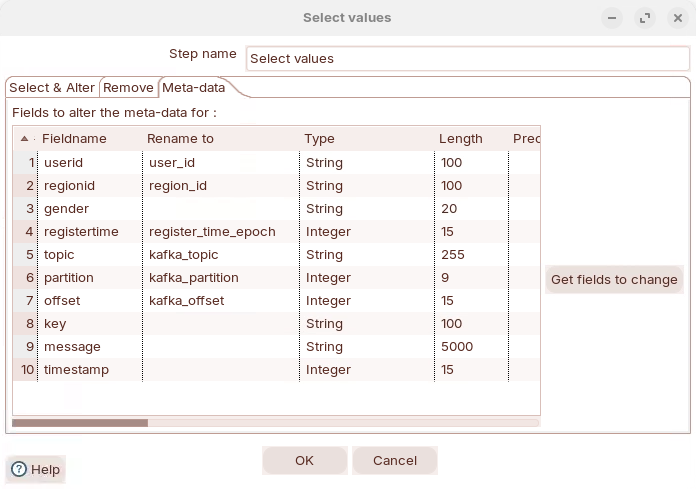
1. Double-click on the step to diaply the properties.
2. Click on the Metadata tab.

<figure><img src="https://3680356391-files.gitbook.io/~/files/v0/b/gitbook-x-prod.appspot.com/o/spaces%2FZpCSy6Skj215f4oWypdc%2Fuploads%2FmtiVrlqX6PlbkPNBvYQb%2Fimage.png?alt=media&#x26;token=005fa9f1-52b1-47a5-9040-9d98c36d8012" alt=""><figcaption><p>Define Metadata </p></figcaption></figure>

{% hint style="warning" %}
This tab sets the data type and length metadata for each field. **This is critical for MySQL** - without explicit lengths, PDI maps String fields to `TINYTEXT`, which breaks MySQL indexes and causes errors like:
{% endhint %}

```
BLOB/TEXT column 'user_id' used in key specification without a key length
```

<table><thead><tr><th width="204">Fieldname</th><th width="151">Type</th><th width="141">Length</th></tr></thead><tbody><tr><td><code>user_id</code></td><td>String</td><td>100</td></tr><tr><td><code>region_id</code></td><td>String</td><td>100</td></tr><tr><td><code>gender</code></td><td>String</td><td>20</td></tr><tr><td><code>register_time_epoch</code></td><td>Integer</td><td>15</td></tr><tr><td><code>kafka_topic</code></td><td>String</td><td>255</td></tr><tr><td><code>kafka_partition</code></td><td>Integer</td><td>9</td></tr><tr><td><code>kafka_offset</code></td><td>Integer</td><td>15</td></tr><tr><td><code>key</code></td><td>String</td><td>100</td></tr><tr><td><code>message</code></td><td>String</td><td>5000</td></tr><tr><td><code>timestamp</code></td><td>Integer</td><td>15</td></tr></tbody></table>

{% hint style="info" %}
**Why these lengths?** They match the MySQL table column definitions: `user_id VARCHAR(100)`, `region_id VARCHAR(100)`, `gender VARCHAR(20)`, `kafka_topic VARCHAR(255)`. Setting the correct lengths ensures PDI generates `VARCHAR` instead of `TINYTEXT`.
{% endhint %}
{% endtab %}

{% tab title="4. Formula" %}
{% hint style="info" %}

#### Formula

The Formula step can calculate Formula Expressions within a data stream. It can be used to create simple calculations like \[A]+\[B] or more complex business logic with a lot of nested if / then logic.
{% endhint %}

<figure><img src="https://3680356391-files.gitbook.io/~/files/v0/b/gitbook-x-prod.appspot.com/o/spaces%2FZpCSy6Skj215f4oWypdc%2Fuploads%2FoVjM1jBzhub7H4fDjkPy%2Fimage.png?alt=media&#x26;token=f9e578ab-2eea-43d5-8e87-2de71a88e237" alt=""><figcaption><p>Formula</p></figcaption></figure>

1. Double-click to configure the Formula step:

<table><thead><tr><th width="210">New field</th><th width="274">Formula</th><th>Value type</th><th>Length</th><th>Precision</th><th>Replace</th></tr></thead><tbody><tr><td><code>register_time_seconds</code></td><td><code>[register_time_epoch] / 1000</code></td><td>Integer</td><td>-1</td><td>-1</td><td><em>(blank)</em></td></tr></tbody></table>

{% hint style="info" %}
**Why Formula instead of Calculator?** The Calculator step requires both operands to be existing stream fields — you cannot enter a literal constant like `1000` as Field B. The Formula step supports inline constants in expressions.

**What this does**: The datagen produces `registertime` as epoch milliseconds (e.g., `1493899960000`). MySQL's `TIMESTAMP` column expects epoch seconds, so we divide by 1000 to get `1493899960`.

**Alternative using Calculator**: Add an **Add constants** step before Calculator with a field `divisor` = `1000` (Integer). Then use Calculator with operation `A / B` where A = `register_time_epoch` and B = `divisor`.
{% endhint %}
{% endtab %}

{% tab title="5. Table ouput" %}
{% hint style="info" %}

#### **Table Output**

The Table Output step loads data into a database table. Table Output is equivalent to the SQL INSERT operator.

If you only need to update rows, use the Update step.

To perform both INSERT and UPDATE, use Insert/Update.

This step provides configuration options for a target table and performance-related options such as Commit size and Use batch update for inserts.
{% endhint %}

**Create Database Connection in Spoon**

1. Open Spoon (PDI)
2. Go to **View** panel (left side) → right-click **Database connections** → **New**
3. Configure:

| Setting         | Value             |
| --------------- | ----------------- |
| Connection Name | `warehouse_db`    |
| Connection Type | MySQL             |
| Access          | Native (JDBC)     |
| Host Name       | `localhost`       |
| Database Name   | `kafka_warehouse` |
| Port Number     | `3306`            |
| User Name       | `kafka_user`      |
| Password        | `kafka_password`  |

4. Click the **Options** tab and add these parameters:

| Parameter                  | Value   |
| -------------------------- | ------- |
| `useServerPrepStmts`       | `false` |
| `rewriteBatchedStatements` | `true`  |
| `cachePrepStmts`           | `true`  |
| `prepStmtCacheSize`        | `250`   |
| `useCompression`           | `true`  |

5. Click **Test** — should show "Connection successful"
6. Click **OK** to save

***

**Main Settings**

1. Double-click on the Table output stepto configure:

| Setting                 | Value           | Notes                                    |
| ----------------------- | --------------- | ---------------------------------------- |
| Connection              | `warehouse_db`  | The MySQL connection from Step 2         |
| Target schema           | *(leave blank)* | **Important**: Do NOT set this for MySQL |
| Target table            | `user_events`   |                                          |
| Commit size             | `1000`          |                                          |
| Truncate table          | No              |                                          |
| Ignore insert errors    | No              |                                          |
| Use batch updates       | Yes             |                                          |
| Specify database fields | Yes             | **Must be Yes** to control field mapping |

{% hint style="info" %}
**Critical: Leave Target schema blank.** MySQL uses the database name from the connection, not a separate schema. Setting it to `kafka_warehouse` causes PDI to qualify the table as `kafka_warehouse.user_events` which can fail or cause unexpected behavior.
{% endhint %}

**Database Fields**

Click **Specify database fields: Yes**, then configure the field mapping:

| Database Column   | Stream Field            |
| ----------------- | ----------------------- |
| `user_id`         | `user_id`               |
| `region_id`       | `region_id`             |
| `gender`          | `gender`                |
| `register_time`   | `register_time_seconds` |
| `kafka_topic`     | `kafka_topic`           |
| `kafka_partition` | `kafka_partition`       |
| `kafka_offset`    | `kafka_offset`          |

{% hint style="danger" %}
**Do NOT map these columns** - MySQL handles them automatically:

* `event_id` - AUTO\_INCREMENT primary key
* `ingestion_timestamp` - DEFAULT CURRENT\_TIMESTAMP
  {% endhint %}

{% hint style="info" %}
**Tip**: You can use **Get Fields** button to auto-populate, then remove `event_id` and `ingestion_timestamp`, and fix the `register_time` mapping (stream field should be `register_time_seconds`, not `register_time`).
{% endhint %}

{% hint style="warning" %}

#### **SQL Button**

When you click **SQL** in the Table output dialog, PDI may suggest ALTER TABLE statements. **Click Close without executing** - the table already has the correct schema from the Docker init script.

If PDI suggests:

```sql
ALTER TABLE user_events MODIFY user_id TINYTEXT
```

This means the Meta-data tab in Select values doesn't have the string lengths set.&#x20;
{% endhint %}
{% endtab %}
{% endtabs %}
{% endtab %}

{% tab title="3. Execute" %}
{% hint style="warning" %}

#### Prerequisites

Before using the transformation templates, ensure:

**Kafka cluster is running:** `make start` or `docker compose up -d` from the Kafka-Docker directory

**Datagen connectors are deployed:** `make deploy-connectors` or `./connectors/deploy-connectors.sh`&#x20;

**MySQL database is running:** `make mysql-setup`
{% endhint %}

Run the following commands:

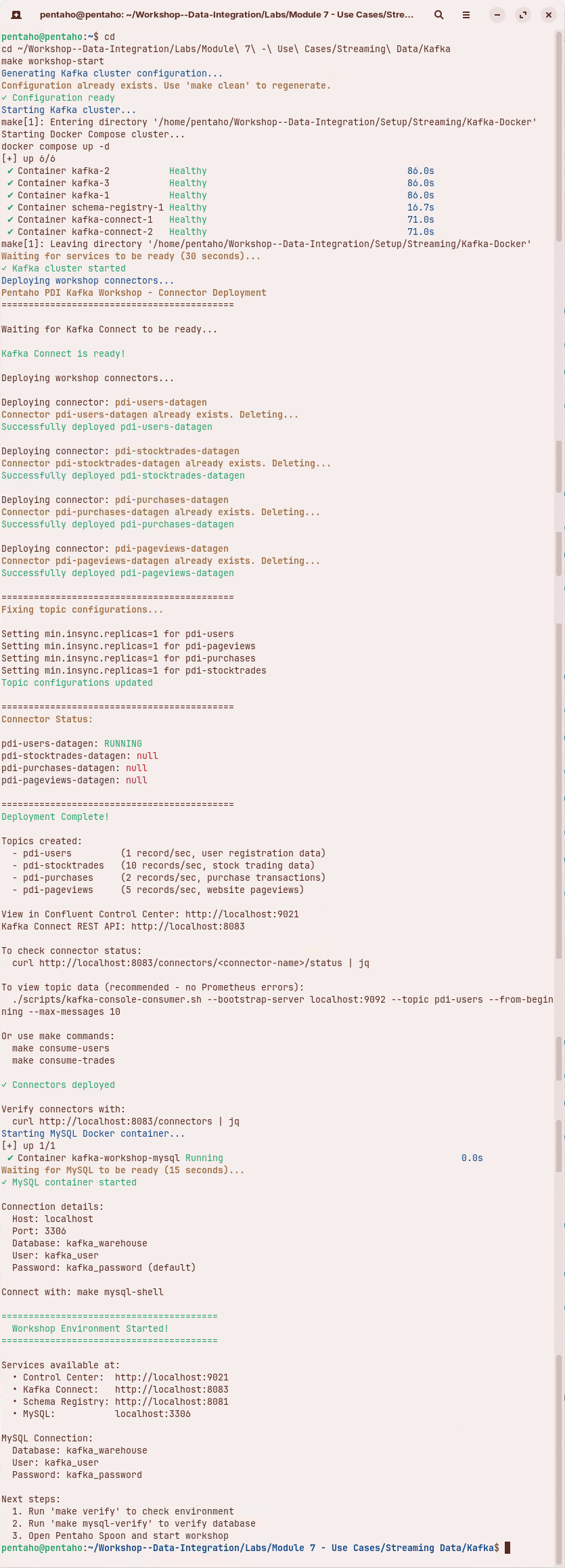
1. Starts all the required Kafka containers + connectors + MySQL.

```bash
cd
cd ~/Workshop--Data-Integration/Labs/Module\ 7\ -\ Use\ Cases/Streaming\ Data/Kafka
make workshop-start
```

{% hint style="info" %}
User event data is now being streamed to the Brokers
{% endhint %}

<figure><img src="https://3680356391-files.gitbook.io/~/files/v0/b/gitbook-x-prod.appspot.com/o/spaces%2FZpCSy6Skj215f4oWypdc%2Fuploads%2FX0Q9uk9puqwweMbM6I3e%2Fimage.png?alt=media&#x26;token=6d4e8e0a-14b0-487d-9438-280170ff1b91" alt=""><figcaption></figcaption></figure>

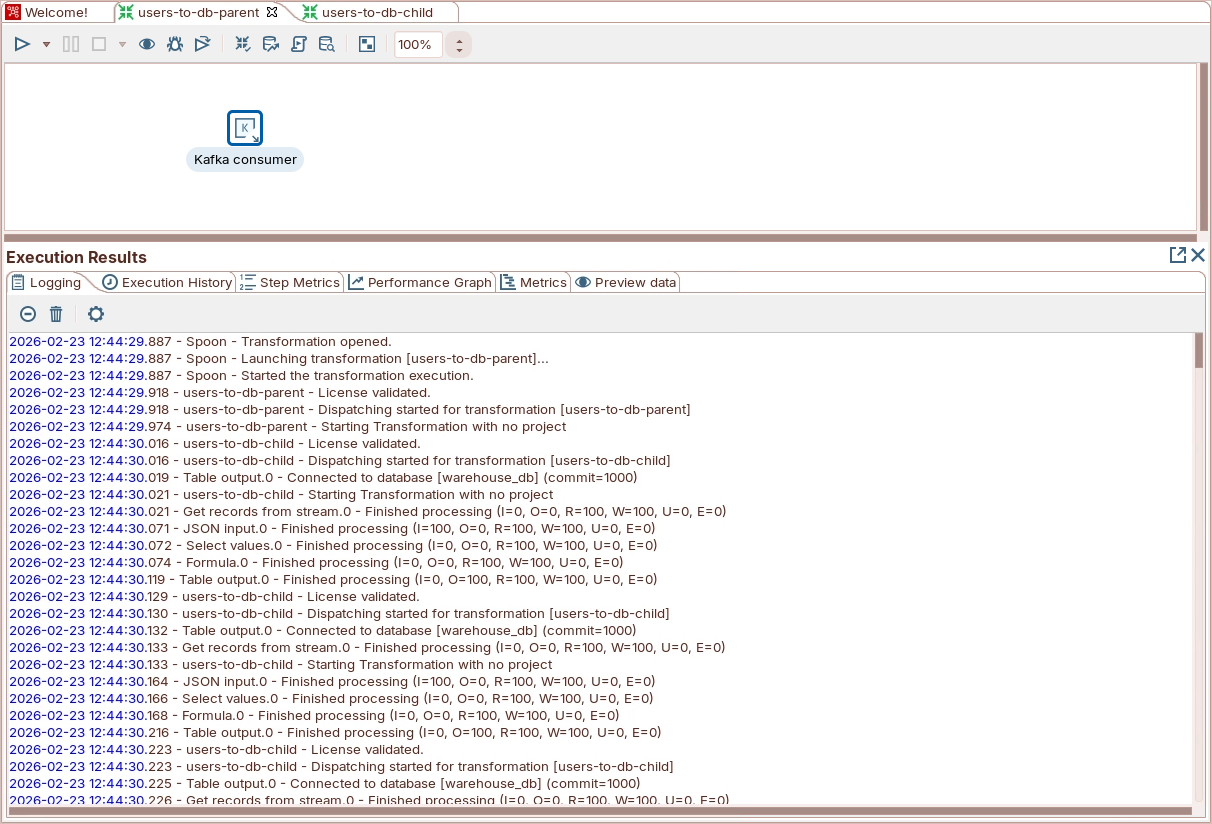
2. Start users-to-db-parent.ktr

<figure><img src="https://3680356391-files.gitbook.io/~/files/v0/b/gitbook-x-prod.appspot.com/o/spaces%2FZpCSy6Skj215f4oWypdc%2Fuploads%2FaOorfi6job6k1gvhMl9f%2Fimage.png?alt=media&#x26;token=ccf13047-376f-40ce-b780-edda34e03a53" alt=""><figcaption></figcaption></figure>

{% hint style="info" %}
The user events are being consumed and processed, writing the stream to the user\_events table.
{% endhint %}

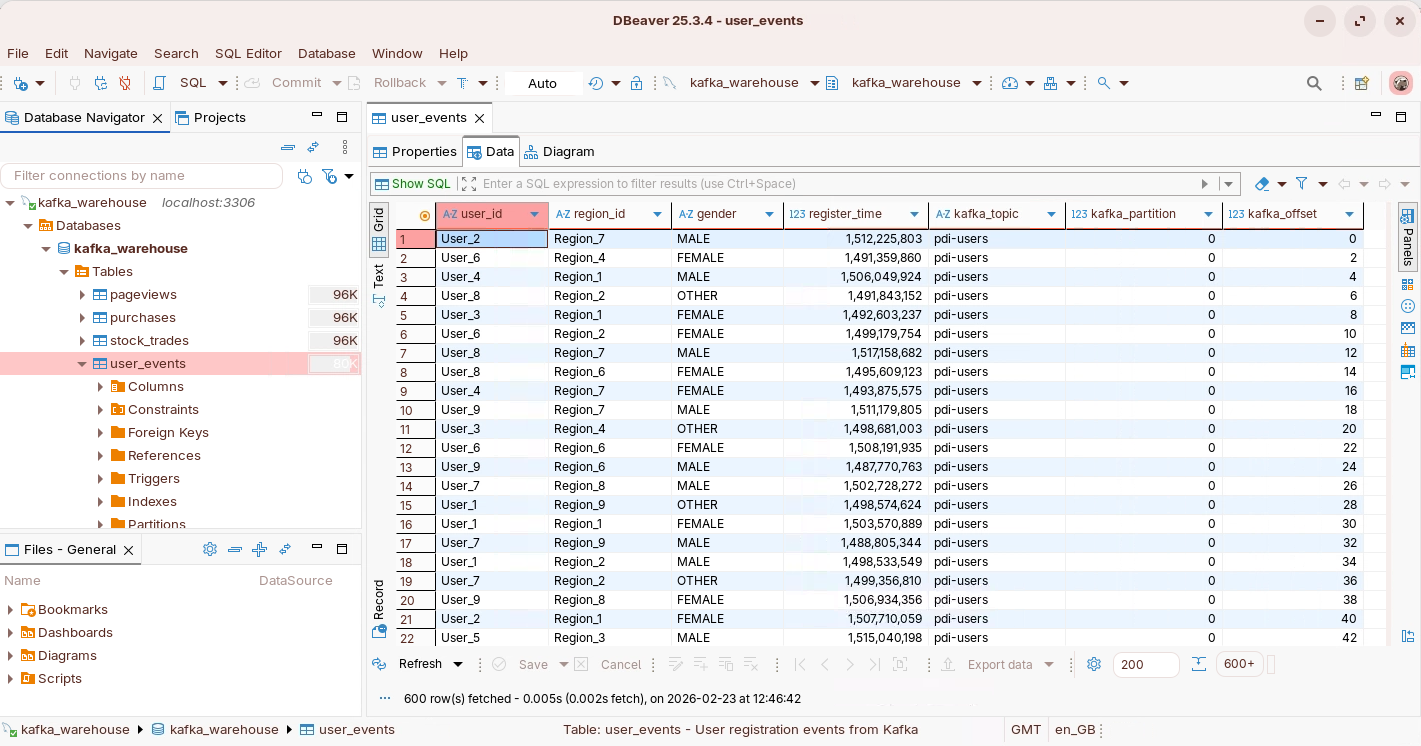
3. In DBeaver display the data in the user\_events table.

<figure><img src="https://3680356391-files.gitbook.io/~/files/v0/b/gitbook-x-prod.appspot.com/o/spaces%2FZpCSy6Skj215f4oWypdc%2Fuploads%2Fvt1cq9C2TZ66sC5A7p5E%2Fimage.png?alt=media&#x26;token=7b7261bb-c67a-40aa-a30a-730f8e722401" alt=""><figcaption><p>View data - DBeaver</p></figcaption></figure>

***

**Verify Data in MySQL**

```bash
make mysql-shell
```

```sql
-- Check record count (should increase over time)
SELECT COUNT(*) FROM user_events;

-- View recent records
SELECT * FROM user_events ORDER BY ingestion_timestamp DESC LIMIT 10;

-- Check for duplicates (should return 0 rows)
SELECT kafka_topic, kafka_partition, kafka_offset, COUNT(*)
FROM user_events
GROUP BY kafka_topic, kafka_partition, kafka_offset
HAVING COUNT(*) > 1;

-- Monitor ingestion rate per minute
SELECT
    DATE_FORMAT(ingestion_timestamp, '%Y-%m-%d %H:%i:00') AS minute,
    COUNT(*) AS records_ingested
FROM user_events
WHERE ingestion_timestamp >= DATE_SUB(NOW(), INTERVAL 1 HOUR)
GROUP BY minute
ORDER BY minute DESC;

-- Check offset progress by partition
SELECT
    kafka_partition,
    MIN(kafka_offset) AS min_offset,
    MAX(kafka_offset) AS max_offset,
    COUNT(*) AS record_count
FROM user_events
GROUP BY kafka_partition
ORDER BY kafka_partition;

-- Check ingestion health
CALL sp_check_ingestion_health();
```

{% endtab %}
{% endtabs %}
{% endtab %}

{% tab title="E-Commerce Purchases" %}
{% hint style="success" %}

#### E-Commerce Purchases

Your e-commerce platform publishes purchase transactions to Kafka using **Avro serialization** with a schema managed by Confluent Schema Registry. Avro provides schema enforcement at the producer — incompatible schema changes are rejected before data enters the pipeline, unlike raw JSON where structural issues are only discovered at parse time.

Your task is to configure the PDI Kafka Consumer to deserialize Avro messages, extract nested JSON fields (the `address` object), and load purchase data into MySQL.
{% endhint %}

x

x

{% tabs %}
{% tab title="First Tab" %}
x
{% endtab %}

{% tab title="Second Tab" %}
x
{% endtab %}
{% endtabs %}

x

x

{% endtab %}

{% tab title="Grafana" %}

{% endtab %}
{% endtabs %}