# SMB
{% hint style="warning" %}
**Workshop - SMB/CIFS**
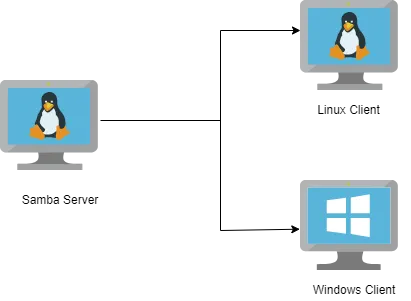
The Server Message Block (SMB) protocol is a network file sharing protocol that allows applications on a computer to read and write to files and to request services from server programs in a computer network. The SMB protocol can be used on top of its TCP/IP protocol or other network protocols
Objective of this workshop is to:
* install & configure a basic Samba server.
* share user home directories as well as provide read-write anonymous access to selected directory.
{% endhint %}
SMB Server
***
{% hint style="info" %}
**Create a new Transformation**
Any one of these actions opens a new Transformation tab for you to begin designing your transformation.
* By clicking File > New > Transformation
* By using the CTRL-N hot key
{% endhint %}
{% tabs %}
{% tab title="1. SMB" %}
x
x
1. Select the OS:
{% tabs %}
{% tab title="Linux" %}
x
{% endtab %}
{% tab title="Windows" %}
{% hint style="info" %}
**Test SMB Server**
Before we fire up Pentaho Data Integration, let's test:
* SMB server is up and running
* Can log into User - Bob & Alice - & Shared spaces.
{% endhint %}
{% hint style="danger" %}
Please ensure you have completed the following setup: [SMB](https://academy.pentaho.com/pentaho-data-integration/setup/data-sources/storage#smb)
{% endhint %}
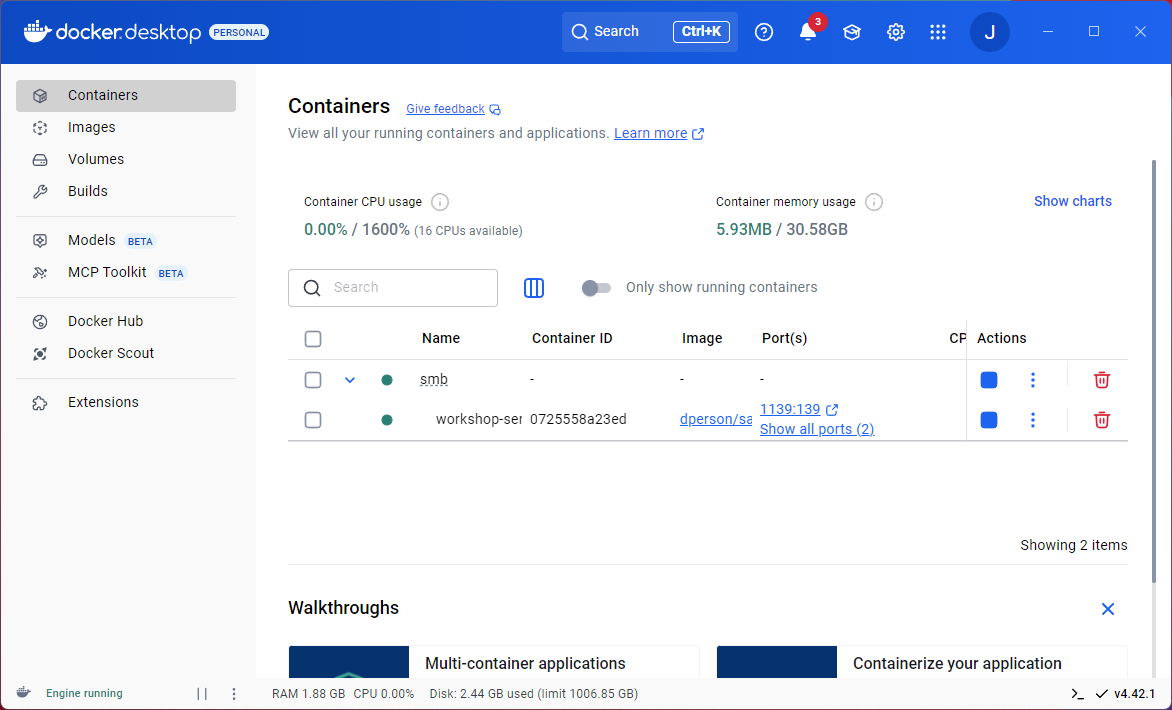
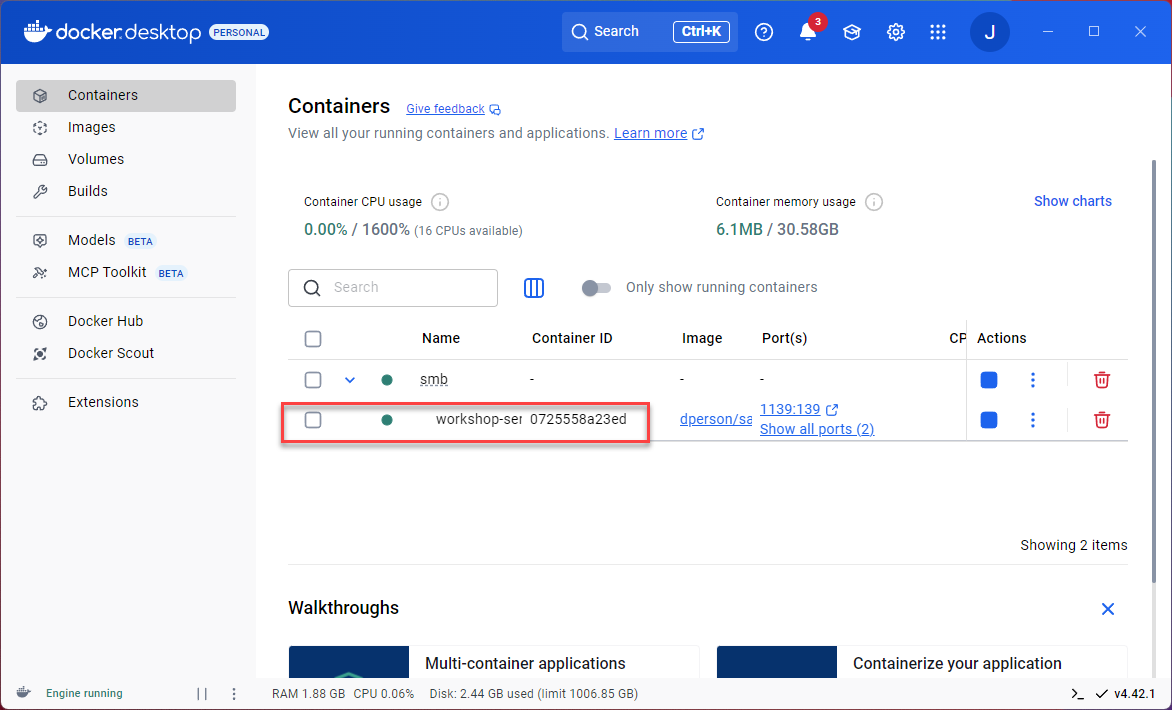
1. Log into your Docker Desktop to check that the SMB Docker container is up and running.
Check SMB container.
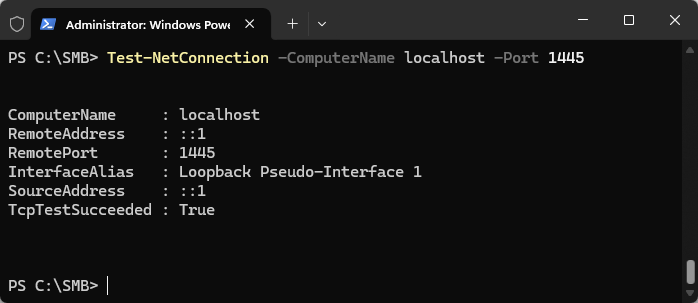
2. Let's test SMB server ..
```powershell
Test-NetConnection -ComputerName localhost -Port 1445
```
***
**SMB Shared Folders**
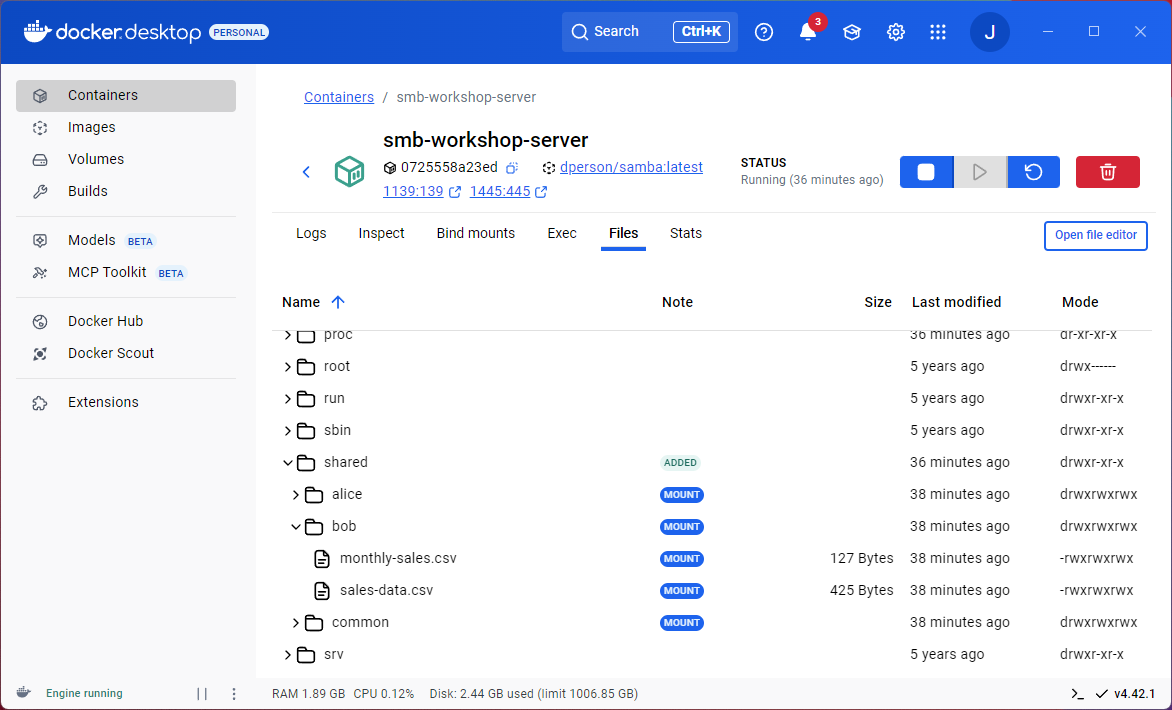
Let's check we have some sample data in our container/shared folder.
{% hint style="info" %}
There's a couple of ways you could do this ..!
If you have an IDE Editor installed, you can install the Docker Container Extension, see Windows 11 Pentaho Lab.
{% endhint %}
1. In the Docker Desktop UI click on the workshop-server-smb.
2. Click on Files > scroll down to shared folder - expand to see mounted volumes.
Shared folders.
3. Lets connect to a data source using SMB VFS in Pentaho Data Integration.
{% endtab %}
{% endtabs %}
x
x
{% hint style="info" %}
{% endhint %}
{% endtab %}
{% tab title="2. Pentaho Data Integration" %}
{% hint style="info" %}
**Pentaho Data Integration**
Pentaho Data Integration utilizes Virtual File System (VFS) as the abstraction layer within the kernel to expose different filesystems.
In PDI, you can add a VFS connection and then reference that connection whenever you want to [access files or folders on your Virtual File System](https://docs.hitachivantara.com/r/xKOgM19SLuXvacAe3WhDcg/_XKq4wZRIIp4aYl7Avi5zg).
{% endhint %}
1. Select the following OS.
{% tabs %}
{% tab title="Windows" %}
1. Start Pentaho Data Integration.
{% hint style="info" %}
**Windows - PowerShell**
```powershell
Set-Location C:\Pentaho\design-tools\data-integration
.\spoon.bat
```
{% endhint %}
x
x
{% endtab %}
{% tab title="Linux" %}
1. Start Pentaho Data Integration.
{% hint style="info" %}
**Linux**
```bash
cd
cd ~/Pentaho/design-tools/data-integration
./spoon.sh
```
{% endhint %}
2. Create a New Transformation.
3. Drag & drop the Text file input step onto the canvas.
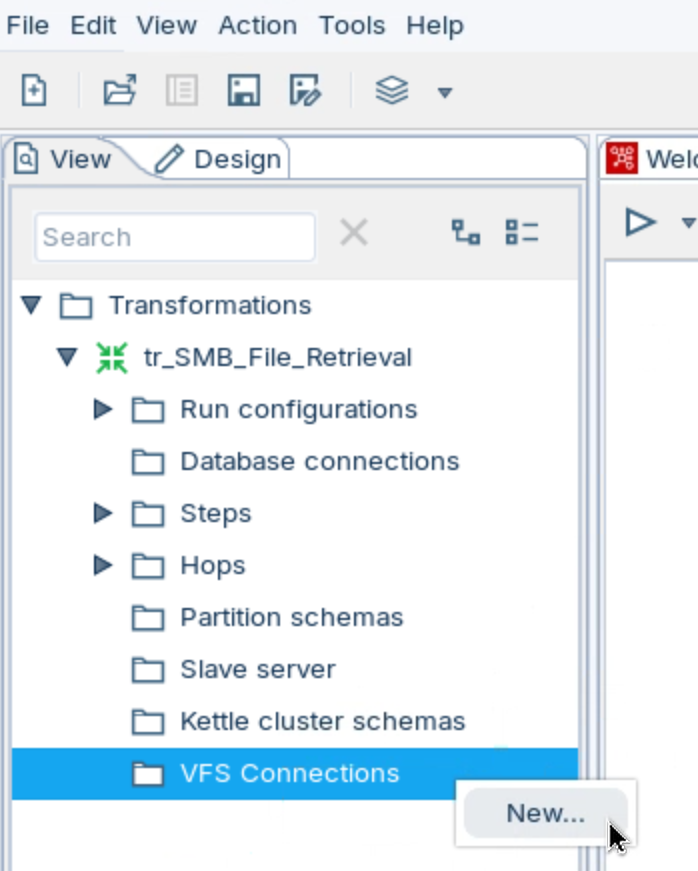
4. Click on the 'View' tab.
5. Highlight 'VFS Connections' and select 'New'.
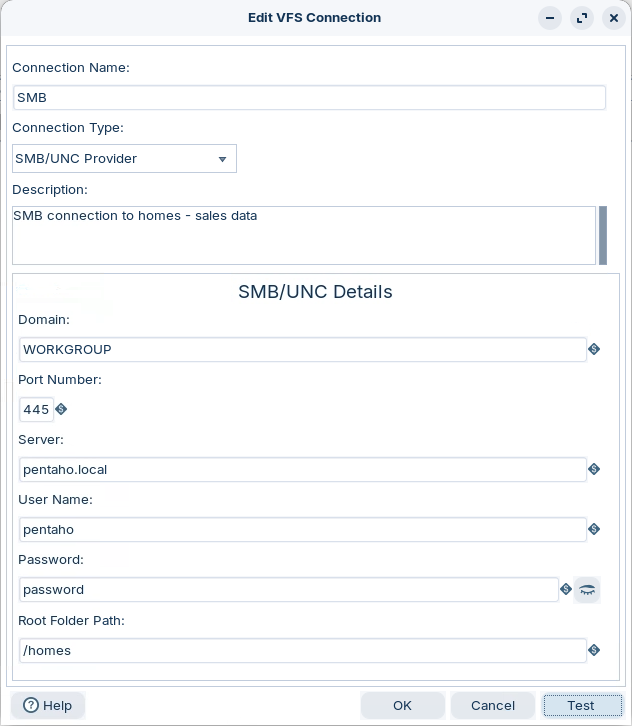
7. Configure with the following details:
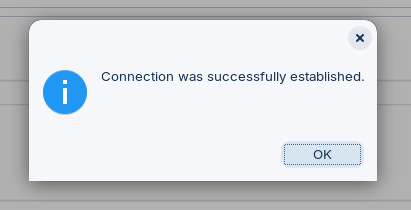
8. Click 'Test'.
Test connection
***
{% hint style="info" %}
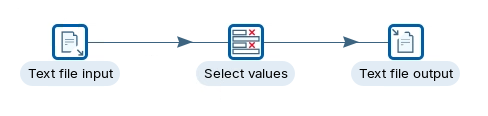
**Transformation - SMB File Retrieval**
Let's create a simple Transformation to onboard data via an SMB VFS connection.
{% endhint %}
1. Create the following transformation:
tr_SMB_File_Retrieval
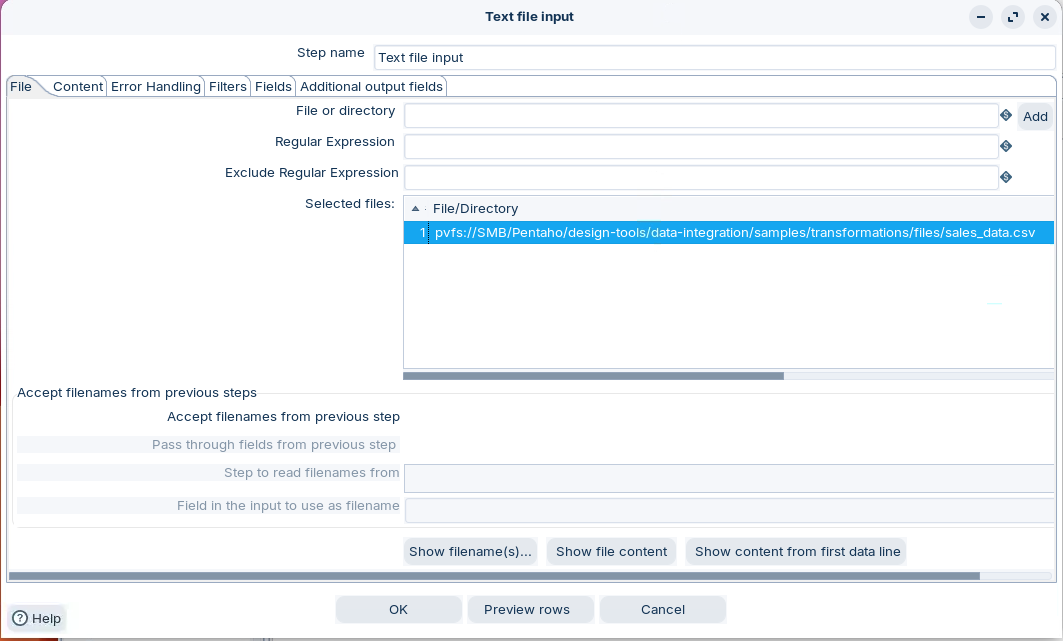
2. Double-click on Text file input > File tab
3. Click on Browse and ensure you select:
VFS Connections > SMB > Pentaho/design-tools/data-integration/samples/transformations/files/sales\_data.csv
4. Add the path.
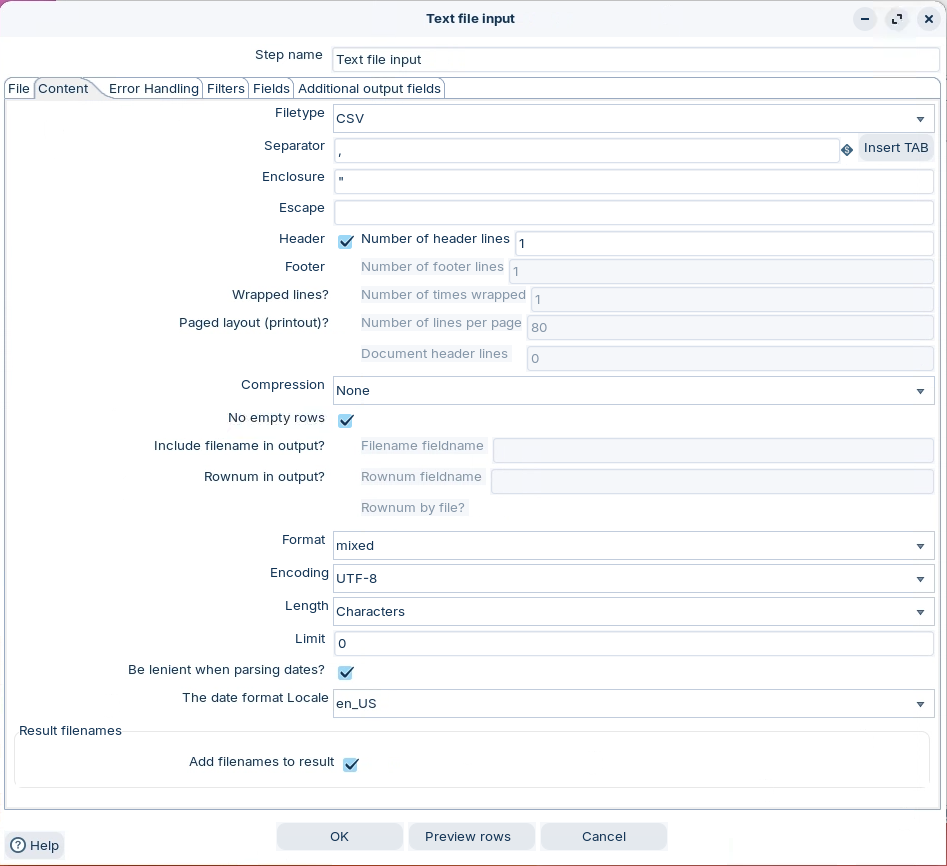
5. Click on Content tab & configure with the following settings:
Content
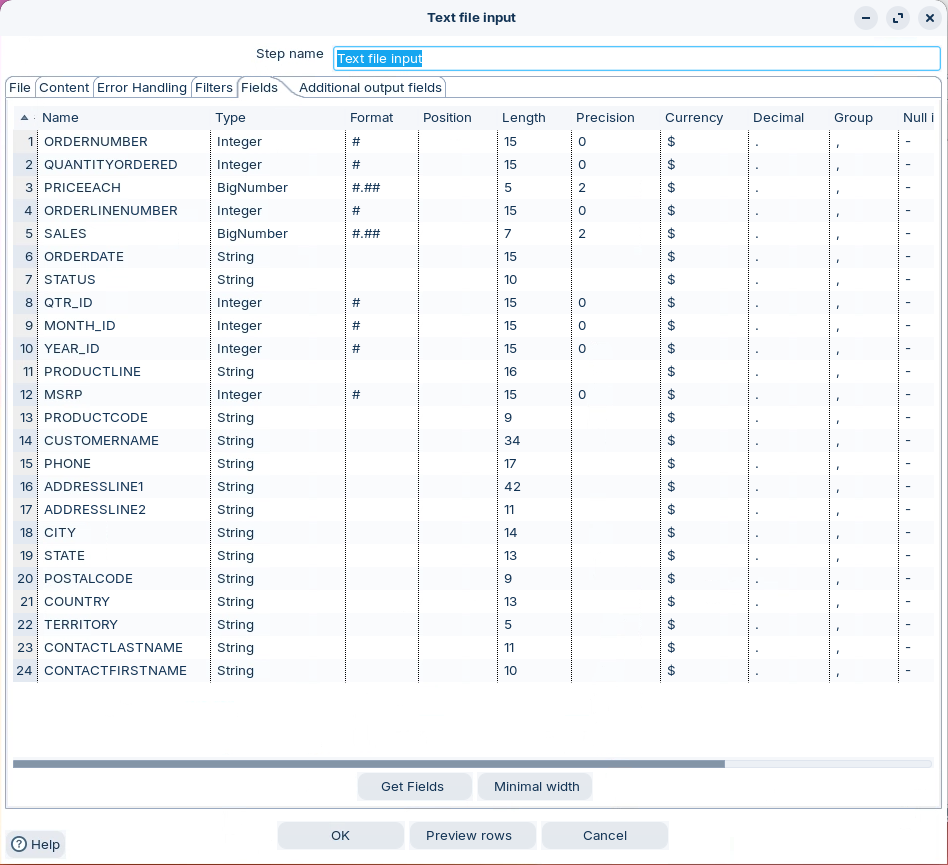
6. Click on Fields tab & click on 'Get Fields'
Get Fields
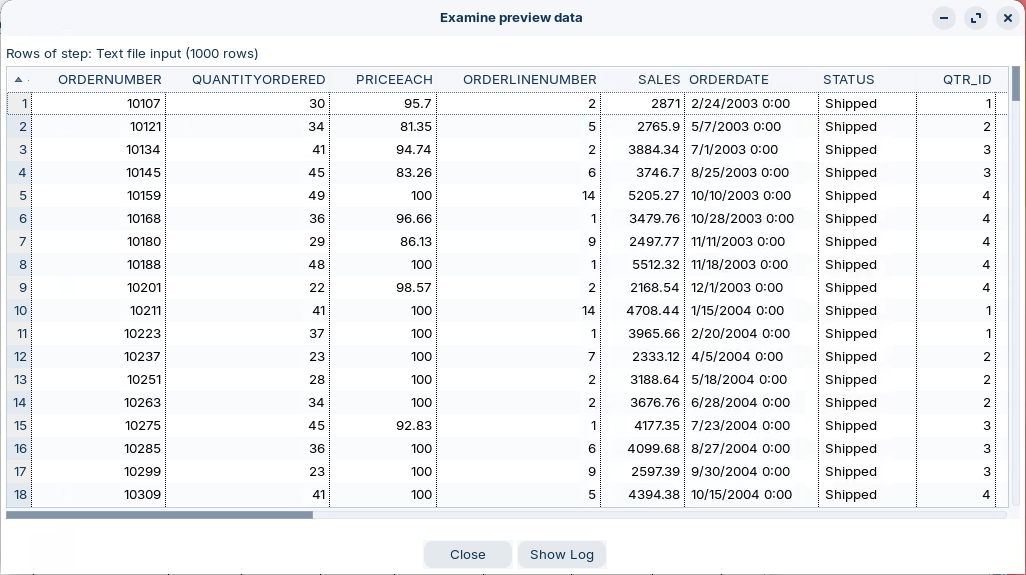
7. Preview the rows.
Preview rows
8. Click OK.
{% hint style="info" %}
Add the other steps to format / rename some fields, before output as a .txt in the same directory as your Transformation.
{% endhint %}
x
{% endtab %}
{% endtabs %}
{% endtab %}
{% endtabs %}
x
{% tabs %}
{% tab title="First Tab" %}
x
{% endtab %}
{% tab title="Second Tab" %}
x
{% endtab %}
{% endtabs %}
x