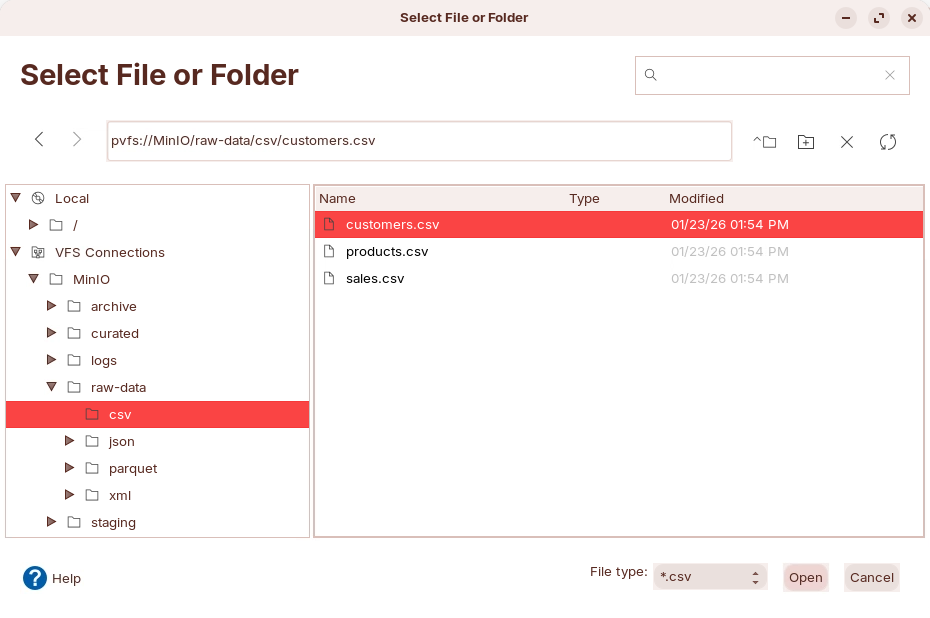
# MinIO

{% hint style="warning" %}

#### Workshop series: PDI + MinIO (S3)

Build hands-on Pentaho Data Integration (PDI) transformations that read from and write to **MinIO** using **VFS**.

Workshops get harder as you go. Start with CSV joins. Then move into XML/JSON parsing, reconciliation, and multi-format ingestion.

**Workshops in this series**

* Sales Dashboard (CSV inputs + lookups + output)
* Inventory Reconciliation (XML + CSV + variance detection)
* Customer 360 (multi-source joins + metrics)
* Clickstream Funnel (sessionization + pivoting)
* Log Parsing (regex + time-series checks)
* Data Lake Ingestion (schema normalization + validation)

**You’ll practice**

* Connecting to MinIO buckets with VFS
* Reading and writing objects with `pvfs://MinIO/...` paths
* Joining and enriching streams (lookups and joins)
* Parsing XML and JSON
* Validating and shaping data for a curated layer

**Prerequisites:** MinIO running with sample data populated; basic transformation concepts; basic joins and aggregations

**Estimated time:** 4–6 hours total (each workshop is \~20–60 minutes)
{% endhint %}

<table><thead><tr><th width="187">Workshop</th><th>Key Skills</th></tr></thead><tbody><tr><td>Sales Dashboard</td><td>joins, lookups, aggregations</td></tr><tr><td>Inventory Reconciliation</td><td>XML parsing, outer joins, variance</td></tr><tr><td>Customer 360</td><td>multi-source, JSONL, calculations</td></tr><tr><td>Clickstream Funnel</td><td>sessionization, pivoting</td></tr><tr><td>Log Parsing</td><td>regex, time-series analysis</td></tr><tr><td>Data Lake Ingestion</td><td>schema normalization, validation</td></tr></tbody></table>

{% hint style="danger" %}
Complete the setup first: [Storage: MinIO](https://academy.pentaho.com/pentaho-data-integration/setup/data-sources/storage#minio)
{% endhint %}

1. Verify that MinIO is running and populated.

```bash
# Check MinIO is running
curl -sf http://localhost:9000/minio/health/live && echo "MinIO OK" || echo "MinIO not running"

# Verify data exists (using mc client)
mc ls minio-local/raw-data --recursive
```

2. Start Pentaho Data Integration.

{% hint style="info" %}
Start Pentaho Data Integration (Spoon).

{% tabs %}
{% tab title="Windows (PowerShell)" %}

```powershell
Set-Location C:\Pentaho\design-tools\data-integration
.\spoon.bat
```

{% endtab %}

{% tab title="macOS / Linux" %}

```bash
cd ~/Pentaho/design-tools/data-integration
./spoon.sh
```

{% endtab %}
{% endtabs %}
{% endhint %}

***

{% tabs %}
{% tab title="Sales Dashboard" %}
{% hint style="warning" %}

#### Sales Dashboard

The workshop demonstrates how Pentaho Data Integration enables organizations to rapidly create denormalized fact tables that power real-time business intelligence dashboards. By integrating data from multiple sources (customer data, product catalogs, and sales transactions), business users gain immediate access to actionable insights without waiting for IT to build complex data warehouses.

**Scenario:** A mid-sized e-commerce company needs to track daily sales performance across products, customer segments, and regions. Currently, sales managers wait 24-48 hours for IT to generate reports from disparate systems. With PDI, they can automate this process and refresh dashboards hourly.

**Key Stakeholders:**

* Sales Directors: Need to identify top-performing products and regions
* Marketing Teams: Require customer segmentation for targeted campaigns
* Finance: Need accurate revenue reporting by product category
* Operations: Must monitor inventory turnover rates
  {% endhint %}

***

{% hint style="info" %}
**Workshop files**

These files are already in MinIO:

* `pvfs://MinIO/raw-data/csv/sales.csv`
* `pvfs://MinIO/raw-data/csv/products.csv`
* `pvfs://MinIO/raw-data/csv/customers.csv`

Output path used later: `pvfs://MinIO/staging/dashboard/`
{% endhint %}

{% file src="<https://3680356391-files.gitbook.io/~/files/v0/b/gitbook-x-prod.appspot.com/o/spaces%2FZpCSy6Skj215f4oWypdc%2Fuploads%2FafctOl1Yjc4vLUXeT17I%2Fsales_dashboard_etl.ktr?alt=media&token=891bbf33-154b-4a03-912a-71ee1c2fc3d4>" %}

***

<figure><img src="https://3680356391-files.gitbook.io/~/files/v0/b/gitbook-x-prod.appspot.com/o/spaces%2FZpCSy6Skj215f4oWypdc%2Fuploads%2FOVxNdG4oAH6suTXSiUWa%2Fimage.png?alt=media&#x26;token=f533799a-5ff3-4dec-9312-f36953c633ed" alt=""><figcaption><p>Sales Dashboard</p></figcaption></figure>

{% hint style="info" %}
Create a new transformation.

Use any of these options:

* Select **File** > **New** > **Transformation**
* Use `Ctrl+N` (Windows/Linux) or `Cmd+N` (macOS)
  {% endhint %}

***

Follow the steps to create the transformation:

{% tabs %}
{% tab title="1. Read Data Sources" %}
{% hint style="info" %}

#### **Text File Input**

The Text File Input step is used to read data from a variety of different text-file types. The most commonly used formats include Comma Separated Values (CSV files) generated by spreadsheets and fixed width flat files.

The Text File Input step provides you with the ability to specify a list of files to read, or a list of directories with wild cards in the form of regular expressions. In addition, you can accept filenames from a previous step making filename handling more even more generic.
{% endhint %}

<figure><img src="https://3680356391-files.gitbook.io/~/files/v0/b/gitbook-x-prod.appspot.com/o/spaces%2FZpCSy6Skj215f4oWypdc%2Fuploads%2Fx79pOigi1quJp67qvWJW%2Fimage.png?alt=media&#x26;token=120699ed-021b-4908-86a2-744987a18c74" alt=""><figcaption><p>Text file inputs</p></figcaption></figure>

{% hint style="info" %}
VFS connection names are case-sensitive. These examples assume your connection name is `MinIO`.
{% endhint %}

1. Drag & drop 3 Text File Input Steps onto the canvas.
2. Save transformation as: `sales_dashboard_etl.ktr` in your workshop folder.

***

**Sales (Order Management)**

1. Double-click on the first TFI step, and configure with the following properties:

| Setting          | Value                                 |
| ---------------- | ------------------------------------- |
| Step name        | `Sales`                               |
| Filename         | `pvfs://MinIO/raw-data/csv/sales.csv` |
| Delimiter        | ,                                     |
| Head row present | ✅                                     |
| Format           | mixed                                 |

<figure><img src="https://3680356391-files.gitbook.io/~/files/v0/b/gitbook-x-prod.appspot.com/o/spaces%2FZpCSy6Skj215f4oWypdc%2Fuploads%2FcNycQa3UtyPAnbHMGM1p%2Fimage.png?alt=media&#x26;token=0feb11c9-fad0-465b-9099-fdd13524d053" alt=""><figcaption><p>Select - sales.csv from VFS connections</p></figcaption></figure>

2. Click: **Get Fields** to auto-detect columns.

{% hint style="info" %}
**Business Logic:** Note that `sale_amount` may differ from `price * quantity` due to:

* Volume discounts
* Promotional pricing
* Customer-specific pricing tiers
* Currency conversion (for international sales)
  {% endhint %}

<figure><img src="https://3680356391-files.gitbook.io/~/files/v0/b/gitbook-x-prod.appspot.com/o/spaces%2FZpCSy6Skj215f4oWypdc%2Fuploads%2FKxr7zOl4vB6mE3TTP7Ut%2Fimage.png?alt=media&#x26;token=5012b8d4-09ab-4516-a215-68f5fb45a825" alt=""><figcaption><p>Get Fields - Sales</p></figcaption></figure>

3. Preview data.

<figure><img src="https://3680356391-files.gitbook.io/~/files/v0/b/gitbook-x-prod.appspot.com/o/spaces%2FZpCSy6Skj215f4oWypdc%2Fuploads%2FXv7j5bT2OLJ6HXCi1Zi5%2Fimage.png?alt=media&#x26;token=ea3cde7c-399a-4d35-9bc6-fcbbec6eb7c0" alt=""><figcaption><p>Preview data - Sales</p></figcaption></figure>

{% hint style="info" %}
**Business Significance:**

* `sale_amount`: Actual revenue (may include discounts)
* `quantity`: Volume metrics for demand planning
* `payment_method`: Payment preference insights
* `status`: Filter out cancelled/refunded orders
  {% endhint %}

***

**Products (ERP system)**

1. Double-click on the second TFI step, and configure with the following properties:

<table><thead><tr><th width="165.5">Setting</th><th>Value</th></tr></thead><tbody><tr><td>Step name</td><td><code>Products</code></td></tr><tr><td>Filename</td><td><code>pvfs://MinIO/raw-data/csv/products.csv</code></td></tr><tr><td>Delimiter</td><td>,</td></tr><tr><td>Head row present</td><td>✅</td></tr><tr><td>Format</td><td>mixed</td></tr></tbody></table>

<figure><img src="https://3680356391-files.gitbook.io/~/files/v0/b/gitbook-x-prod.appspot.com/o/spaces%2FZpCSy6Skj215f4oWypdc%2Fuploads%2FyaxcVRfXEeEQwYoQWgx9%2Fimage.png?alt=media&#x26;token=fdbf43a1-dbea-4d5a-a705-ecd8881d3857" alt=""><figcaption><p>Select - products.csv from VFS connections</p></figcaption></figure>

2. Click: **Get Fields** to auto-detect columns.

<figure><img src="https://3680356391-files.gitbook.io/~/files/v0/b/gitbook-x-prod.appspot.com/o/spaces%2FZpCSy6Skj215f4oWypdc%2Fuploads%2FGoJVk03e0zuhAVN1Vrvp%2Fimage.png?alt=media&#x26;token=37dc3010-8a55-4748-a441-4bcd65131dbd" alt=""><figcaption><p>Get Fields - Customers</p></figcaption></figure>

3. Preview the data.

<figure><img src="https://3680356391-files.gitbook.io/~/files/v0/b/gitbook-x-prod.appspot.com/o/spaces%2FZpCSy6Skj215f4oWypdc%2Fuploads%2Fz2pOS6LqweLPcjrRLyPP%2Fimage.png?alt=media&#x26;token=a93ec37e-d446-42cb-aacd-2f4b2019b485" alt=""><figcaption><p>Preview data - Products</p></figcaption></figure>

{% hint style="info" %}
**Business Significance:**

* `category`: Enables product performance analysis by segment
* `price`: Base pricing for margin calculations
* `stock_quantity`: Inventory turnover insights
  {% endhint %}

***

**Customers (CRM System)**

1. Double-click on the third TFI step, and configure with the following properties:

<table><thead><tr><th width="186">Setting</th><th>Value</th></tr></thead><tbody><tr><td>Step name</td><td><code>Customers</code></td></tr><tr><td>Filename</td><td><code>pvfs://MinIO/raw-data/csv/customers.csv</code></td></tr><tr><td>Delimiter</td><td>,</td></tr><tr><td>Header row present</td><td>✅</td></tr><tr><td>Format</td><td>mixed</td></tr></tbody></table>

<figure><img src="https://3680356391-files.gitbook.io/~/files/v0/b/gitbook-x-prod.appspot.com/o/spaces%2FZpCSy6Skj215f4oWypdc%2Fuploads%2Fdiq6Jc74ereddH4fL8IJ%2Fimage.png?alt=media&#x26;token=800550b8-e14b-4a73-b5a3-38d2d42e7e70" alt=""><figcaption><p>Select - customers.csv from VFS connections</p></figcaption></figure>

2. Click: **Get Fields** to auto-detect columns.

<figure><img src="https://3680356391-files.gitbook.io/~/files/v0/b/gitbook-x-prod.appspot.com/o/spaces%2FZpCSy6Skj215f4oWypdc%2Fuploads%2FXlkXKvIMfFjV1FjK8YRa%2Fimage.png?alt=media&#x26;token=6a7d0f9c-9705-44ef-9ff9-2bfce6c65c94" alt=""><figcaption><p>Get Fields - Customers</p></figcaption></figure>

3. Preview the data.

<figure><img src="https://3680356391-files.gitbook.io/~/files/v0/b/gitbook-x-prod.appspot.com/o/spaces%2FZpCSy6Skj215f4oWypdc%2Fuploads%2FoBmAC4lsAuZIHRTcKSuM%2Fimage.png?alt=media&#x26;token=3982908d-792f-46c6-8015-c9897986ab08" alt=""><figcaption><p>Preview data - Customers</p></figcaption></figure>

{% hint style="info" %}
**Business Significance:**

* `customer_id`: Primary key for joining to sales
* `country`: Critical for geographic segmentation
* `status`: Identifies churned vs. active customers
* `registration_date`: Enables customer tenure analysis
  {% endhint %}
  {% endtab %}

{% tab title="2. Stream Lookup" %}
{% hint style="info" %}

#### Stream Lookup

A **Stream lookup** step enriches rows by looking up matching values from another stream.

In a transformation, you feed your main rows into one hop and a reference dataset into the other hop. The step then matches rows using key fields and returns the lookup fields on the output. It’s the in-memory alternative to a database lookup, but the reference stream must be available in the same transformation flow.
{% endhint %}

<figure><img src="https://3680356391-files.gitbook.io/~/files/v0/b/gitbook-x-prod.appspot.com/o/spaces%2FZpCSy6Skj215f4oWypdc%2Fuploads%2FcWocPa2fw1rx5unbpBxb%2Fimage.png?alt=media&#x26;token=88e2d1ad-02d5-40f5-87fa-ff32bc30f87c" alt=""><figcaption><p>Lookups</p></figcaption></figure>

1. Drag & drop 2 **Stream lookup** steps onto the canvas.
2. Save transformation as: `sales_dashboard_etl.ktr` in your workshop folder.

***

**Product Lookup**

1. Draw a hop between **Sales** and **Product Lookup**.
2. Draw a hop between **Products** and **Product Lookup**.

{% hint style="info" %}
The Sales is acting as our Fact table. It holds the transaction data for our Products & Customers.
{% endhint %}

3. Double-click on the 'Product Lookup' step, and configure with the following properties:

| Tab     | Setting               | Value            |
| ------- | --------------------- | ---------------- |
| General | Step name             | `Product Lookup` |
| General | Lookup step           | `Products`       |
| Keys    | Field (from Sales)    | `product_id`     |
| Keys    | Field (from Products) | `product_id`     |

4. In **Values to retrieve**, add:
   * `product_name` (rename to `product_name`)
   * `category` (rename to `product_category`)
   * `price` (rename to `unit_price`)

<figure><img src="https://3680356391-files.gitbook.io/~/files/v0/b/gitbook-x-prod.appspot.com/o/spaces%2FZpCSy6Skj215f4oWypdc%2Fuploads%2FYGs6dqj8mlcNhZrRcNxz%2Fimage.png?alt=media&#x26;token=10942826-7c9f-4818-872a-75b8ed5310fa" alt=""><figcaption><p>Product Lookup</p></figcaption></figure>

***

**Customers Lookup**

1. Draw a hop between **Product Lookup** and **Customers Lookup**.
2. Draw a hop between **Customers** and **Customers Lookup**.
3. Double-click **Customers Lookup**, and configure the following properties:

| Setting            | Value              |
| ------------------ | ------------------ |
| Step name          | `Customers Lookup` |
| Lookup step        | `Customers`        |
| Key field (stream) | `customer_id`      |
| Key field (lookup) | `customer_id`      |

4. Values to retrieve:
   * `first_name`
   * `last_name`
   * `country` (rename to `customer_country`)
   * `status` (rename to `customer_status`)

<figure><img src="https://3680356391-files.gitbook.io/~/files/v0/b/gitbook-x-prod.appspot.com/o/spaces%2FZpCSy6Skj215f4oWypdc%2Fuploads%2F7L4NeEmIUibMopnrluhR%2Fimage.png?alt=media&#x26;token=53159250-4c37-4137-be5e-eca41fd57965" alt=""><figcaption><p>Customers Lookup</p></figcaption></figure>

***

**Preview data**

1. Save the transformation.
2. RUN & Preview the data.

<figure><img src="https://3680356391-files.gitbook.io/~/files/v0/b/gitbook-x-prod.appspot.com/o/spaces%2FZpCSy6Skj215f4oWypdc%2Fuploads%2FaWjq5J0FtYcHpdlqytnR%2Fimage.png?alt=media&#x26;token=52792cbb-68ae-407e-87d4-6d3148cb4cd2" alt=""><figcaption><p>Lookups - Preview data</p></figcaption></figure>
{% endtab %}

{% tab title="3. Calculator" %}
{% hint style="info" %}

#### Calculator

The Calculator step provides predefined functions that you can run on input field values. Use Calculator as a quick alternative to custom JavaScript for common calculations.

To use Calculator, specify the input fields and the calculation type, and then write results to new fields. You can also remove temporary fields from the output after all values are calculated.
{% endhint %}

<figure><img src="https://3680356391-files.gitbook.io/~/files/v0/b/gitbook-x-prod.appspot.com/o/spaces%2FZpCSy6Skj215f4oWypdc%2Fuploads%2FITouk2zfwdrrhnmDnkCR%2Fimage.png?alt=media&#x26;token=ee81d8ca-983a-486c-93c5-bb4e82398793" alt=""><figcaption><p>Calculator step</p></figcaption></figure>

1. Drag & drop a 'Calculator' step onto the canvas.
2. Draw a Hop from the 'Customers Lookup' step to the 'Calculator' step.
3. Double-click on the 'Calculator' step, and configure the following properties:

<table><thead><tr><th width="161">New field</th><th>Calculation</th><th>Field A</th><th>Field B</th><th>Value type</th></tr></thead><tbody><tr><td><code>line_total</code></td><td>A * B</td><td>quantity</td><td>unit_price</td><td>Number</td></tr><tr><td><code>discount_amount</code></td><td>A - B</td><td>sale_amount</td><td>line_total</td><td>Number</td></tr></tbody></table>

<figure><img src="https://3680356391-files.gitbook.io/~/files/v0/b/gitbook-x-prod.appspot.com/o/spaces%2FZpCSy6Skj215f4oWypdc%2Fuploads%2FUuPRfaSeqdeU0P09PlDj%2Fimage.png?alt=media&#x26;token=364ba625-1bc9-4c22-b4be-db349a92b224" alt=""><figcaption><p>Calculator</p></figcaption></figure>

***

**Preview data**

1. Save the transformation.
2. RUN & Preview the data.

<figure><img src="https://3680356391-files.gitbook.io/~/files/v0/b/gitbook-x-prod.appspot.com/o/spaces%2FZpCSy6Skj215f4oWypdc%2Fuploads%2FUGwDtwVgF4AfBPfQXKHa%2Fimage.png?alt=media&#x26;token=f46749da-5a49-408e-aa00-11e62e8bc422" alt=""><figcaption><p>Preview data</p></figcaption></figure>

{% hint style="info" %}
**Business Insight Enabled:**

* **Positive `discount_amount`:** Customer received a discount (common)
* **Negative `discount_amount`:** Customer paid more than list price (expedite, premium, etc.)
* **Zero `discount_amount`:** Sold at list price
  {% endhint %}
  {% endtab %}

{% tab title="4. Formula" %}
{% hint style="info" %}

#### Formula

The Formula step can calculate Formula Expressions within a data stream. It can be used to create simple calculations like \[A]+\[B] or more complex business logic with a lot of nested if / then logic.
{% endhint %}

<figure><img src="https://3680356391-files.gitbook.io/~/files/v0/b/gitbook-x-prod.appspot.com/o/spaces%2FZpCSy6Skj215f4oWypdc%2Fuploads%2F2KEs6IYAiQj2tzZUkz9Q%2Fimage.png?alt=media&#x26;token=aa4f3e64-caac-4546-9a08-a2e67c5b1e73" alt=""><figcaption><p>Formula step</p></figcaption></figure>

1. Drag & drop a 'Formula' step onto the canvas.
2. Draw a Hop from the 'Calculator' step to the 'Formula' step.
3. Double-click on the 'Formula' step, and configure the following properties:

<table><thead><tr><th width="190">New Field</th><th>Formula</th></tr></thead><tbody><tr><td>customer_full_name</td><td>CONCATENATE([first_name];" ";[last_name])</td></tr><tr><td>is_high_value</td><td>IF([sale_amount]>500;"Yes";"No")</td></tr></tbody></table>

<figure><img src="https://3680356391-files.gitbook.io/~/files/v0/b/gitbook-x-prod.appspot.com/o/spaces%2FZpCSy6Skj215f4oWypdc%2Fuploads%2FKN5ocPNlYVtQyv3IDfDp%2Fimage.png?alt=media&#x26;token=9de984da-fee2-4337-a85d-52c96c92733b" alt=""><figcaption><p>Formula step</p></figcaption></figure>

***

**Preview data**

1. Save the transformation.
2. RUN & Preview the data.

<figure><img src="https://3680356391-files.gitbook.io/~/files/v0/b/gitbook-x-prod.appspot.com/o/spaces%2FZpCSy6Skj215f4oWypdc%2Fuploads%2FpgjEoR7wvAYzsVgQdD9e%2Fimage.png?alt=media&#x26;token=2be279d0-8dc1-4408-a21a-1c767ce933ff" alt=""><figcaption><p>Preview data</p></figcaption></figure>

{% hint style="info" %}
**Business Applications:**

* **is\_high\_value:** Trigger VIP customer service workflows
  {% endhint %}
  {% endtab %}

{% tab title="5. Add Constants" %}
{% hint style="info" %}

#### Add Constants

The Add constant values step is a simple and high performance way to add constant values to the stream.
{% endhint %}

<figure><img src="https://3680356391-files.gitbook.io/~/files/v0/b/gitbook-x-prod.appspot.com/o/spaces%2FZpCSy6Skj215f4oWypdc%2Fuploads%2Fo6l56mhIcuODvUKYq9xc%2Fimage.png?alt=media&#x26;token=326f950c-4299-4913-9e5c-84b953da86da" alt=""><figcaption><p>Add constants</p></figcaption></figure>

1. Drag & drop 'Add constants' step onto the canvas.
2. Draw a Hop from the 'Formula' step to the 'Add constants ' step.
3. Double-click on the 'Add constants' step, and configure the following properties:

| Name          | Type   | Value            |
| ------------- | ------ | ---------------- |
| `data_source` | String | `minio_workshop` |

<figure><img src="https://3680356391-files.gitbook.io/~/files/v0/b/gitbook-x-prod.appspot.com/o/spaces%2FZpCSy6Skj215f4oWypdc%2Fuploads%2FhgZgKzXFNEX7a0CurBcU%2Fimage.png?alt=media&#x26;token=3e2fed1c-8cbc-4945-ba48-42c257419480" alt=""><figcaption><p>Add constants</p></figcaption></figure>
{% endtab %}

{% tab title="6. Get System info" %}
{% hint style="info" %}

#### Get system info

This step retrieves system information from the Kettle environment. The step includes a table where you can designate a name and assign it to any available system info type you want to retrieve. This step generates a single row with the fields containing the requested information.

It can also accept any number of input streams, aggregate any fields defined by this step, and send the combined results to the output stream.
{% endhint %}

<figure><img src="https://3680356391-files.gitbook.io/~/files/v0/b/gitbook-x-prod.appspot.com/o/spaces%2FZpCSy6Skj215f4oWypdc%2Fuploads%2Fut5mQmvgAG9lgT58GEqG%2Fimage.png?alt=media&#x26;token=9ae817f6-fb6d-43bf-873c-a0939845f1c0" alt=""><figcaption><p>get system info</p></figcaption></figure>

1. Drag & drop 'Get system info' step onto the canvas.
2. Draw a Hop from the 'Add constants' step to the 'Get system info ' step.
3. Double-click on the **Get system info** step, and configure the following properties:

| Name           | Type                   |
| -------------- | ---------------------- |
| etl\_timestamp | system date (variable) |

<figure><img src="https://3680356391-files.gitbook.io/~/files/v0/b/gitbook-x-prod.appspot.com/o/spaces%2FZpCSy6Skj215f4oWypdc%2Fuploads%2FYnIfqb3tGZViAQIRH1rx%2Fimage.png?alt=media&#x26;token=9b87c6d9-867b-4a88-bb9c-a29efc5e9d41" alt=""><figcaption><p>Get system info</p></figcaption></figure>
{% endtab %}

{% tab title="7. Select Values" %}
{% hint style="info" %}

#### **Select Values**

The Select Values step can perform all the following actions on fields in the PDI stream:

**Select fields** - The Select Values step can perform all the following actions on fields in the PDI stream.

**Remove fields** - Use this tab to remove fields from the input stream.

**Meta-data** - Use this tab to change field types, lengths, and formats.
{% endhint %}

<figure><img src="https://3680356391-files.gitbook.io/~/files/v0/b/gitbook-x-prod.appspot.com/o/spaces%2FZpCSy6Skj215f4oWypdc%2Fuploads%2Fm9E68JsMMTpL7zEfywjc%2Fimage.png?alt=media&#x26;token=46dd4f7b-e0e7-4884-a08b-7c14cc7be4dd" alt=""><figcaption><p>Select values</p></figcaption></figure>

1. Drag & drop a 'Select values' step onto the canvas.
2. Draw a Hop from the 'Get system info' step to the 'Select values' step.
3. Double-click on the 'Select values' step, and configure the following properties:
4. On **Select & Alter** tab, choose fields in order:

* sale\_id
* sale\_date
* customer\_id
* customer\_full\_name
* customer\_country
* customer\_status
* product\_id
* product\_name
* product\_category
* quantity
* unit\_price
* sale\_amount
* line\_total
* discount\_amount
* is\_high\_value
* payment\_method
* status (rename to `sale_status`)
* etl\_timestamp
* data\_source

<figure><img src="https://3680356391-files.gitbook.io/~/files/v0/b/gitbook-x-prod.appspot.com/o/spaces%2FZpCSy6Skj215f4oWypdc%2Fuploads%2Ft4dGH2L6BryL0dt4gXoo%2Fimage.png?alt=media&#x26;token=185205ff-7b72-4de8-b07a-fc6d7e446001" alt=""><figcaption><p>Select</p></figcaption></figure>

***

**Preview data**

1. Save the transformation.
2. RUN & Preview the data.

<figure><img src="https://3680356391-files.gitbook.io/~/files/v0/b/gitbook-x-prod.appspot.com/o/spaces%2FZpCSy6Skj215f4oWypdc%2Fuploads%2Fajbgc2OlSMhzjJ5OCCRS%2Fimage.png?alt=media&#x26;token=82e9d738-9258-44f6-8a47-fba8ce87ae4c" alt=""><figcaption><p>Preview data</p></figcaption></figure>
{% endtab %}

{% tab title="8. Text File Output" %}
{% hint style="info" %}

#### Text file output

The Text File Output step exports rows to a text file.

This step is commonly used to generate delimited files (for example, CSV) that can be read by spreadsheet applications, and it can also generate fixed-length output.

You can’t run this step in parallel to write to the same file.

If you need to run multiple copies, select Include stepnr in filename and merge the resulting files afterward.
{% endhint %}

<figure><img src="https://3680356391-files.gitbook.io/~/files/v0/b/gitbook-x-prod.appspot.com/o/spaces%2FZpCSy6Skj215f4oWypdc%2Fuploads%2F1JWVR91dyTo8K4z3oPhc%2Fimage.png?alt=media&#x26;token=c6fa9738-4d19-44d1-ac01-3d6070e84545" alt=""><figcaption><p>Text File output</p></figcaption></figure>

1. Drag & drop a **Text file output** step onto the canvas.
2. Draw a Hop from the 'Select values' step to the 'Write to staging' step.
3. Double-click on the 'Write to staging' step, and configure with the following properties:

| Setting                       | Value                                       |
| ----------------------------- | ------------------------------------------- |
| Step name                     | `Write to Staging`                          |
| Filename                      | `pvfs://MinIO/staging/dashboard/sales_fact` |
| Extension                     | `csv`                                       |
| Include date/time in filename | ✅                                           |
| Separator                     | ,                                           |
| Add header                    | ✅                                           |

{% hint style="warning" %}
Select **Get fields** to populate the output fields.
{% endhint %}

{% hint style="info" %}
**Business Benefit:** Timestamped files enable:

* **Historical tracking:** "What did the data look like last Tuesday?"
* **Incremental processing:** Keep processing latest file without overwriting history
* **Rollback capability:** "The 3pm run had bad data, revert to 2pm version"
  {% endhint %}

***

**MinIO**

1. Save the transformation.
2. Log into MinIO:

<figure><img src="https://3680356391-files.gitbook.io/~/files/v0/b/gitbook-x-prod.appspot.com/o/spaces%2FZpCSy6Skj215f4oWypdc%2Fuploads%2FkNz9OPqSAYAXKiOmFvFS%2Fimage.png?alt=media&#x26;token=b5935f55-9826-4201-aada-2bc9b36af0b0" alt=""><figcaption><p>MinIO - Dashboard data</p></figcaption></figure>

***

**Checklist**

* [ ] Three Text file inputs configured (reading CSV from S3)
* [ ] Product lookup working (no null product names)
* [ ] Customer lookup working (no null countries)
* [ ] Calculations producing correct values
* [ ] Fields in correct order
* [ ] Output file created in staging bucket
* [ ] All 15 sales records processed
  {% endtab %}
  {% endtabs %}
  {% endtab %}

{% tab title="Inventory Reconciliation" %}
{% hint style="warning" %}

#### Inventory Reconciliation - XML + CSV Integration

This workshop demonstrates how Pentaho Data Integration eliminates costly inventory discrepancies by automatically reconciling data between warehouse management systems (XML feeds) and ERP product catalogs (CSV files). Organizations lose millions annually due to inventory inaccuracies, stockouts, and overstocking. PDI's ability to parse complex XML and perform full outer joins enables real-time discrepancy detection that would require hours of manual spreadsheet work.

**Business Value Delivered:**

* **Cost Reduction:** Eliminate manual reconciliation labor ($75K-150K annually per analyst)
* **Inventory Optimization:** Reduce excess inventory carrying costs by 15-25%
* **Stockout Prevention:** Identify missing items before customers notice
* **Compliance:** Audit trail for SOX, ISO 9001, and supply chain regulations
* **Real-Time Visibility:** Know your actual inventory position within minutes, not days

**Scenario:** A manufacturing company operates 12 distribution warehouses. Each warehouse uses a legacy WMS (Warehouse Management System) that exports XML inventory files nightly. The corporate ERP system maintains a CSV product master catalog. Discrepancies cause:

* **Phantom stock:** ERP shows item in stock, warehouse says it's not → Lost sales
* **Ghost inventory:** Warehouse has items ERP doesn't recognize → Dead capital
* **Quantity variances:** Mismatches of 10+ units trigger expensive physical counts

**Key Stakeholders:**

* **Supply Chain Directors:** Need accurate inventory positions across all locations
* **Warehouse Managers:** Require daily reconciliation reports to prioritize cycle counts
* **Finance Teams:** Must report accurate inventory valuations for financial statements
* **Procurement:** Need to identify slow-moving items and prevent overstocking
  {% endhint %}

***

{% hint style="info" %}
**Workshop files**

These files are already in MinIO:

* `pvfs://MinIO/raw-data/xml/inventory.xml`
* `pvfs://MinIO/raw-data/csv/products.csv`

Planned output path: `pvfs://MinIO/staging/inventory/reconciliation/`
{% endhint %}

<figure><img src="https://3680356391-files.gitbook.io/~/files/v0/b/gitbook-x-prod.appspot.com/o/spaces%2FZpCSy6Skj215f4oWypdc%2Fuploads%2FUnaqO8WhgrAM9HIm5hQy%2Fimage.png?alt=media&#x26;token=3ad1e761-ecb0-4042-8c55-088957d8c70a" alt=""><figcaption><p>Inventory reconciliation</p></figcaption></figure>

{% hint style="info" %}
Create a new transformation.

Use any of these options:

* Select **File** > **New** > **Transformation**
* Use `Ctrl+N` (Windows/Linux) or `Cmd+N` (macOS)
  {% endhint %}

***

Follow the steps to create the transformation:

{% tabs %}
{% tab title="1. Data Source streams" %}
{% tabs %}
{% tab title="1. Read Warehouse" %}
{% hint style="info" %}

#### Get data from XML

{% endhint %}

1. Drag & drop 'Get data from XML' onto the canvas.
2. Save transformation as: `inventory_reconciliation.ktr` in your workshop folder.
3. Double-click on the 'Get data from XML' step, and configure with the following properties:

<table><thead><tr><th width="186">Setting</th><th>Value</th></tr></thead><tbody><tr><td>Step name</td><td>Read Warehouse XML</td></tr><tr><td>File or directory</td><td><code>pvfs://MinIO/raw-data/xml/inventory.xml</code></td></tr><tr><td>Loop XPath</td><td><code>/inventory/items/item</code></td></tr><tr><td>Encoding</td><td><code>UTF-8</code></td></tr><tr><td>Ignore comments</td><td>✅</td></tr><tr><td>Validate XML</td><td>No</td></tr><tr><td>Ignore empty file</td><td>✅</td></tr></tbody></table>

{% hint style="info" %}
**XPath Explanation:**

* `/inventory` = Start at root element
* `/items` = Navigate to items container
* `/item` = Loop over each item element
  {% endhint %}

4. Browse & Add the path to the inventory.xml
5. Click on the Content tab

<figure><img src="https://3680356391-files.gitbook.io/~/files/v0/b/gitbook-x-prod.appspot.com/o/spaces%2FZpCSy6Skj215f4oWypdc%2Fuploads%2FXW08T94CAbVdqffOIgMc%2Fimage.png?alt=media&#x26;token=c74c38b6-c9a2-4da4-bd3b-13786dc0f13d" alt=""><figcaption><p>Configure XPath</p></figcaption></figure>

6. Click on the Fields tab & Get Fields.
7. Remap the fields & Preview rows.

{% hint style="info" %}
**Business Field Naming:**

* Prefix with `warehouse_` to distinguish from ERP fields later
* `warehouse_quantity` vs. `stock_quantity` makes joins clearer
* Keep original field names in a data dictionary for auditing
  {% endhint %}

| Name                  | XPath         |
| --------------------- | ------------- |
| warehouse\_item\_name | name          |
| warehouse\_quantity   | quantity      |
| warehouse\_location   | location      |
| last\_physical\_count | last\_checked |

<figure><img src="https://3680356391-files.gitbook.io/~/files/v0/b/gitbook-x-prod.appspot.com/o/spaces%2FZpCSy6Skj215f4oWypdc%2Fuploads%2Fyr5n0XwZZcu4mPGCbpHs%2Fimage.png?alt=media&#x26;token=a41af4f7-0b1f-46ea-8a0d-25373bfb61c0" alt=""><figcaption><p>Remap field names &#x26; Preview data</p></figcaption></figure>

{% hint style="info" %}
Next: configure the product catalog input, then join the two streams.
{% endhint %}
{% endtab %}

{% tab title="2. Read Product Catalog" %}
{% hint style="info" %}
Status: **Draft**. Add a **Text file input** step for `pvfs://MinIO/raw-data/csv/products.csv`.
{% endhint %}
{% endtab %}
{% endtabs %}
{% endtab %}

{% tab title="2. Join" %}
{% hint style="info" %}
Status: **Draft**. Join warehouse items to the ERP product master using a full outer join.
{% endhint %}
{% endtab %}

{% tab title="3. Output" %}
{% hint style="info" %}
Status: **Draft**. Write discrepancy rows to `pvfs://MinIO/staging/inventory/reconciliation/`.
{% endhint %}
{% endtab %}
{% endtabs %}
{% endtab %}

{% tab title="Customer 360" %}
{% hint style="warning" %}

#### Customer 360

Create unified customer profiles combining demographic data, purchase history, and behavioral events.

**Skills:** Multiple joins, JSONL parsing, aggregations, calculated metrics
{% endhint %}

<figure><img src="https://3680356391-files.gitbook.io/~/files/v0/b/gitbook-x-prod.appspot.com/o/spaces%2FZpCSy6Skj215f4oWypdc%2Fuploads%2FvgklmGkw2wr8MmDGSIjY%2Fimage.png?alt=media&#x26;token=4afbbc6c-44a7-4a74-bfb7-dad9deed93c0" alt=""><figcaption><p>Customer 360</p></figcaption></figure>

{% hint style="info" %}
**Workshop files**

Current draft inputs (already in MinIO):

* `pvfs://MinIO/raw-data/csv/customers.csv`
* `pvfs://MinIO/raw-data/csv/sales.csv`
  {% endhint %}

{% hint style="info" %}
Status: **Draft**. This workshop is incomplete.
{% endhint %}

{% hint style="info" %}
Create a new transformation.

Use any of these options:

* Select **File** > **New** > **Transformation**
* Use `Ctrl+N` (Windows/Linux) or `Cmd+N` (macOS)
  {% endhint %}

{% tabs %}
{% tab title="1. Data Source streams" %}
{% tabs %}
{% tab title="1. Customers stream" %}
{% hint style="info" %}

#### Text file input

Use **Text file input** to read customer, sales, and event streams.
{% endhint %}

1. Drag & drop 'Text file input' steps onto the canvas.
2. Save transformation as: `customer_360.ktr` in your workshop folder.

***

**Sales (Order Management)**

1. Double-click on the first TFI step, and configure with the following properties:

| Setting          | Value                                 |
| ---------------- | ------------------------------------- |
| Step name        | `Sales`                               |
| Filename         | `pvfs://MinIO/raw-data/csv/sales.csv` |
| Delimiter        | ,                                     |
| Head row present | ✅                                     |
| Format           | mixed                                 |

<figure><img src="https://3680356391-files.gitbook.io/~/files/v0/b/gitbook-x-prod.appspot.com/o/spaces%2FZpCSy6Skj215f4oWypdc%2Fuploads%2FcNycQa3UtyPAnbHMGM1p%2Fimage.png?alt=media&#x26;token=0feb11c9-fad0-465b-9099-fdd13524d053" alt=""><figcaption><p>Select - sales.csv from VFS connections</p></figcaption></figure>

2. Click: **Get Fields** to auto-detect columns.

{% hint style="info" %}
**Business Logic:** Note that `sale_amount` may differ from `price * quantity` due to:

* Volume discounts
* Promotional pricing
* Customer-specific pricing tiers
* Currency conversion (for international sales)
  {% endhint %}

<figure><img src="https://3680356391-files.gitbook.io/~/files/v0/b/gitbook-x-prod.appspot.com/o/spaces%2FZpCSy6Skj215f4oWypdc%2Fuploads%2FKxr7zOl4vB6mE3TTP7Ut%2Fimage.png?alt=media&#x26;token=5012b8d4-09ab-4516-a215-68f5fb45a825" alt=""><figcaption><p>Get Fields - Sales</p></figcaption></figure>

3. Preview data.

<figure><img src="https://3680356391-files.gitbook.io/~/files/v0/b/gitbook-x-prod.appspot.com/o/spaces%2FZpCSy6Skj215f4oWypdc%2Fuploads%2FXv7j5bT2OLJ6HXCi1Zi5%2Fimage.png?alt=media&#x26;token=ea3cde7c-399a-4d35-9bc6-fcbbec6eb7c0" alt=""><figcaption><p>Preview data - Sales</p></figcaption></figure>

{% hint style="info" %}
**Business Significance:**

* `sale_amount`: Actual revenue (may include discounts)
* `quantity`: Volume metrics for demand planning
* `payment_method`: Payment preference insights
* `status`: Filter out cancelled/refunded orders
  {% endhint %}

***

{% hint style="info" %}

#### Sort rows

{% endhint %}

1. Drag & drop 'Sort rows' steps onto the canvas.
2. Create a Hop between 'Read Customers' & 'Sort rows'.
3. Double-click on 'Sort rows' and configure the sort keys.
   {% endtab %}

{% tab title="2. Sales stream" %}
{% hint style="info" %}
Status: **Draft**. Define sales-level aggregations (for example, total spend per customer).
{% endhint %}
{% endtab %}

{% tab title="3. User Events stream" %}

{% endtab %}
{% endtabs %}
{% endtab %}

{% tab title="2. Joins" %}
{% hint style="info" %}
Status: **Draft**. Join the customer, sales, and user event streams.
{% endhint %}
{% endtab %}

{% tab title="3. Output" %}
{% hint style="info" %}
Status: **Draft**. Create one row per customer and write to `pvfs://MinIO/staging/customer360/`.
{% endhint %}
{% endtab %}
{% endtabs %}
{% endtab %}

{% tab title="Log Parsing" %}
{% hint style="warning" %}

#### Log Parsing and Anomaly Detection

**Objective:** Parse application logs, extract metrics, and detect anomalies.

**Skills:** Regex, timestamp parsing, time-series analysis, conditional logic
{% endhint %}

<figure><img src="https://3680356391-files.gitbook.io/~/files/v0/b/gitbook-x-prod.appspot.com/o/spaces%2FZpCSy6Skj215f4oWypdc%2Fuploads%2FFT4wDW0NqmQ2YjfJnejl%2Fimage.png?alt=media&#x26;token=5bc77b51-df1c-44e2-9deb-056fdfcec8cc" alt=""><figcaption><p>Log Analysis</p></figcaption></figure>

{% hint style="info" %}
**Workshop files**

Status: **Draft**. Sample files are not published yet.
{% endhint %}

{% hint style="info" %}
Status: **Draft**. Steps coming soon.
{% endhint %}
{% endtab %}

{% tab title="Fraud" %}
{% hint style="warning" %}

#### Transactions & Fraud Detection

**Objective:** Process credit card transactions, enrich with account and merchant data, calculate transaction metrics, and detect suspicious patterns using rule-based fraud detection.

**Skills:** Financial data processing, multi-table joins, running totals, rule-based fraud detection, transaction velocity analysis

**Business Context:** A payment processor needs to analyze transaction data in real-time to detect potentially fraudulent activity before authorizing transactions. The system must flag high-risk transactions based on amount thresholds, unusual merchant activity, account balance checks, and transaction velocity patterns.
{% endhint %}

{% hint style="info" %}
**Workshop files**

Status: **Draft**. Sample files are not published yet.
{% endhint %}

{% hint style="info" %}
Status: **Draft**. Steps coming soon.
{% endhint %}
{% endtab %}

{% tab title="Data Lake Ingestion" %}
{% hint style="warning" %}

#### Data Lake Ingestion

Modern data lakes often receive the same entities (products, customers, orders) from multiple sources in different formats. This workshop demonstrates how to ingest, normalize, validate, and deduplicate multi-format data into a unified schema - a common data engineering pattern.

**Objective:** Combine data from CSV, JSON, and XML into a unified product schema.

**Skills:** Multi-format parsing, schema normalization, data validation, deduplication
{% endhint %}

{% hint style="info" %}
**Workshop files**

These files are already in MinIO:

* `pvfs://MinIO/raw-data/csv/products.csv`
* `pvfs://MinIO/raw-data/json/api_response.json`
* `pvfs://MinIO/raw-data/xml/inventory.xml`
  {% endhint %}

{% hint style="info" %}
Create a new transformation.

Use any of these options:

* Select **File** > **New** > **Transformation**
* Use `Ctrl+N` (Windows/Linux) or `Cmd+N` (macOS)
  {% endhint %}

{% tabs %}
{% tab title="1. Define Target Schema" %}
{% hint style="info" %}

#### Define Target Schema

**Objective:** Design a unified schema that accommodates all source formats.

**Why Important:** Before ingesting data, you need a clear target schema. This ensures consistency across all sources and makes downstream analytics easier.
{% endhint %}

<table data-full-width="true"><thead><tr><th width="141">Field</th><th width="109">Type</th><th width="95">Length</th><th width="125">Description</th><th>Source Mapping</th></tr></thead><tbody><tr><td>product_id</td><td>String</td><td>50</td><td>Unique product identifier</td><td>CSV: product_id<br>JSON: product_id<br>XML: sku</td></tr><tr><td>product_name</td><td>String</td><td>200</td><td>Product display name</td><td>CSV: product_name<br>JSON: product_name<br>XML: name</td></tr><tr><td>category</td><td>String</td><td>100</td><td>Product category</td><td>CSV: category<br>JSON: (derived from order type)<br>XML: category</td></tr><tr><td>price</td><td>Number</td><td>15,2</td><td>Unit price in USD</td><td>CSV: price<br>JSON: unit_price<br>XML: null (not available)</td></tr><tr><td>quantity</td><td>Integer</td><td>10</td><td>Available stock quantity</td><td>CSV: stock_quantity<br>JSON: quantity<br>XML: quantity</td></tr><tr><td>source_system</td><td>String</td><td>10</td><td>Origin system identifier</td><td>Constant: 'csv', 'json', or 'xml'</td></tr><tr><td>ingestion_time</td><td>Timestamp</td><td>-</td><td>When record was ingested</td><td>System timestamp</td></tr></tbody></table>

***

{% hint style="info" %}

#### Schema Discovery & Analysis

**Objective:** Understand each source structure before you design the target schema.

**Why it matters:** You can’t normalize what you haven’t inspected.
{% endhint %}

{% stepper %}
{% step %}
**Inspect each Data Source**

Use real samples. Avoid guessing field names.

{% tabs %}
{% tab title="CSV (products.csv)" %}
{% code title="Inspect the file" %}

```bash
mc cat minio-local/raw-data/csv/products.csv | head -5
```

{% endcode %}

{% code title="Sample output" %}

```csv
product_id,product_name,category,price,stock_quantity
PROD-001,Laptop Pro 15,Electronics,999.99,50
PROD-002,Office Chair,Furniture,299.99,100
PROD-003,Coffee Maker,Appliances,79.99,200
```

{% endcode %}

**Findings**

* Has `product_id`, `product_name`, `category`, `price`, `stock_quantity`.
* Completeness looks high.
* Naming is consistent and explicit.
  {% endtab %}

{% tab title="JSON (api\_response.json)" %}
{% code title="Inspect one nested item" %}

```bash
mc cat minio-local/raw-data/json/api_response.json | jq '.data.orders[0].items[0]'
```

{% endcode %}

{% code title="Sample output" %}

```json
{
  "product_id": "PROD-001",
  "product_name": "Laptop Pro 15",
  "unit_price": 999.99,
  "quantity": 2
}
```

{% endcode %}

**Findings**

* Has `product_id` and `product_name`.
* Uses `unit_price` instead of `price`.
* `quantity` is order quantity, not stock.
* `category` is missing.
* Path is `$.data.orders[*].items[*]`.
  {% endtab %}

{% tab title="XML (inventory.xml)" %}
{% code title="Inspect one item node" %}

```bash
mc cat minio-local/raw-data/xml/inventory.xml | grep -A 6 "<item>" | head -10
```

{% endcode %}

{% code title="Sample output" %}

```xml
<item>
  <sku>PROD-001</sku>
  <name>Laptop Pro 15</name>
  <category>Electronics</category>
  <quantity>50</quantity>
  <location>A-15</location>
</item>
```

{% endcode %}

**Findings**

* Uses `sku` for `product_id`.
* Uses `name` for `product_name`.
* Has `category` and warehouse `quantity`.
* `price` is missing.
* `location` is extra for a product master.
  {% endtab %}
  {% endtabs %}
  {% endstep %}

{% step %}
**Build a field mapping matrix**

This shows name differences and missing fields.

<table data-full-width="true"><thead><tr><th>Unified field</th><th>CSV</th><th>JSON</th><th width="109">XML</th><th>Notes</th></tr></thead><tbody><tr><td>Identifier</td><td><code>product_id</code></td><td><code>product_id</code></td><td><code>sku</code></td><td>Same meaning. Different name in XML.</td></tr><tr><td>Name</td><td><code>product_name</code></td><td><code>product_name</code></td><td><code>name</code></td><td>Same meaning. Different name in XML.</td></tr><tr><td>Category</td><td><code>category</code></td><td>❌</td><td><code>category</code></td><td>Missing in JSON.</td></tr><tr><td>Price</td><td><code>price</code></td><td><code>unit_price</code></td><td>❌</td><td>Different name in JSON. Missing in XML.</td></tr><tr><td>Stock quantity</td><td><code>stock_quantity</code></td><td><code>quantity</code></td><td><code>quantity</code></td><td>JSON <code>quantity</code> is not stock.</td></tr></tbody></table>

**What to watch**

* Missing data is normal in multi-source ingestion.
* Same name can mean different things.
  {% endstep %}

{% step %}
**Make schema decisions**

Write these down. You will forget them later.

**Field names**

* Use CSV naming as the standard.
* Map XML `sku → product_id` and `name → product_name`.
* Map JSON `unit_price → price`.

**Missing fields**

* Missing `category` in JSON: set a default like `E-commerce`.
* Missing `price` in XML: leave `NULL`.

**Data types**

* `product_id`: string. It contains `PROD-` prefix.
* `product_name`: string. Allow up to 200 chars.
* `category`: string. Allow up to 100 chars.
* `price`: decimal(15,2).
* `quantity`: integer.

**Metadata**

* Add `source_system` for lineage.
* Add `ingestion_time` for auditability.
  {% endstep %}

{% step %}
**Define a deduplication rule**

Same `product_id` can appear in multiple sources.

{% code title="Example collision" %}

```
CSV:  PROD-001, price=999.99, stock_quantity=50, category=Electronics
JSON: PROD-001, price=999.99, quantity=2,       category=NULL
XML:  PROD-001, price=NULL,   quantity=50,      category=Electronics
```

{% endcode %}

**Recommended rule**

1. Prefer CSV.
2. Then JSON.
3. Then XML.

Implement this with `source_priority` (CSV=1, JSON=2, XML=3).
{% endstep %}

{% step %}
**Checklist**

* You inspected real records for each source.
* You captured paths for nested formats.
* You documented mappings and type choices.
* You decided how to handle missing data.
* You decided how to dedupe collisions.
  {% endstep %}
  {% endstepper %}
  {% endtab %}

{% tab title="2. Ingest Data Sources" %}
{% hint style="info" %}

#### Ingest Data Sources

{% endhint %}

{% hint style="warning" %}
**Path convention used below:** `pvfs://MinIO/...`

`MinIO` is the **VFS connection name**. It must match your connection exactly.
{% endhint %}

{% stepper %}
{% step %}
**Ingest CSV products**

**Goal:** Read `products.csv` and map it to the unified schema.

**Path:** `pvfs://MinIO/raw-data/csv/products.csv`

1. Add a **Text file input** step.
   * Step name: `Read CSV Products`
   * File/directory: `pvfs://MinIO/raw-data/csv/products.csv`
   * Separator: `,`
   * Enclosure: `"` (double quote)
   * Header row present: enabled
2. On **Fields**, select **Get Fields**.
3. Add a **Select values** step.
   * Step name: `Map CSV to Target Schema`
   * Rename `stock_quantity` → `quantity`
4. Add **Add constants**.
   * Step name: `Add CSV Metadata`
   * Add field `source_system` = `csv`
5. Add **Get System Info**.
   * Step name: `Add Ingestion Timestamp`
   * Add field `ingestion_time` = `system date (variable)`

**Preview check**

* Expected rows: `12`
* `product_id`, `product_name`, `category` should be populated.
  {% endstep %}

{% step %}

### Ingest JSON order items

**Goal:** Extract product fields from nested JSON order items.

**Path:** `pvfs://MinIO/raw-data/json/api_response.json`

{% hint style="warning" %}
`quantity` in JSON is **order quantity**, not stock quantity.

Keep it as `quantity` only if that’s what you want to model.
{% endhint %}

1. Add a **JSON Input** step.
   * Step name: `Read JSON Products`
   * File: `pvfs://MinIO/raw-data/json/api_response.json`
   * Ignore empty file: enabled
2. On **Fields**, use **explicit JSONPaths** (recommended):
   * `product_id`: `$.data.orders[*].items[*].product_id`
   * `product_name`: `$.data.orders[*].items[*].product_name`
   * `unit_price`: `$.data.orders[*].items[*].unit_price`
   * `quantity`: `$.data.orders[*].items[*].quantity`

<details>

<summary>Alternative approach (base path + relative field paths)</summary>

If your PDI build supports a base “Path” for the JSON Input step, set:\n\n- Base path: `$.data.orders[*].items[*]`\n\nThen set field paths relative to the base:\n\n- `product_id`: `product_id`\n- `product_name`: `product_name`\n- `unit_price`: `unit_price`\n- `quantity`: `quantity`\n

</details>

3. Add a **Select values** step.
   * Step name: `Map JSON to Target Schema`
   * Rename `unit_price` → `price`
4. Add **Add constants**.
   * Step name: `Add JSON Metadata`
   * `source_system` = `json`
   * `category` = `E-commerce` (default)
5. Add **Get System Info**.
   * Step name: `Add JSON Ingestion Timestamp`
   * `ingestion_time` = `system date (variable)`

**Preview check**

* Expected rows: `~10–15` (can vary with sample file).
* `product_name` should not be NULL.
  {% endstep %}

{% step %}

### Ingest XML inventory items

**Goal:** Extract inventory items from XML using XPath.

**Path:** `pvfs://MinIO/raw-data/xml/inventory.xml`

1. Add **Get data from XML**.
   * Step name: `Read XML Products`
   * File: `pvfs://MinIO/raw-data/xml/inventory.xml`
   * Loop XPath: `/inventory/items/item`
2. On **Fields**, add:
   * `sku` (String)
   * `name` (String)
   * `category` (String)
   * `quantity` (Integer)

{% hint style="info" %}
Field XPaths are **relative to the loop node**.

Example: `sku` means “read the `<sku>` element under each `<item>`”.
{% endhint %}

3. Add a **Select values** step.
   * Step name: `Map XML to Target Schema`
   * Rename `sku` → `product_id`
   * Rename `name` → `product_name`
   * Add a new field `price` in **Meta-data** (type `Number`). Leave it empty (NULL).
4. Add **Add constants**.
   * Step name: `Add XML Metadata`
   * `source_system` = `xml`
5. Add **Get System Info**.
   * Step name: `Add XML Ingestion Timestamp`
   * `ingestion_time` = `system date (variable)`

**Preview check**

* Expected rows: `~8–10`
* If you get `0` rows, re-check the Loop XPath.
  {% endstep %}
  {% endstepper %}
  {% endtab %}

{% tab title="3. Merge streams" %}
{% hint style="info" %}

#### Merge Streams

**Objective:** Merge all three data streams (CSV, JSON, XML) into one unified stream.

**Why Append Streams:** This step stacks all rows from different sources vertically - like a SQL UNION ALL.
{% endhint %}

**Configuration:**

1. **Add Append streams step**
   * **Name**: "Combine All Products"
2. **Connect all three streams** to this step:
   * "Add Ingestion Timestamp" (CSV branch) → Append streams
   * "Add JSON Ingestion Timestamp" (JSON branch) → Append streams
   * "Add XML Ingestion Timestamp" (XML branch) → Append streams
3. **Important:** All input streams MUST have the same fields with the same names and types:
   * product\_id (String)
   * product\_name (String)
   * category (String)
   * price (Number) - can be null
   * quantity (Integer)
   * source\_system (String)
   * ingestion\_time (Timestamp)

**Expected Output:**

* Row count: \~30-35 rows (12 CSV + 10-15 JSON + 8-10 XML)
* All products from all sources combined
* Some products will appear multiple times (duplicates to be handled in Step 7)

**Preview Check:**

```
product_id   product_name      source_system  price
PROD-001     Laptop Pro 15     csv            999.99
PROD-002     Office Chair      csv            299.99
...
PROD-001     Laptop Pro 15     json           999.99   ← Duplicate!
PROD-005     Desk Lamp         json           45.00
...
PROD-001     Laptop Pro 15     xml            null     ← Duplicate, no price
PROD-002     Office Chair      xml            null
```

{% endtab %}

{% tab title="4. Data Validation" %}
{% hint style="info" %}

#### Data Validation

**Objective:** Validate data quality and route bad records to error handling.

**Why Important:** Multi-source data often has quality issues. Better to catch and handle them explicitly than have them cause downstream failures.
{% endhint %}

**Configuration:**

1. **Add Data Validator step**
   * **Name**: "Validate Product Data"
2. **Validations tab** - Add validation rules:

   | Fieldname     | Validation Type  | Configuration       | Error Message                   |
   | ------------- | ---------------- | ------------------- | ------------------------------- |
   | product\_id   | NOT NULL         |                     | Product ID is required          |
   | product\_id   | NOT EMPTY STRING |                     | Product ID cannot be empty      |
   | product\_name | NOT NULL         |                     | Product name is required        |
   | product\_name | NOT EMPTY STRING |                     | Product name cannot be empty    |
   | price         | NUMERIC RANGE    | Min: 0, Max: 999999 | Price must be >= 0 (if present) |
   | quantity      | NUMERIC RANGE    | Min: 0, Max: 999999 | Quantity must be >= 0           |
3. **Options tab**:
   * ☑ **Concatenate errors**: Shows all validation errors for a row
   * **Separator**: `,` (comma-space)
   * ☑ **Output all errors as one field**: `validation_errors`
4. **Add Filter rows step** after Data Validator
   * **Name**: "Route Valid vs Invalid"
5. **Condition**:

   ```
   validation_errors IS NULL
   ```

   * **True** (valid records) → Continue to deduplication
   * **False** (invalid records) → Error output
6. **Add Text file output for errors** (connect from False branch):
   * **Name**: "Write Error Records"
   * **Filename**: `pvfs://MinIO/curated/products/errors/validation_errors_${Internal.Job.Start.Date.yyyyMMdd}.csv`
   * **Include date in filename**: Helps track when errors occurred
   * **Fields to output**: All fields + `validation_errors`

**Expected Output:**

* Valid records: \~95-100% should pass (25-35 rows)
* Invalid records: 0-5% to error file (0-2 rows)

**Common Validation Failures:**

* Empty product\_id or product\_name
* Negative price or quantity values
* Non-numeric values in numeric fields
  {% endtab %}
  {% endtabs %}
  {% endtab %}
  {% endtabs %}