> For the complete documentation index, see [llms.txt](https://academy.pentaho.com/llms.txt). Markdown versions of documentation pages are available by appending `.md` to page URLs; this page is available as [Markdown](https://academy.pentaho.com/pentaho-data-integration/data-integration/data-sources/storage/hitachi-content-platform.md).
# Hitachi Content Platform
S3 Compatible Object Storage ..
{% hint style="danger" %}
This workshop is currently under development.
{% endhint %}
Hitachi Content Platform (HCP) is an object-storage solution designed for efficient and secure data management. It allows organizations to store, protect, and retrieve vast amounts of unstructured data with ease.
HCP integrates seamlessly with various applications and provides advanced features such as data deduplication, compression, and encryption. Its scalable architecture and robust governance capabilities make it suitable for both on-premises and cloud environments, ensuring data integrity and accessibility.
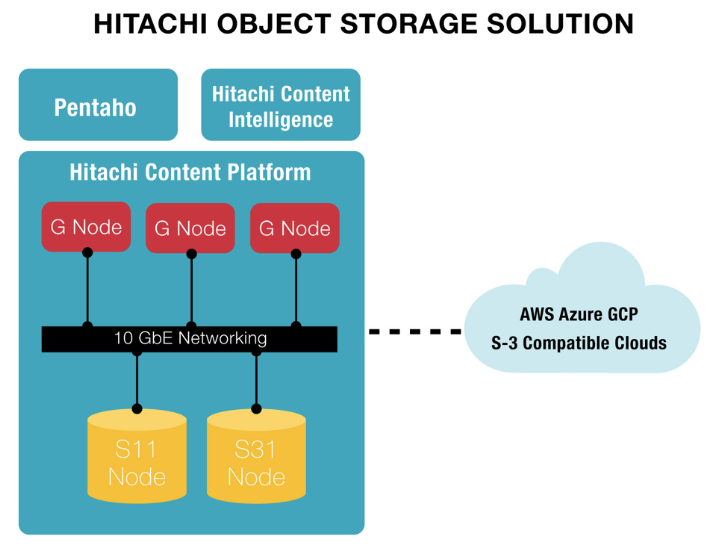
HCP Solution
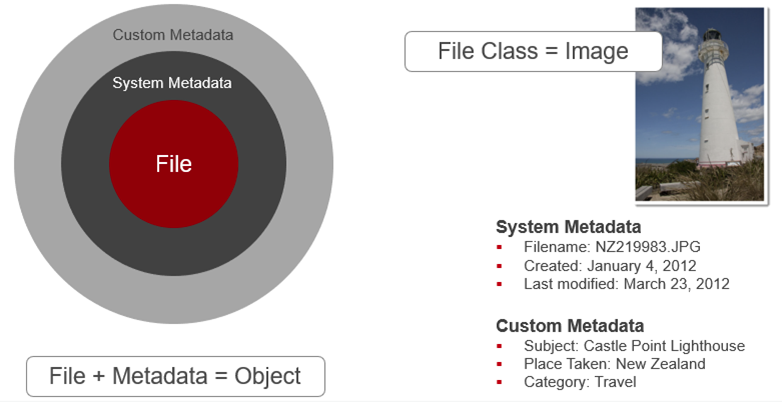
HCP stores objects in a repository. Each object permanently associates data HCP receives (for example, a document, an image, or a movie) with information about that data called metadata.
Metadata
In PDI, you can query the metadata to locate and access HCP objects. The HCP object consists of a read-only file, a unique URL, system metadata properties, and custom metadata annotations.
{% tabs %}
{% tab title="1. Create a VFS connection to HCP" %}
{% hint style="info" %}
A VFS (Virtual File System) connection allows you to integrate and manage different storage systems within PDI, abstracting the complexities of underlying protocols. It provides a unified interface to access a variety of storage backends like Amazon S3, Azure Data Lake, Google Cloud Storage, and more.
{% endhint %}
**Create a VFS connection**
Perform the following steps to create a VFS connection in PDI:
1. Start the PDI client (Spoon) and create a new transformation or job.
2. In the View tab of the Explorer pane, right-click on the VFS Connections folder, and then click New. The New VFS connection dialog box opens.
3. In the Connection name field, enter a name that uniquely describes this connection. The name can contain spaces, but it cannot include special characters, such as #, $, and %.
4. In the Connection type field, select from one of the following types:Amazon S3 / MinIO:/HCP (Default):
* Simple Storage Service (S3) accesses the resources on Amazon Web Services.
* MinIO accesses data objects on an Amazon compatible storage server.
* HCP uses the S3 protocol to access HCP. See [Access to HCP REST](https://docs.hitachivantara.com/r/W5Oy5NghPggWbWs_8gNJXw/EI9PXAhtM9hivQPVrxVXEA) for more information.
x
{% endtab %}
{% tab title="2. Query Metadata" %}
x
x
x
x
x
x
{% endtab %}
{% endtabs %}
x
x
---
# Agent Instructions
This documentation is published with GitBook. GitBook is the documentation platform designed so that both humans and AI agents can read, navigate, and reason over technical content effectively. Learn more at gitbook.com.
## Querying This Documentation
If you need additional information that is not directly available in this page, you can query the documentation dynamically by asking a question.
Perform an HTTP GET request on the current page URL with the `ask` query parameter, and the optional `goal` query parameter:
```
GET https://academy.pentaho.com/pentaho-data-integration/data-integration/data-sources/storage/hitachi-content-platform.md?ask=&goal=
```
`ask` is the immediate question: it should be specific, self-contained, and written in natural language.
`goal` is optional and describes the broader end goal you are ultimately trying to accomplish on behalf of the user. GitBook uses it to tailor the answer towards what is most useful for that goal.
The response will contain a direct answer to the question and relevant excerpts and sources from the documentation.
Use this mechanism when the answer is not explicitly present in the current page, you need clarification or additional context, or you want to retrieve related documentation sections.