> For the complete documentation index, see [llms.txt](https://academy.pentaho.com/llms.txt). Markdown versions of documentation pages are available by appending `.md` to page URLs; this page is available as [Markdown](https://academy.pentaho.com/pentaho-data-integration/data-integration/data-sources/flat-files/rss-feed.md).
# RSS Feed
RSS reader ..
{% hint style="danger" %}
This step does not work in Pentaho Data Integration 9.5+
{% endhint %}
Steel Wheels have several JSON data sources. In this guided demonstration, you will create a simple workflow to extract the required reporting dataset.
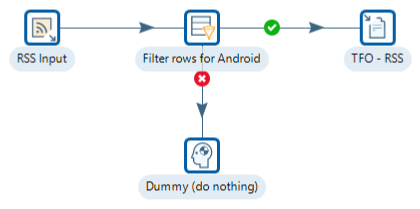
In this guided demonstration, you will configure:
* RSS Input
* Filter Step
RSS (Rich Site Summary; originally RDF Site Summary; often called Really Simple Syndication) uses a family of standard web feed formats to publish frequently updated information: blog entries, news headlines, audio, video.
RSS
#### To create a new transformation
1. In Spoon, click File > New > Transformation:
Any one of these actions opens a new Transformation tab for you to begin designing your transformation.
* By clicking New, then Transformation
* By using the CTRL-N hot key
{% tabs %}
{% tab title="1. RSS Input" %}
{% hint style="info" %}
This step imports data from an RSS or Atom feed. RSS versions 0.91, 0.92, 1.0, 2.0, and Atom versions 0.3 and 1.0 are supported.
{% endhint %}
1. Drag the ‘RSS Input’ step onto the canvas.
2. Double-click on the step, and configure the following properties:
{% endtab %}
{% tab title="2. Filter rows" %}
{% hint style="info" %}
The Filter Rows step allows you to filter rows based on conditions and comparisons. Once this step is connected to a previous step (one or more and receiving input), you can click on the "", "=" and "" areas to construct a condition.
To enter an IN LIST operator, use a string value separated by semicolons. This also works on numeric values like integers. The list of values must be entered with a string type, e.g.: 2;3;7;8
{% endhint %}
1. Drag the ‘Filter rows’ step onto the canvas.
2. Double-click on the step, and configure the following properties:
{% endtab %}
{% tab title="3. Text File ouput" %}
{% hint style="info" %}
The Text file output step is used to export data to text file format. This is commonly used to generate Comma Separated Values (CSV files) that can be read by spreadsheet applications. It is also possible to generate fixed width files by setting lengths on the fields in the fields tab.
{% endhint %}
1. Drag the ‘Text File Output’ step onto the canvas.
2. Double-click on the step, and configure the following properties:
{% endtab %}
{% tab title="4. RUN" %}
1. Click the Run button in the Canvas Toolbar
2. Click on the Text File Output step and Preview data.
{% endtab %}
{% endtabs %}
---
# Agent Instructions
This documentation is published with GitBook. GitBook is the documentation platform designed so that both humans and AI agents can read, navigate, and reason over technical content effectively. Learn more at gitbook.com.
## Querying This Documentation
If you need additional information that is not directly available in this page, you can query the documentation dynamically by asking a question.
Perform an HTTP GET request on the current page URL with the `ask` query parameter, and the optional `goal` query parameter:
```
GET https://academy.pentaho.com/pentaho-data-integration/data-integration/data-sources/flat-files/rss-feed.md?ask=&goal=
```
`ask` is the immediate question: it should be specific, self-contained, and written in natural language.
`goal` is optional and describes the broader end goal you are ultimately trying to accomplish on behalf of the user. GitBook uses it to tailor the answer towards what is most useful for that goal.
The response will contain a direct answer to the question and relevant excerpts and sources from the documentation.
Use this mechanism when the answer is not explicitly present in the current page, you need clarification or additional context, or you want to retrieve related documentation sections.